
About | Download | Newsletter | System requirements | Purchase | Documentation | Version History | License agreement | Customers
About
JTB Quick Perspective will transforms Points, Lines, straight Polylines and "landscape" Blocks to perspective view drawing, all in 2D working space.
If you want to add some simple perspective view to your drawing without getting involved in complicated 3D modeling, you will find JTB Quick Perspective invaluable. All you need is one command and you will be taken through a simple procedure where you will control required extrusion and rotation. Newly created objects are polylines and can be used as source frame for the next command call. With JTB Quick Perspective you will create 3D-like perspective views with just a few clicks!
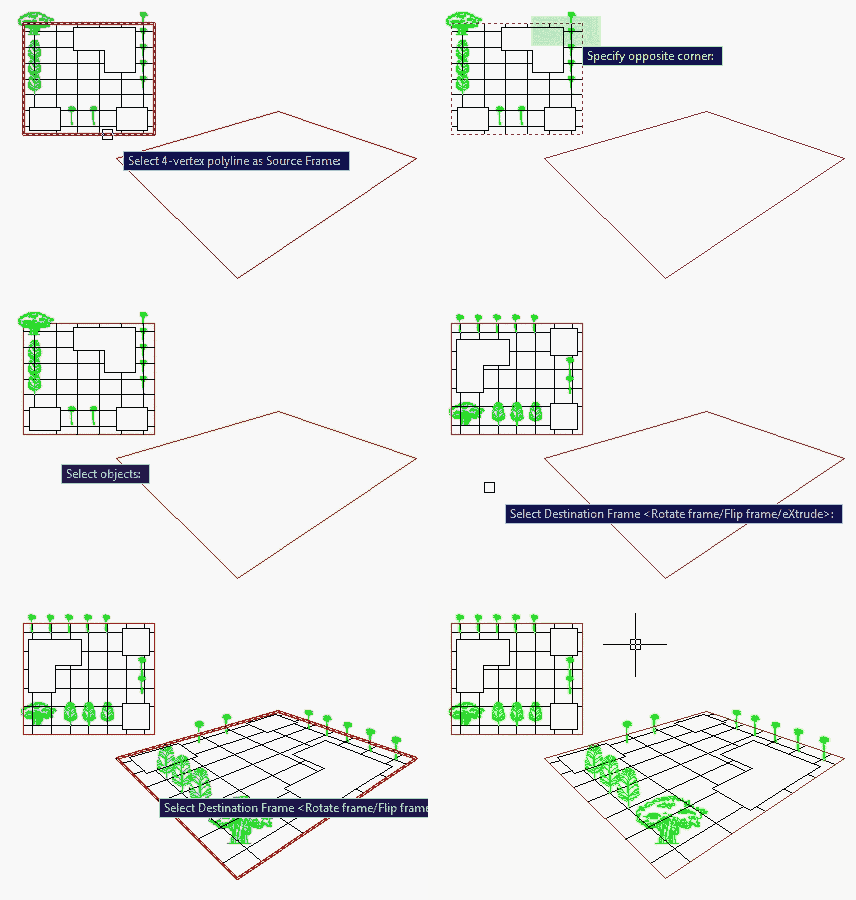
Note: "Landscape" block should have insertion point at the bottom.
To download the sample drawing shown in the preview image: JTB Quick Perspective.dwg
JTB Quick Perspective is available as an AutoCAD app on the Plug-ins or Add-ins tab.
Download
JTB Quick Perspective 30-day trial is available as an AutoCAD app on Autodesk App Store.

Alternative download: JTB_Quick_Perspective_4.1.0.zip
Sample drawing for this app: JTB Quick Perspective.dwg
System requirements
AutoCAD 2000 or later or verticals based on AutoCAD where AutoCAD 2026 is the most recent version supported.
All verticals or flavors based on AutoCAD should be working like AutoCAD Architecture (ACA), Architectural Desktop (ADT), AutoCAD Civil 3D, AutoCAD Electrical , AutoCAD Map 3D, AutoCAD Mechanical, AutoCAD MEP (AMEP, ABS), AutoCAD P&ID, AutoCAD Plant 3D, Autodesk Advance Steel.
BricsCAD or other CAD software with LISP functionality can be supported upon request.
Compatible with those operating systems AutoCAD runs on like Windows Vista, Windows 7, Windows 8, Windows 8.1, Windows 10 and Windows 11.
Older Windows versions might also work but are not directly supported.
JTB World is an Autodesk Authorised Developer

Purchase
New license: 20 USD for one license or less depending on the quantity of licenses. Support and upgrades is included for versions released within 1 year after purchase. If Auto-Renewal is selected it is 6 USD per year and can be cancelled at anytime.
Upgrade license: 6 USD for 1 year for one license or less depending on the quantity of licenses. If Auto-Renewal is selected it is 6 USD per two years and can be cancelled at anytime.
Upgrade license: 10 USD for 2 years for one license or less depending on the quantity of licenses. If Auto-Renewal is selected it is 10 USD per two years and can be cancelled at anytime.
Once you have purchased a license, follow the instructions and email to JTB World for the license activation key. See activation instructions here: JTB World Apps Licensing.
If you have really many users that you want to give access to this software we can discuss a discounted price based on your particular situation. Educational discounts available.
The license is perpetual. If you have more than one computer and you are the only user of the application one license is enough.
The network license manager is available at no extra cost and normally most useful for companies with quite many licenses.
If your US company is tax exempt contact us directly.
2Checkout (Verifone) supports 45+ online and offline payment methods globally, but availability depends on shopper country, currency.
Main families of payment methods
-
Credit/debit cards (global core): Visa, Visa Electron, MasterCard, Maestro, Eurocard, American Express, Discover/Novus, JCB, UnionPay, plus domestic Visa/MasterCard variants in markets like Brazil and Turkey.
-
Local/regional cards: Dankort/VISA (Denmark), Bancontact (Belgium), Postepay (Italy), CB/Carte Bancaire (France), local Turkish and Brazilian cards, and other regional card schemes.
-
Digital wallets: PayPal, PayPal Express, Google Pay, Apple Pay, Alipay, WeChat Pay, MobilePay (DK), Vipps (NO), and others like Skrill, Neteller, Qiwi, WebMoney, Trustly depending on region.
-
Bank transfer & offline: Local and international bank/wire transfer (US, DE, UK, rest of world), SEPA-type transfers in EU, purchase orders, and additional local bank transfer rails in EMEA/APAC.
Documentation
Installation
Use the AutoCAD app installer that also puts a button on the Add-ins (Plug-Ins in older AutoCAD versions) Ribbon tab.
Activation
See activation instructions here: JTB World Apps Licensing.
Usage
The command to start the program is JPP.
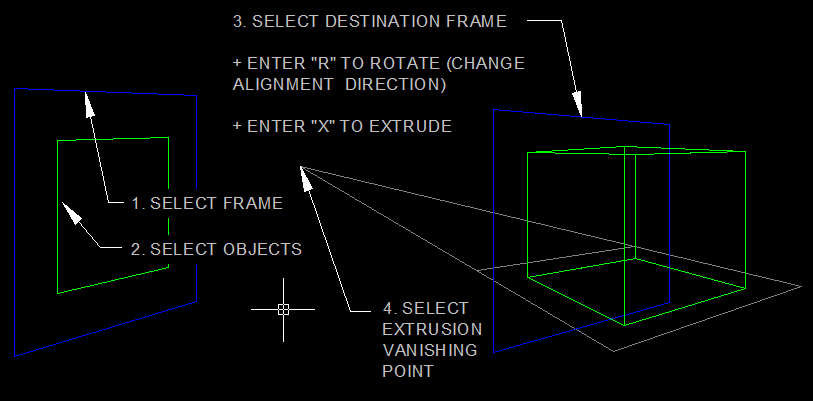
Select a trapezoid polyline as frame. Then select lines, straight polylines and landscape blocks as source objects. You can select a series of another trapezoid polylines as destination frames, or using directly the current one.
Type R to rotate frame direction. Type F to flip direction. Type X to generate extrusion. You have 2 extrusion options: extrude as Solid, or just extrude Plan only.
3 point perspective view
This plugin is a gift to drafters who love classical descriptive geometry, where the built-up of a 3D object's perspective view on 2 dimensional canvas will be like this:
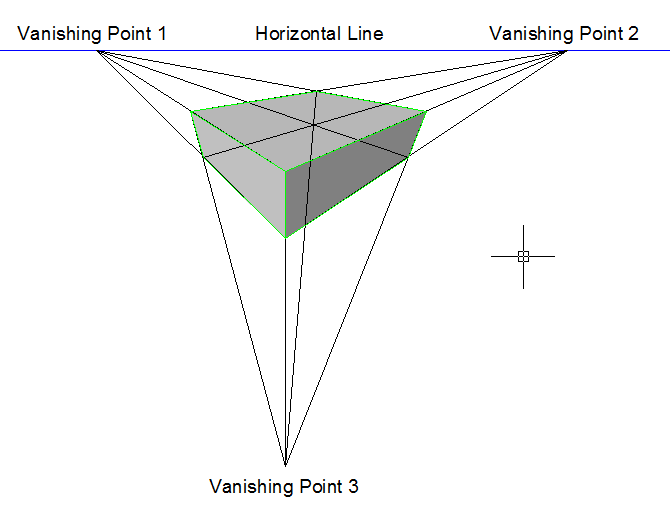
The above schema is called 3 points perspective view, where:
+ Parallel lines will find each other at infinitive point called "vanishing point".
+ Ground plan and all of its parallel lines and plans will expand to infinitive line called "horizontal line".
We will start with a simpler case: 2 points perspective view:
2 point perspective view
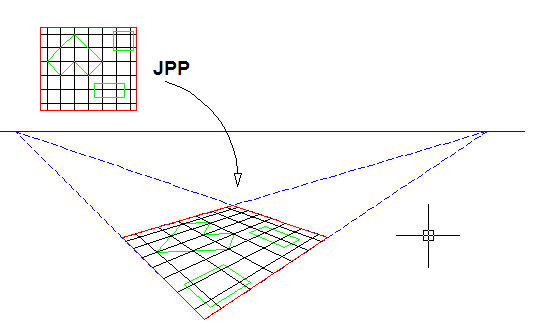
Our target is to transform a normal plan to a perspective plan. Using JPP command, you can do it as easily as follow:
+ Click to select the source frame of your source plan
+ Select the source objects
+ Click to select the destination frame of the perspective plan.
+ In a second, a perspective plan will be created. You can type R to rotate it around if 2 plans are not aligned.
Note 1: You should manually set up your drawing (the horizontal line, the vanishing points,etc.) before using the command.
Note 2: 2 frames should be draw in the same direction: clockwise or counter clockwise.
How to do it?
Let's start from the "atom" procedure: transforming a point from a normal plan to a perspective plan:
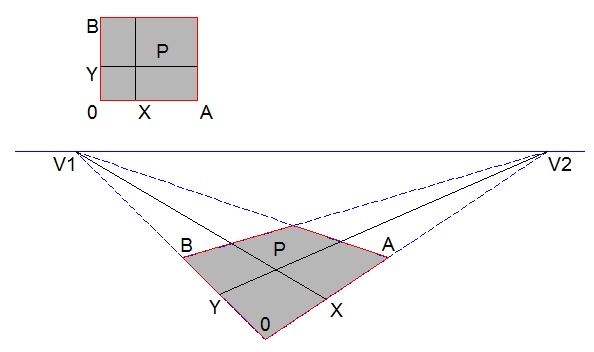
Denote O, A, B points as the coordinate system.
Denote X and Y as point P coordinates. We got to find the equivalent X and Y on the perspective plan.
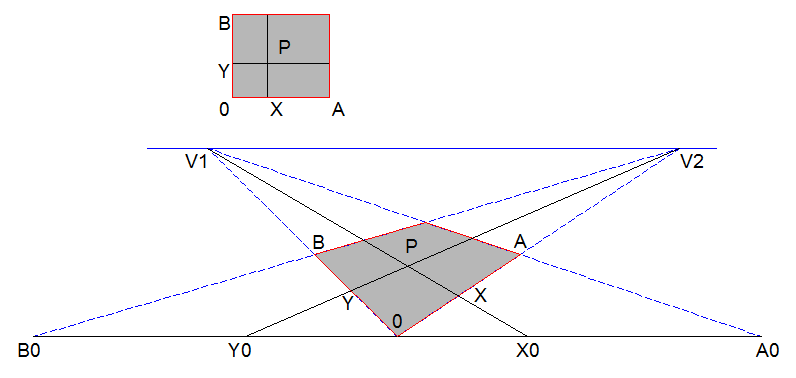
In perspective plan, ratio OX/OA and OY/OB are not the same as in the source plan, except in case they are horizontal line. Therefore, we got to draw an additional horizontal line go through O to transfer the ratios. We will find X0 and Y0 where:
+ OX0/OA0 = OX/OA (source plan)
+ OY0/OB0 = OY/OB (source plan)
Notice this is 2 points perspective view. Line V1-O, V1-X0, V1-A are parallel. Line V2-O, V2-Y0, V2-B are parallel.
Hence, our transformed point P will be found at intersection of line V1-X0 and line V2-Y0. Problem solved.
JTB Quick Perspective command
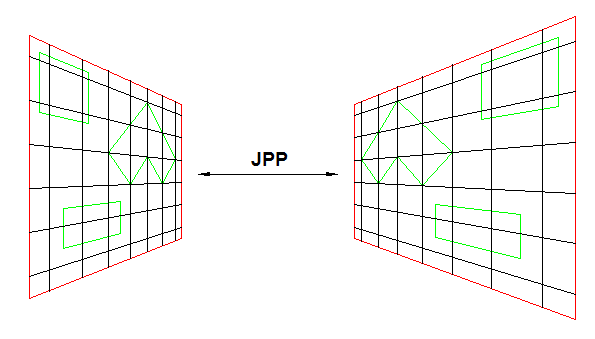
Rise from the above "atom" procedure, JPP enabled you to transform drawing from any source plan to any target plan, as image shown below:
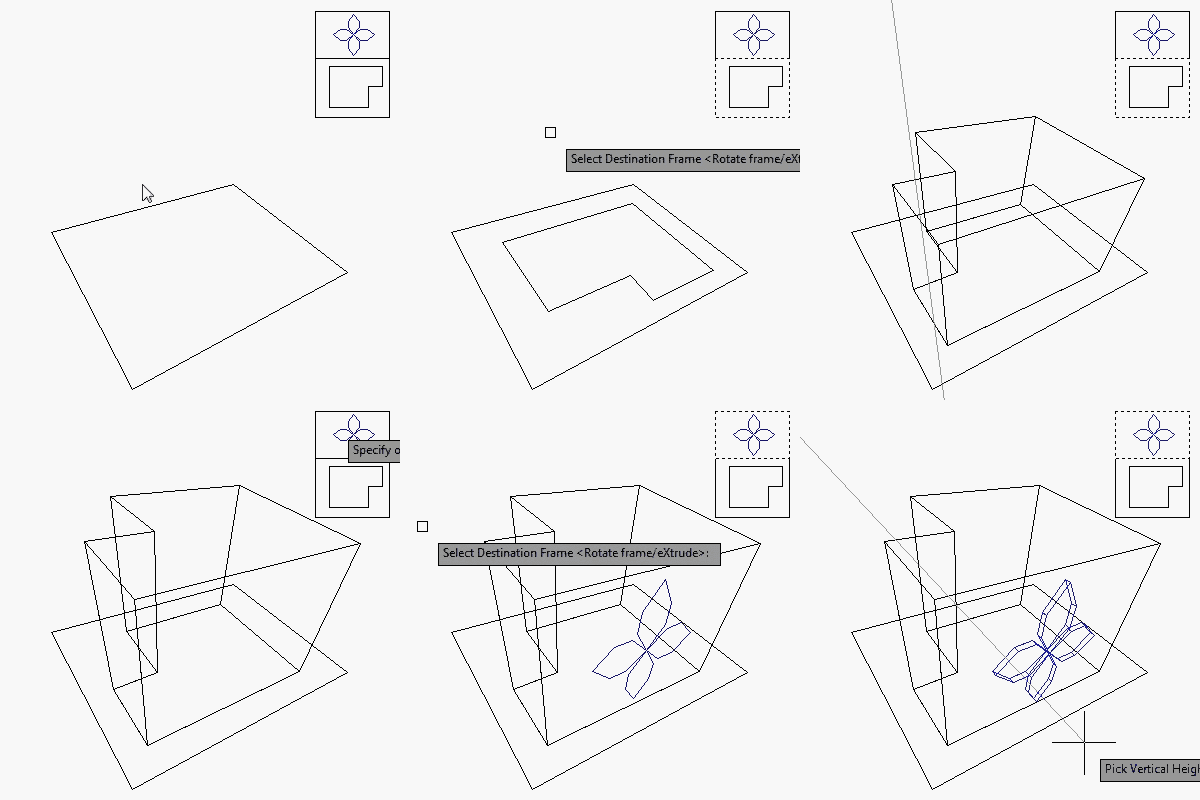
Once a 2 point perspective drawing is done, type X and the command will help you make the extrusion. Objects can extruded from ground plan or from any plan by selecting the third vanishing point. The final result is a complete 3 points perspective view.
Version History
- 2025-03-25 - version 4.1.0
- Added Autodesk AutoCAD 2026 support.
- 2024-12-27 - version 4.0.0
- Added Autodesk AutoCAD 2025 support.
- 2023-05-21 - version 3.5.0
- Added Autodesk AutoCAD 2024 support.
- 2022-04-25 - version 3.4.0
- Added Autodesk AutoCAD 2023 support.
- 2021-07-09 - version 3.3.0
- Remove messages about uninstallation in very-silent installation mode.
- 2021-04-13 - version 3.2.3
- Added support for Autodesk AutoCAD 2022
- 2020-08-15 - version 3.2.2
- Minor fix
- 2020-07-26 - version 3.2.1
- Upgraded to License 4.3
- 2020-05-16 - version 3.2
- Added support for Autodesk AutoCAD 2021
- 2019-03-28 - version 3.1
- Added support for Autodesk AutoCAD 2020
- 2018-03-22 - version 3.0
- Added support for Autodesk AutoCAD 2019
- License system update
- 2017-05-08 - version 2.6
- Added support for Autodesk AutoCAD 2018
- 2017-02-06 - version 2.5
- Enabled to generate "landscape" blocks.
- Added "Flip" option.
- Fixed issue when working with UCS.
- Fixed one bug bug when you select objects including circles, arcs or something that not supported, then at running flipping and rotating, it keeps erasing wrong objects around.
- Fixed one bug when transform blocks to a trapezoid quadrilaterals. Transform blocks is a feature added at last. Then bug happen there when parallel lines does not intersected.
- Works with all Autodesk® AutoCAD® products.
- version 2.0
- Enabled Rotate frame direction.
- Enabled Extrusion.
License agreement
The license agreement is found here.
Customers
Contact us for any questions, wishes or comments.