
About | Download | Newsletter | System requirements | Purchase | Documentation | Version History | License agreement | Customers
About
JTB Layer Palette is very handy tool design especially for BricsCAD. Now you can manage layers in BricsCAD without leaving drawing screen. Customizable view, multiple layers tasking, this will make managing layers much more easier.
Download
Trial version will work only in drawing where model space has less than 700 objects. Otherwise, an activation dialog will popup. Support is available during the trial as well as after purchase.
Download JTB Layer Palette for BricsCAD
System requirements
Operating system: same as the CAD software is running on.
BricsCAD Pro or Platinum 15 and newer is supported. BricsCAD Lite is not supported.

Contact us for older versions or for other CAD software.
Purchase
New license: 45 USD for one license or less depending on the quantity of licenses. Support and upgrades is included for versions released within 1 year after purchase. If Auto-Renewal is selected it is 14 USD per year and can be cancelled at anytime.
Upgrade license: 14 USD for 1 year for one license or less depending on the quantity of licenses. If Auto-Renewal is selected it is 14 USD per two years and can be cancelled at anytime.
Upgrade license: 23 USD for 2 years for one license or less depending on the quantity of licenses. If Auto-Renewal is selected it is 23 USD per two years and can be cancelled at anytime.
Once you have purchased a license, follow the instructions and email to JTB World for the license activation key. See activation instructions here: JTB World Apps Licensing.
If you have really many users that you want to give access to this software we can discuss a discounted price based on your particular situation. Educational discounts available.
The license is perpetual. If you have more than one computer and you are the only user of the application one license is enough.
The network license manager is available at no extra cost and normally most useful for companies with quite many licenses.
If your US company is tax exempt contact us directly.
2Checkout (Verifone) supports 45+ online and offline payment methods globally, but availability depends on shopper country, currency.
Main families of payment methods
-
Credit/debit cards (global core): Visa, Visa Electron, MasterCard, Maestro, Eurocard, American Express, Discover/Novus, JCB, UnionPay, plus domestic Visa/MasterCard variants in markets like Brazil and Turkey.
-
Local/regional cards: Dankort/VISA (Denmark), Bancontact (Belgium), Postepay (Italy), CB/Carte Bancaire (France), local Turkish and Brazilian cards, and other regional card schemes.
-
Digital wallets: PayPal, PayPal Express, Google Pay, Apple Pay, Alipay, WeChat Pay, MobilePay (DK), Vipps (NO), and others like Skrill, Neteller, Qiwi, WebMoney, Trustly depending on region.
-
Bank transfer & offline: Local and international bank/wire transfer (US, DE, UK, rest of world), SEPA-type transfers in EU, purchase orders, and additional local bank transfer rails in EMEA/APAC.
Documentation
See activation instructions here: JTB World Apps Licensing.
1. How it works
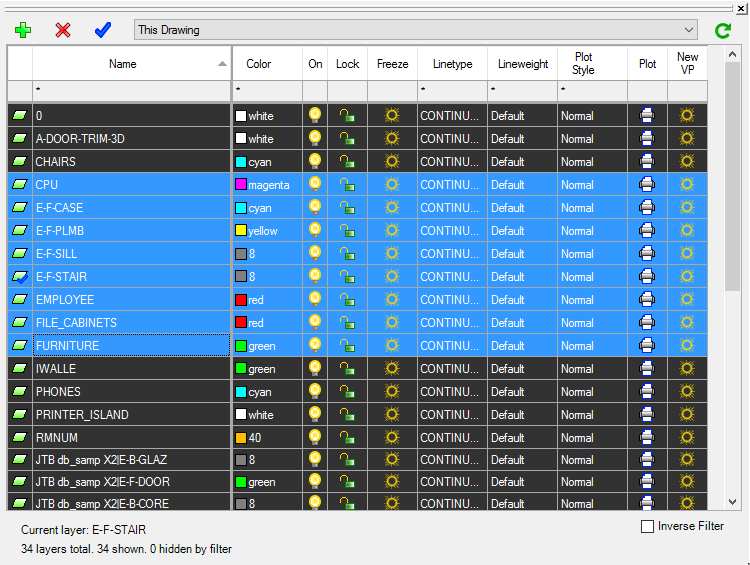
Run command LAYERPALETTE then you will have this palette showing:

The interface is quite straightforward. You can select multiple layers and then click to icons to change their properties all at once.
On top of the palette, to the left, there are 3 buttons of basic commands: Add Layer, Delete Selected Layers and Set Current Layer
To rename layer, just select its row then type new name. Using up and down key to navigate as if working in a spreadsheet.
Anytime, you can use native UNDO command to undo changes.
2. Filter view
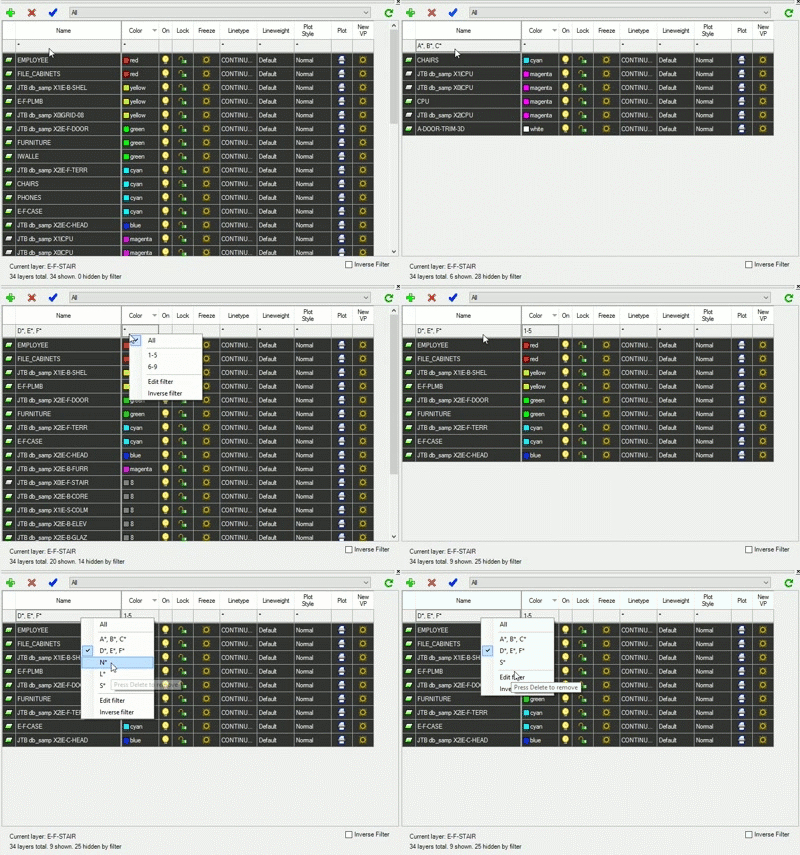
On top of the palette, in the middle, there are list of built-in filters. You can choose showing All Layers, or layers in This Drawing only, or Xrefs layers only, or layers in a specific Xref.
To filter specific properties, click on the first row of the palette's table and a list of filter patterns will pop up.
- + For layer name, you can choose showing only layers whose names start with "A", or "B", or "C" by selecting "A*, B*, C*"
- + For color, you can choose showing only layers whose colors are in range of 1 to 5 by selecting "1-5"
- + For lock, you can choose showing only locked layers, or unlocked layers.
- + Filtering other properties in other columns are similar.
Name filter and color filter are more flexible. You can click to "Edit Filter" to add new filter pattern.
To delete a filter, move your mouse on it and click "Delete" key.

3. Other commands
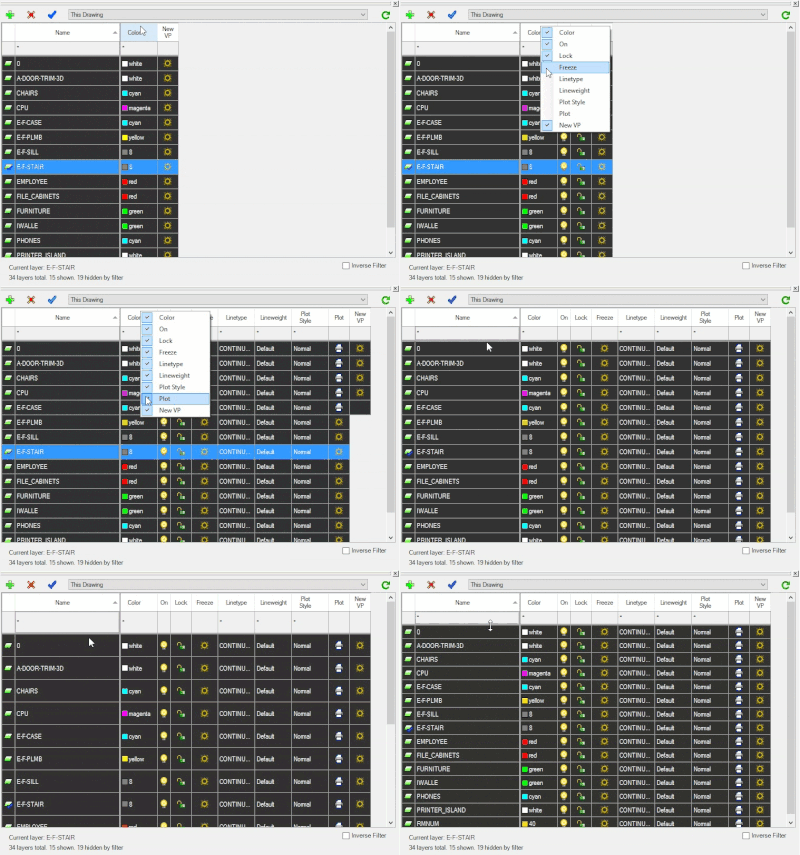
You can show or hide columns by right click to any column header, then tick to the check list.
To resize rows, resize the first one and all other rows will follow.

Version History
Most recent and previous versions:
2024-12-27 - version 3.0.0
- Added support for BricsCAD V25
2022-04-25 - version 2.4.0
- Added support for BricsCAD 22.
2022-02-14 - version 2.3.0
- Update the framework files.
2021-07-09 - version 2.2.0
-
Remove messages about uninstallation in very-silent installation mode.
2021-03-20 - version 2.1.2
- Added support for BricsCAD 21
2020-07-26 - version 2.1.1
- Upgrade of the license functionality.
2020-05-08 - version 2.1.0
- Upgrade of the license functionality.
2019-02-12 - version 2.0.1
- Upgrade of the license functionality.
2018-02-19 - version 2.0
- Network license implemented.
- Add support for BricsCAD version 18.
1.2.1
- Fixed a bug that closed app if adding layer after select a filter.
- Fixed some flickering that could happen with menus when undocked.
- Improved installer to autoload the app in BricsCAD.
- Tested in BricsCAD version 17.
1.2
- First public release
1.0
- Initial release
License agreement
The license agreement is found here.
Customers

Contact us for any questions, wishes or comments.