
My experience of ADT 2007 aka Kyoto. See also what's new in AutoCAD 2007 since this will also more or less be included in ADT 2007 and I'll try to not duplicate the information.
DWG file format change between ADT 2006 and ADT 2007.
New and/or enhanced functions.
Space / Area / eSpace Unification. Previous version objects (Areas, Area Groups, eSpaces, eZones) are automatically upgraded into the new Space and Zone objects. Name Definitions used by Areas & Area Groups are now provided through the new List Definition property set type. Spaces may also be grouped into Zones across xrefs.
The Space Auto-Generate command will allow creation of spaces in a single click from an entire drawing or xref.
Spaces in Architectural Desktop are now capable of being associative to the objects (walls, slabs, curtain walls, etc) which surround them. In previous releases you would need to reselect the bounded objects to update the space. In Architectural Desktop Kyoto this is streamlined by a simple right-click Update command.
Spaces now have three shape types: 2D (Area), Extrusion, and Freeform allowing you to accurate report the volume, in addition to providing the required information used by the Standards-based Calculations. Mass element editing and Boolean operations provide flexibility modeling abilities for non-associative spaces.
Stair Wizard
Many enhancements to the stair object
Many enhancements to the wall object
Multicomponent slabs
2D and Freeform Shapes
Improvements to 2D sections and elevations
Improved dimensioning - dimension to components in walls
Project Navigator improvements - support for working with mapped folders and more flexibility where you want to have the folders
Automatic Space Generation
Hierarchical classification definitions
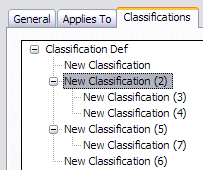
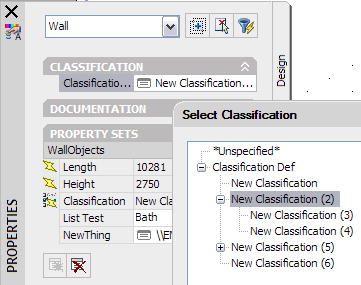
Classifications can be assigned to individual objects.
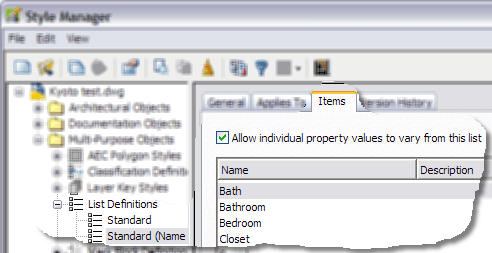
List definitions allow the creation of a list of values that can be used as space names, zone names or within a manual schedule property definition.
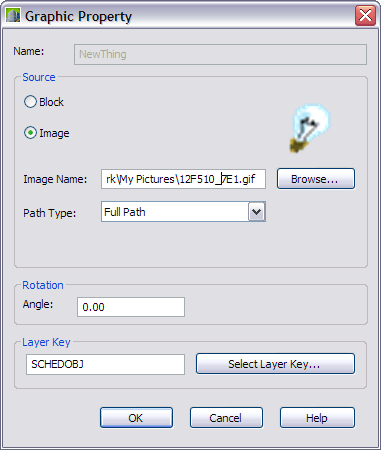
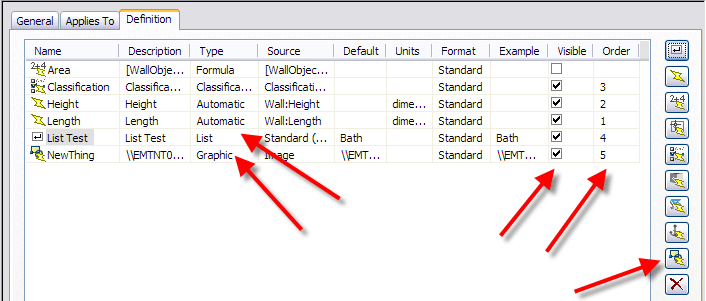
Graphic Property Definition
Property Set Definition with list definition, graphic property definition, visibility and sort order.
The anchor property definition allows a schedule property to retrieve information from an object to which the scheduled object is anchored.
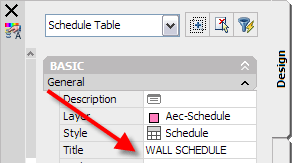
Schedule Table Title per object
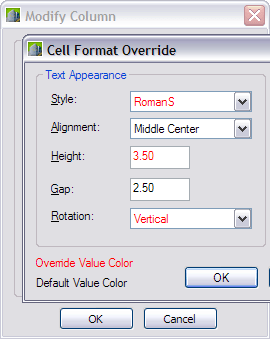
Header override. The header text that can rotate independent of other headers.
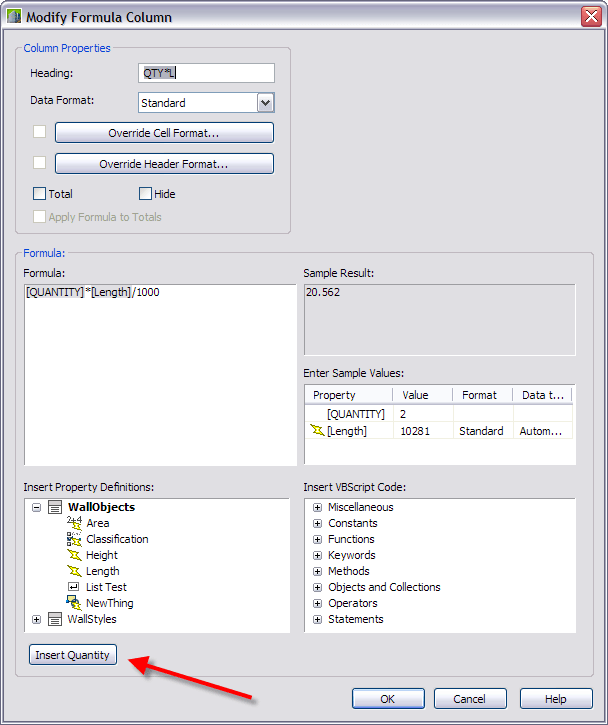
The new schedule formula column
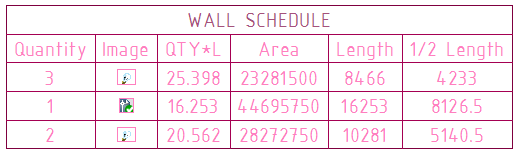
Schedule with images
Subscription customers will get free access to Vault. Doesn't work with Project Navigator though.
System requirements
Besides minimum system requirements there are also additional recommendations.
Minimum: 1 GB RAM, Pentium® 4 1.4 GHz
Recommended: 2 GB RAM, Pentium® 4 3.0 GHz or greater processor, 128 MB or greater, OpenGL-capable workstation-class graphics card
Bug fixes
The spelling error described here is fixed.
Still missing. Wish list for the next time.
Export All and Import in the context menu in Customize has been removed. Why?
List Definition Items and Classification Definition Items should allow all characters. I don't want this limitation. List/Classification Items should allow even <>/\":?*|,=`
It should be possible to specify sort order and rearrange the items in a List Definition. Drag and drop of items in a Classification Definition could also be improved.
Existing bugs, feature limitation or other issues.
If I drag a group/category from Content Browser to the tool palette that the icons are white/blank. Try for example to go into the "Sample Palette Catalog - Metric" and drag "UK Palettes" into ADT. If the category is set to "Link items when added to workspace" it's possible to refresh the palette as a workaround but otherwise it's not.
On the Sheet tab in PN the Detail part of the window doesn't have any scroll bar and makes it hard to scroll in the text. In AutoCAD it has the scroll bar.
When you tried to open the Style Manager, it was slow to open or it did not respond at all. This issue can occur if there is a large number of styles in the drawing that you are not using. To correct this issue, you can purge the styles.
If you are in the Display Theme Style Properties dialog box and changes the value of a theme rule and then click in the Theme Settings list box the value is lost. Remember to click enter first.
I run into a problem with the Classification Definition SpaceType_SIS in ADT 2007 and I had to rename it and reapply the SIS Standard calculation standard in Options>AEC Object Settings to get it to work again.
Sometimes not all properties are listed in AecSpaceToolToAutoGenerate>Generate Spaces>Tag Settings>Add Property Set to New Spaces>Property 1 and Property 2. The reason is that if the PSD has other than manual property definitions and all property definitions added after that will not show up. The workaround is then to add all manual property definitions first.
Readme info.
The readme is typically located at this location:
C:\Program Files\Autodesk Architectural Desktop 2007\Help\readme.chm
Side-By-Side Installation: Uninstalling of Architectural Desktop 2006 after Architectural Desktop 2007 has been installed will cause problems with tools and project behavior in the remaining Architectural Desktop 2007 installation. Running a Repair Registry will restore the proper functionality of Architectural Desktop 2007.
Remote Content: Locations specified in the Content and Support File Configuration dialog should include the complete path to the desired location of this content. It is not recommended to use a single location for all content because some files, such as Texture Maps, will be installed directly in that location and not in a subdirectory. As an example, if H:\ADT Content\ was specified as the path for Texture Maps, the corresponding texture map files will not be installed to H:\ADT Content\Texture Maps but rather H:\ADT Content. A new Append option has been added within the Content and Support File Configuration dialog, which simplifies of the creation of individual paths for each content group.
Project Standards: Project Standards in 2007 will not operate when either the standards drawings or project drawings have not been promoted to the 2007 format. When a project is promoted from a previous version to the current drawing and project format, Projects Standards automatically assigns new versions to many objects and it will be necessary to synchronize the project again. Prior to this action, the standards drawings should be opened, a new version comment should be added through either Style Manager or Display Manager and then the standards drawings should be saved in 2007 format.
If an entire project remains unpromoted, the analyzing project drawings dialog will appear blank with an empty progress meter. This condition will not occur when the entire project has been processed.
Please refer to the Migration of Legacy Drawings section in the readme for details on how to automate the migration of previous version drawings.
Project Standards: Use of Project Standards to synchronize classification definitions or list definitions may fail if the classification definitions or list definitions in the standards and project drawings contain different values.
Classification Definitions: In order to change the classification definition that a property definition applies to, first uncheck any existing check boxes that are to become unchecked, click Apply and then select the desired definitions.
2D Section/Elevations: Using the Merge Common Materials toggle to remove unwanted linework between objects that share common Material definitions may produce unexpected results in 2D section/elevations. If the linework between objects is not properly removed, or objects fail to be drawn or hidden properly in a 2D section/elevation, then disable the Merge Common Materials option for the affected materials and use the Edit Linework functionality to remove the linework.
Railings in Viewer: While an isometric view of a railing is displayed in a Viewer, systems with Nvidia video cards may exhibit instability when the visual style is changed from Realistic to another value. This problem can be resolved by disabling hardware acceleration or by changing the preset view to top and then changing the visual style.
Block Editor: Inclusion of Architectural Desktop objects in Dynamic Blocks or use of Block Editor to edit blocks that include Architectural Desktop objects is not recommended. Either of these actions can produce unexpected results.
Hatches and AEC Objects: If hatches within or on AEC objects fail to appear, try increasing the MaxHatch setting using the following syntax at the command line:
(setenv "MaxHatch" "5000000")
In some cases, a value of 10000000 might be necessary to restore the proper display of hatches within or on AEC objects. Please note that this syntax is case-sensitive, so it is recommended to copy the line from above and paste it to the command line.
Object Display dialog: If the Material Definition Properties dialog is accessed from the Object Display dialog, the Object Display dialog may become non-responsive to mouse clicks after the Material Definition Properties dialog is closed. If this occurs, press ESC to close the Object Display dialog.
Keynote Legends: Use of the Audit command in drawings that contain keynote legends may report that numerous AcDbMText errors were found and fixed but subsequent uses of the Audit command still report these same errors. These are benign errors and can be safely ignored.
Error occurred during save warning: When dragging geometry that refers to objects in blocks or xrefs, such as tags, AEC dimensions, spaces with bounding objects or objects with interference conditions, a warning dialog may be displayed indicating that the drawing requires recovery. This is a benign warning and can be safely ignored.
ADT Commercial Template Project: The paths for two tools, Base Point and Live Area Guide, on the commercial projects need to be corrected in order to operate properly. To achieve this, point the style location in the tool properties to the Project Styles.dwg under the project's content folder.
When Architectural Desktop 2007 drawings are opened in AutoCAD 2007, hatching may not be displayed on some objects in isometric views. This problem occurs because the required .pat files are not included in the AutoCAD 2007 installation. This problem can be resolved by copying the required .pat files to the AutoCAD 2007 pats directory.
Some Material texture names have been renamed to better align with the Visualization features of AutoCAD 2007. Texture names that had an ampersand (&) in previous releases of Architectural Desktop have replaced the ampersand with a dash (-). When opening an existing drawing that contains materials that used these texture names, the textures may not be displayed when viewing the model with a Visual Style that enables Materials and Textures, such as Realistic. If this occurs, use one of the procedures described in the readme file to resolve this issue.
Associative dimension points on objects that reside in xrefs may not be removed if the associated objects are deleted in the xref and then the xref is reloaded. The correct display of associative dimension points can be obtained by saving, closing and re-opening the host drawing.
In the AEC Dimension tab within the Options dialog, the Use Superscript mm and Trailing Zero Suppression for Superscript options may not be available after the Dimension In option is set to meters or centimeters. To make these options available, click OK to exit the Options dialog and then open the Options dialog again.
For best results, it is recommended that previous version drawings be opened and saved in 2007 format before attempting to combine them, through Block Insert or Xref, with 2007 format drawings.
Spaces, areas, and space boundaries have been unified into a single space object which contains the properties formerly associated with these individual objects. In addition, new and enhanced features designed to provide a comprehensive solution for spatial design within the building model have been added. Please refer to the Help system for more information about specific legacy data topics.
Space boundaries with a boundary type of separation will be converted to walls and non-associative spaces.
Group template trees may become disconnected because a zone can only be attached once in a zone tree.
Previous version drawings that include slabs or roof slabs with boolean additions will need to have the appropriate shrink wrap component turned on in order to display the full volume of the object.
Slabs that contain boolean operations will be converted to interference conditions with additive interferences being applied to the slab's shrink wrap body display component. By default, slab and roof slabs in Architectural Desktop 2007 have the model shrink wrap body display component turned off, so this option will need to be turned on in order to see additive interferences from legacy slabs.
Project Standards in 2007 will not operate when either the standards drawings or project drawings have not been promoted to the 2007 format. When a project is promoted from a previous version to the current drawing and project format, Projects Standards automatically assigns new versions to many objects and it will be necessary to synchronize the project again. Prior to this action, the standards drawings should be opened, a new version comment should be added through either Style Manager or Display Manager and then the standards drawings should be saved in 2007 format.
If an entire project remains unpromoted, the analyzing project drawings dialog will appear blank with an empty progress meter. This condition will clear once the entire project has been processed.
When previous version drawings are opened, a dialog is displayed with a warning that saving this drawing will upgrade AEC objects to 2007 format. If a previous version drawing is opened by double-clicking the file in Windows Explorer, this dialog may be hidden behind the drawing making Architectural Desktop appear to have hung; clicking anywhere on the application to give it focus will make the dialog come to the foreground.
The promotion of previous version drawings to 2007 format can be automated through the use of the following process, which starts with the creation of a batch (bat) file. Running the batch file makes a complete copy of the project (or folder that contains previous version drawings), then recursively searches for all dwg, dwt and dws files contained in this location and finally generates a script (scr) file. Running the script file results in each of the copied dwg and dwt files being opened, saved and closed, which results in these files being promoted to 2007 format. If any dws files are contained in the designated folder, their paths are displayed. These files will need to be manually opened and saved in 2007 format. Check the readme file for the batch procedure that promotes a project to the current DWG format.
Do not include Architectural Desktop objects in block definitions to be used in schedule graphic property definitions. Instead explode the Architectural Desktop objects and use the resultant objects to create a block definition.
When creating graphic property definitions with a data source of Block, it is recommended to use the Design Center to import the block definition into the schedule drawing, rather than browsing to an external drawing and importing the block through the Graphic Property dialog.
Images included in schedule tables through use of graphic property definitions will not be incorporated in plotted output, including dwf files. To work around this problem, use the Export to AutoCAD command to generate a drawing in which all AEC objects are exploded and plot this drawing instead of the original. Even with this work-around, it is important to note that images within schedule tables will not be displayed in dwf files create via the Publish to 3D DWF command or any files created through the Export command.
Images included in schedule tables through use of graphic property definitions will not be displayed when the current visual style is set to Realistic or Conceptual.
Under some circumstances, manipulation of a schedule table that includes images may cause the Undo and Redo commands to produce unexpected results.
The evaluation of unicode strings in formulas has been changed to always evaluate at runtime. Consequently, if you entered \U+003B, this string will automatically be converted to display ;. Because of this change, you may experience evaluation problems in formulas that use \U+0022 to represent a quote mark. These problems can be resolved through the following steps:
1. Open the drawing in Architectural Desktop 2006.
2. Edit the formula within the property set definition and replace instances of \U+0022 can be replaced with chr(34).
3. Save and close the drawing.
To create an associative 3D freeform space, the space must be fully bounded with intersecting objects on all sides, above and below.
The creation of associative 3D freeform spaces may fail when the bounding objects include curved curtain walls. If this problem is encountered, a wall with a minimal thickness can be used as a substitute bounding object.
If a freeform space doesn't update correctly after use of the Update Space Geometry command, it may be because the space no longer finds appropriate objects to form a boundary. To resolve this issue, use the Property Palette to change the space to be non-associative and then move the space so it is positioned within the bounding objects. Next, select the space, right-click and choose Make Associative.
After reloading an xref, it may be necessary to use the Regenerate Model tool (ObjRelUpdate command) to restore proper Space Auto Generate behavior.
For extruded spaces, the style assigned to ceiling and floor surfaces may not be correct and may need to be manually set.
Surface information cannot be edited on freeform spaces.
Tips & Trix
Viz Render is not installed as default. Use custom install to get it. If ADT is already installed go to Add/Remove
programs>ADT2007>Change and add the features you forgot on original install.
Updates & Service Packs.
Drawing Compare and Spaces module for Subscription customers. Auto-Updating Associative Spaces, Area Calculation Standards (such as BOMA (US), SIS and DIN 277(German)), Drawing Compare.
|