
Autodesk's Network License Manager is based on Recensera (Flexera) Software's FlexNet (earlier known as FLEXlm). If you want to create reports on license usage try our JTB FlexReport or free JTB FlexReport LT products.
Jimmy Bergmark – JTB World
This class is for anyone who wants to learn how to manage network licenses. You will learn the steps required to install and configure Autodesk Network License Manager and use the Options file to manage group license permissions. We will also cover command-line tools, how to troubleshoot and diagnose problems, optimization, limit borrowing, and upgrade licenses. You will learn how to list current users and create usage reports. This class will benefit everyone new to network licenses and those that want to learn more.
Handout: CM3943 - Autodesk® Network License Manager.pdf
Presentation: CM3943 - Autodesk® Network License Manager.pptx
This class can be viewed on YouTube: Autodesk Network License Manager and on Autodesk University Virtual.
Latest UPDATE done 2020-09-05. This document is modified and complemented after the class with more information and any recent changes.
Learning Objectives
At the end of this class, you will be able to:
· Report license usage
· Install and configure Autodesk Network License Manager
· Troubleshoot network license issues
· Manage network licenses
About the Speaker
Jimmy Bergmark has used, customized, and programmed AutoCAD®-based products since 1989. Jimmy has worked as an engineer using AutoCAD, as well as a CAD manager for a larger company. He is the owner of JTB World, and works with software development, customization, and consulting. His main focus is on: AutoCAD, AutoCAD Architecture, Autodesk® Revit®, C#, VB.NET, VBA, AutoLISP®, Visual LISP®, FlexNet, network licenses, license usage reports, etc.
Email: info@jtbworld.com
Table of Contents
Install and configure Autodesk Network License Manager
Autodesk Network License Manager
Advantages of the Distributed License Server Model
Disadvantages of the Distributed License Server Model
Global Network Use License (GNUL)
How Network License Manager is Working
Stop and Restart the License Server
Update FlexNet from a Previous Version
Set Up and Use an Options File
2048 character limit for lines
Defining Groups of Users or Computers
Options file and Active Directory integration
Configure License Borrowing with the Options File
Restrict maximum license usage
Changing server location of the FlexNet licensing service
Using an IP address in place of server hostname
Network License File described
Cascading Sequences and License Borrowing
Cascading Behavior for the Autodesk Industry Collections
Combining and Configuring Package License Files
Updating network license files
Combining network license files
Combining Autodesk with another vendor's products already using FLEXlm
Cascade licensing and the PLIST increment
Dynamic Licensing in Inventor Products
How products find license servers
How to specify license servers using the ADSKFLEX_LICENSE_FILE environment variable
FlexNet feature code descriptions for Autodesk products
How to set up priority user access
Restricting Access to FlexNet License Service
Troubleshoot network license issues
Windows Services Console and Task Manager
Increasing verbosity of FlexNet errors on the server
Increasing verbosity of FlexNet errors on the client
Losing Your Connection to the License Server
FLEX service did not start automatically
Network licenses are not released after exiting product
How to change the lmgrd port number on a FlexNet server and client
Network licensing error [1.5.-4] when starting the software
No such Feature Exists error [1.5.-5] when starting the software
Error when network version of software is started: Error [1.5.-12]
Error [1.5.-15] or [1.5.-18] when starting the software
No Valid License Error [1.5.-96], [1.5.-97], [1200.5.-96], [1200.5.-97]
Error getting status: Cannot connect to license server system
Corrupt CascadeInfo.cas file results in failure of cascading functionality
Valid host ID characters for network license files
Using the licpath.lic file for Autodesk network license enabled products
LMTOOLS Error: Data Execution Prevention
Autodesk® License Manager and server clustering
License management and support for VPN connections
Autodesk Product Support and Knowledge Base
Switching Between Three-Server Redundancy and Single-Server Configuration
About Losing Your Connection to the License Server
AutoCAD network unavailable license alerts
What is a Single-User License?
Industry Collections licensing
Industry Collections Concurrent Access Titles
Virtual Installation Guidelines
Install and configure Autodesk Network License Manager
Autodesk Network License Manager
Network licenses are managed by one or more network license managers running on servers within your company’s network. The network license manager is the software that makes licenses available to users. Network licensed software installed on workstations does not require individual registration and activation. Network licenses are also called "floating licenses," because they are not tied to a particular workstation or user. Most network licensed Autodesk products allow you to run unlimited concurrent sessions of a product on a single workstation while using only one network license.
With network licenses you can have more installations of software than you have licenses for. With for example 100 network licenses of AutoCAD there can be a maximum of 100 concurrent users running AutoCAD at any point in time but more than 100 computers can have AutoCAD installed.
Network licenses are more expensive than single licenses. Make sure to get a good return of investment (ROI) for them. The more users the easier it is to save money by using network licenses. Depending on how much the users are using the Autodesk product, network licenses can make sense even for companies with just 5-10 users. For companies with more users there is almost never a reason to have single licenses.
When you start a network licensed Autodesk product, it requests a license from the license server. If the number of available licenses has not been exceeded, the Network License Manager assigns a license to the computer, and the number of available licenses on the license server is reduced by one.
Likewise, when the last session is closed, the license is released and checked in to the License Manager.
Trivia
AdLM or NLM is often used as short for Autodesk Network License Manager.
Network licenses are also known as floating licenses or concurrent licenses.
Autodesk’s network license manager is based on Flexera Software’s FlexNet Publisher license manager product.
FlexNet was formerly known as FLEXnet and before that FLEXlm.
FLEXlm was originally a joint development by GLOBEtrotter Software and Highland Software in 1988 and has since then been developed and owned by GLOBEtrotter, Macrovision, Thoma Cressey Bravo (Acresso Software) and today Teachers' Private Capital (Flexera Software).
Planning
The Network License Manager can be installed on one or multiple servers. There are three possible server models that support the Network License Manager. A server network can include Windows, Mac OS X, and Linux servers in any combination.
Take into consideration factors like the number of users, how much they will use the software, how many part time users and full time users are there, a user might be a lot on meetings or on site, another user might use the software almost all the time while another user spends a lot of time using other software. What does the existing network look like, are there multiple offices, what is the network connection speed and reliability between the offices? How should you handle license downtime and what does it cost?
Autodesk Network License Manager software does not cost anything but hardware and other software does plus the extra time it takes to manage multiple servers. This has to be compared to the cost of a potential server failure where users will not have access to their software.
There are advantages and disadvantages of each model and sometimes a mix of the models is the best choice.
Single License Server
In the single license server model, the Network License Manager is installed on a single server.
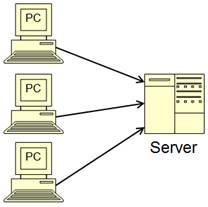
Advantages of the Single License Server Model
· Because all license management takes place on a single server, you have just one point of administration and one point of failure.
· Of the three license server models, this configuration requires the least amount of maintenance.
Disadvantage of the Single License Server Model
· If the single license server fails, the Autodesk product cannot run until the server is back online.
It is possible to have multiple single license servers in a network.
Normally this model is used where there are just a few licenses, users at one office and the overhead of using multiple servers cannot be justified.
If you already have a single point of failure, such as one file server, the single server option may be ideal for you.
LICPATH.LIC is typically used.
Distributed License Servers
In the distributed license server model, licenses are distributed across two or more servers. A unique license file is required for each server. Each server can have different features and number of licenses. When a network licensed product starts up, it tries each server for a license in the order you specified on the client as specified during installation or later by updating the ADSKFLEX_LICENSE_FILE environment variable.
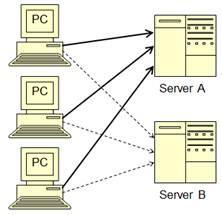
Advantages of the Distributed License Server Model
· Servers can be distributed across a wide area network (WAN); they do not need to exist on the same subnet.
· If one server in the distributed server pool fails, the licenses on the remaining servers are still available. The strategic placement of the distributed servers provides fault tolerance of server and infrastructure failures.
· If you need to replace a server in the distributed server pool, you do not need to rebuild the entire pool.
· Server replacement is easier than in a redundant server pool, where you must reactivate the entire pool.
· Workstation or server operating systems may be used as license managers.
· It’s easy to set up priority user access.
· There is no communication between the different distributed servers.
Disadvantages of the Distributed License Server Model
· If a server in the distributed server pool fails, the licenses on that server are unavailable.
· Wide area network (WAN) technology suffers from latency and reliability issues.
· This model can require more time for setup and maintenance than other models.
Tip! Put the distributed servers close to the users. For example one per each physical office location or city.
Distributed servers can also function simultaneously as single servers if you combine the license files.
Redundant License Servers
In the redundant license server model, three servers are used. Licenses can be issued as long as at least two license servers are functional. The Network License Manager is installed on each server, and the license file is identical on each server.
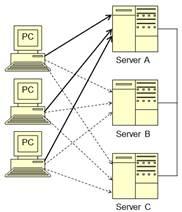
Advantage of the Redundant License Server Model
· If one of the three servers fails, all licenses that are managed in the server pool are still available.
· Redundant servers offer the highest level of fault tolerance of server failure but are intolerant of infrastructure failure.
Disadvantages of the Redundant License Server Model
· If more than one server fails, no licenses are available.
· All three servers must reside on the same subnet and have reliable network communications. The redundant server pool does not provide network fault tolerance. (Recommendation is to have all servers in the same data center)
· Slow, erratic, or dial-up connections are not supported.
· If one of the three servers is replaced, the complete redundant server pool must be rebuilt with new license files.
· If your Autodesk product supports license borrowing, and licenses are borrowed from a redundant license server pool, you must restart the license server after you stop the Network License Manager.
· It requires server-edition operating systems. Mixing server operating systems or using workstation operating systems (such as Windows 2000, XP, Vista or Windows 7) is not supported.
· Using one computer as both a redundant and single server is not possible.
· It is complex to administer.
· Unless you are actively monitoring the status of the servers, you may not know if one server has failed.
Autodesk Product Support strongly recommends the distributed server configuration for most applications and I agree on that.
Redundant license servers also known as failover servers or triads.
LICPATH.LIC is used to define the three servers and their ports.
Global Network Use License (GNUL)
Global Network Use License aka GNUL is a licensing option from Autodesk that allow usage across different countries or regions that are not allowed by the standard EULA (End-user license agreement). GNUL licenses are more expensive than standard network licenses.
MultiFlex
Autodesk’s MultiFlex is based on GNUL and similar to Autodesk’s suite licenses, except that it covers almost all Autodesk products. MultiFlex licenses are more expensive than standard network licenses.
Token Flex
Token Flex (T-Flex) is an enterprise licensing offering where product usage is metered by hour and billed appropriately. For example ReCap Pro is 4 tokens per hour, 20 tokens per day or 380 tokens per month.
The license file is issued with 9999 licenses for the products you get access to: INCREMENT 86199FDU_F adskflex 1.000 14-jan-2019 9999
Each product is assigned a certain number of “tokens” which are consumed upon use.
Example:
AutoCAD = 6 tokens per day per user
AutoCAD MEP = 8 tokens per day
Tokens are based on product family and user only. A single user could start any number of instances of AutoCAD regardless of versions on any number of computers and they’ll only be charged 6 tokens for that day. There might be possible to deal with Autodesk to have a cut of time so that if the usage per day is less than say 10 minutes there are no tokens consumed.
Certain product token price can be negotiated based on the customer company revenue.
There's a service called Core (NLRS short for Network License Reporting Service) on each license server which uploads the report logs to Autodesk directly and reports are available to see online through the Autodesk account page.
What is NLRS? NLRS monitors the usage of Autodesk® product licenses on a network, recording the number of licenses used, and the time period that each license was in use. The results are sent to Autodesk daily to support Token-Flex licensing. Reporting can be viewed from the Autodesk Account Portal.
Internet licensing
Internet licenses is something that has been piloted by some companies and requires approval of Autodesk. Because the licenses are available on the open Internet, license borrowing on the Internet license server needs to be restricted. Further protection is done with the System Environment Variable LM_PROJECT. A unique LM_PROJECT value (acting like a password) needs to be used on the Internet license server and on the clients. This makes it possible for only clients with the correct LM_PROJECT value checking out a license.
System Requirements
The Network License Manager supports Windows, Linux and MacOS X in Ethernet network configurations only.
The Network License Manager can be installed on a low spec server or PC (Intel® Pentium® III or higher with 450 MHz as minimum) as it does not require much and it can be on another existing server like a deployment or file server.
Virtual Machine Support is available. The Autodesk implementation of FlexNet is only supported on VMware ESX 3.5 SP1 and only on specific guest operating systems. Refer to Autodesk TS85748
In most every case the latest version of FlexNet can be used and is backward compatible.
VPN, Wireless, DSL/Cable is supported.
Internet licensing is not supported but requires permission from Autodesk to be used.
Dialup is not supported but might work even though several tries might be needed to start a product and find the license server.
For full details see the requirements for the software to be used as described in the Autodesk’s documentation or online.
Installation
For Windows, start the Autodesk Product Installer, click on the Install Tools & Utilities panel, select Network License Manager and install. For Mac OS X and Linux, see Autodesk’s documentation.
The installer can also be found on the installation media, for AutoCAD 2012 found here:
\x64\en-us\Tools\NLM\NLM.msi or \x86\en-us\Tools\NLM\NLM.msi
You can install the Network License Manager before or after you install the products that will use it. Network License Manager must configure the license servers before any products can obtain licenses and start running.
If an earlier version of the Network License Manager is already installed on the computer, you should upgrade by stopping the license server in LMTOOLS, uninstall and then install the new Autodesk Network License Manager into the folder where the old version was located.
Default installation folder is “C:\Program Files\Autodesk\Autodesk Network License Manager” but it might be a good idea to install to a short path like C:\FlexNet to avoid potential problems especially if you need to support multiple vendor daemons.
To uninstall the Network License Manager stop the license server (or service) with the LMTOOLS utility. Uninstall Autodesk Network License Manager. Optionally manually delete files that been created for use with the Network License Manager, such as log files, license files, and the options file.
Important! Do not install the Network License Manager on a remote drive. When you install the Network License Manager files, you must provide a path to a local drive. You must specify the drive letter; the universal naming convention (UNC) is not permitted.
How to Request a License File
The preferred method of registering and obtaining your network licenses is to Log in to the Subscription Center and go to Contract Administration > Coverage Report to get your serial numbers: http://www.autodesk.com/subscriptionlogin and then use the Autodesk Registration web site http://register.autodesk.com. If you require assistance, complete the online License Registration and Activation Assistance form at http://usa.autodesk.com/adsk/servlet/item?siteID=123112&id=13642197 or have your authorized Autodesk reseller handle licensing for you. 1-800-551-1490 can also be called Option 1 (ENU) - Option 2 (Network). Have your serial numbers for your Autodesk product, hostname and ethernet address of the license server ready.
Autodesk uses the server host name, host ID, and product serial number to generate a license file. This information is also needed: name and version of each Autodesk product as well as quantity of licenses for each product/version per license server. It’s also needed to provide Autodesk with the server setup (Single, Redundant or Distributed).
The Host ID also known as MAC Address or Ethernet Address can be obtained in two ways. Using ipconfig /all or LMTOOLS.
To obtain the information, use one of the following procedures.
Windows Command Prompt Procedure for Host Name and ID
To obtain the host name and ID at the Windows command prompt
1. At the Windows command prompt, enter ipconfig /all
2. Record the Host Name and Physical Address line. Eliminate dashes from the physical address (e.g. “00-1F-16-FE-30-90”). This is your twelve-character host ID (e.g. “001F16FE3090”).
Note! If your server has more than one network adapter, select the one that corresponds to a physical network adapter. View the Description field above each physical address. If there is more than one physical network adapter, it does not matter which one you use. Devices such as VPN adapters, PPP adapters, and modems are not valid.
3. Close the Windows command prompt.
LMTOOLS Procedure for Host Name and ID
To obtain the host name and ID using the LMTOOLS utility
Important! Do not run LMTOOLS on a remote computer.
You should be logged in with Administrator rights when working with the LMTOOLS utility.
1. Click Start > All Programs > Autodesk > Network License Manager > LMTOOLS Utility.
2. In the LMTOOLS utility, click the Systems Settings tab.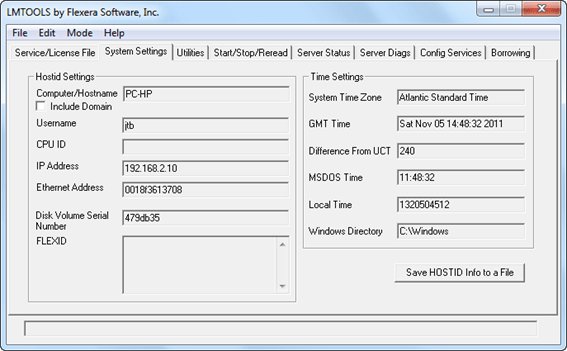
3. Locate the Computer/Hostname box. Copy the host name and paste the information into a text editor.
4. Locate the Ethernet Address box. The 12-character Ethernet address is the host ID.
Note! If your server has more than one Ethernet adapter, select one that corresponds to a physical network adapter.
5. Close LMTOOLS.
Only the NetBIOS name is required (not the FQDN). So if the server name is “ServerA.contoso.com” you can simply use “ServerA” for requesting a license.
To obtain the host name and ID using the Mac OS X or Linux terminal window see the Autodesk product documentation.
Configure the License Server
You configure a license server to allow usage of and manage your Autodesk product licenses.
Configure the license server using the following procedure.
Windows License Server Configuration Procedure
To configure a license server use LMTOOLS that is located in the Autodesk Network License Manager installation folder.
Make sure to be logged in with Administrator rights.
1. Click Start > All Programs > Autodesk > Network License Manager > LMTOOLS Utility or run lmtools.exe from the installation folder.
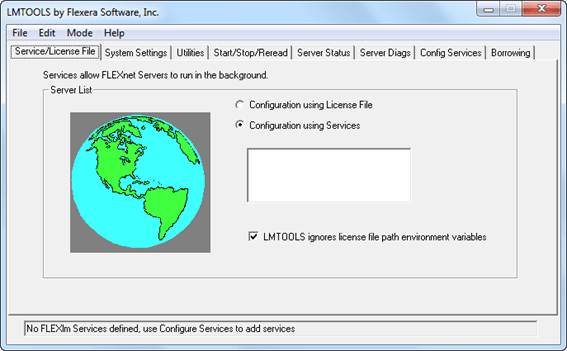
2. In the LMTOOLS utility, on the Service/License File tab, make sure the Configure Using Services option is active. Autodesk products do not support the Configuration Using License File method. It is also usually a good idea to check the option for “LMTOOLS ignores license file path environment variables”.
3. Click the Config Services tab.
4. In the Service Name list, select the service name you want to use to manage licenses.
By default, the service name is Flexlm Service 1. If FlexNet is managing other software on your computer in addition to Autodesk, you can change the service name to avoid confusion. For example, you can rename Flexlm Service 1 to Autodesk NLM. This name will also appear as a Windows service and can be monitored accordingly with for example Microsoft System Center Operations Manager.
Note! If you have more than one software vendor using FlexNet for license management, the Service Name list contains more than one option. Make sure that only one Autodesk service is listed. Do not use forward slash “/” or back slash “\” in the service name.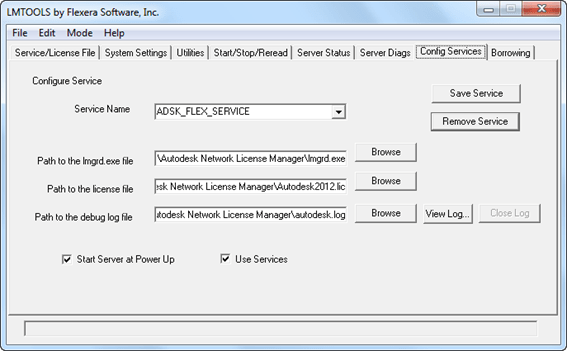
5. In the Path to Lmgrd.exe File field, enter the path to the Network License Manager daemon (lmgrd.exe), or click Browse to locate the file.
By default, this daemon is installed in the C:\Program Files\Autodesk Network License Manager folder.
6. In the Path to the License File box, locate or enter the path.
This is the path to the license file obtained through autodesk.com or the location where you placed the license file if you obtained it offline.
7. In the Path to the Debug Log File box, enter a path to create a debug log, or click Browse to locate an existing log file.
It is recommended that you save to the installation folder or a subfolder. The log file must have a .log file extension. For new log files, you must enter the .log extension manually.
The debug log file is not an optional setting and the license manager will not start correctly without a valid path and file name specified.
You can put the license server into “append” mode for logging, so that the log file isn’t cleared every time you restart the server or service.
8. To run lmgrd.exe as a service, select Use Services.
9. To start lmgrd.exe automatically when the system starts, select Start Server at Power Up.
10. Click Save Service to save the new configuration under the service name you selected in step 4. Click Yes when prompted if you would like to save the settings to the service.
11. Click the Start/Stop/Reread tab and do one of the following:
· If a service has not yet been defined for Autodesk, click Start Server to start the license server.
· If a service for Autodesk is already defined and running, click ReRead License File to refresh the Network License Manager with any changes made to the license file or options file.
The license server starts running and is ready to respond to client requests.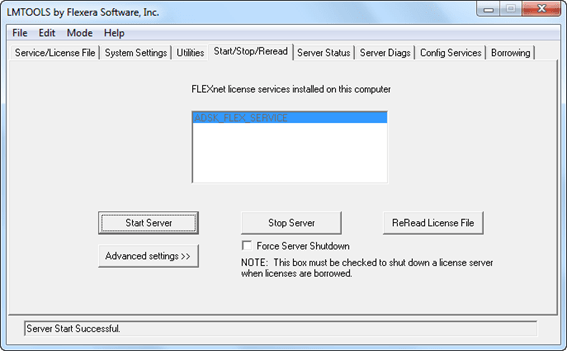
12. Click the Server Status tab and click on Perform Status Enquiry to ensure that it’s working.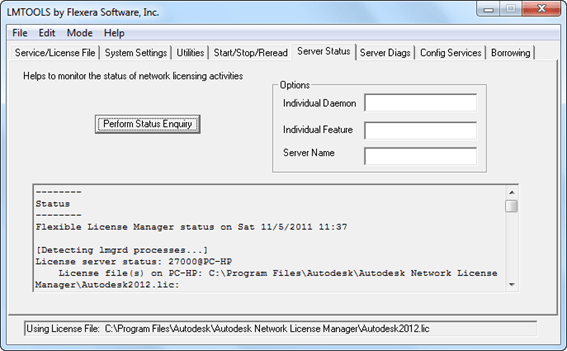
13. Close LMTOOLS.
Make sure that the Use Services and Start Server at Powerup options are enabled as well or the license manager will not run once LMTOOLS is closed or the license manager machine is rebooted.
Autodesk product licenses do not support the Utilities, Server Diags or Borrowing tabs in LMTOOLS. These tabs exist to support other products that use FlexLM and they should not be used when configuring or troubleshooting the Autodesk Network License Manager.
Important! If you have a firewall between the license server(s) and the client computers, you need to open some TCP/IP ports on the server for license-related communication. Open port 2080 for adskflex, and open ports 27000 through 27009 for lmgrd. If these port addresses are restricted by a router or firewall software, users on the remote side of the router will not have access to licenses controlled by the Network License Manager.
Test that it works by running an Autodesk product and verify that it can pull a license.
Manage network licenses
How Network License Manager is Working
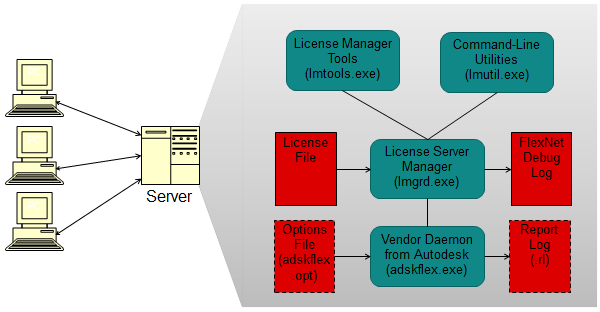
The following three things manage the distribution and availability of licenses:
· License manager daemon (lmgrd or lmgrd.exe) handles the original contact with the application, and then passes the connection to the vendor daemon. By using this approach, a single lmgrd daemon can be used by multiple software vendors to provide license authentication. Lmgrd starts, restarts and stops the vendor daemons as needed. Lmgrd reads the license file and writes to the FlexNet debug log.
· Autodesk vendor daemon (adskflex or adskflex.exe) tracks the Autodesk licenses that are checked out and the computers that are using them. Each software vendor has a unique vendor daemon to manage vendor-specific licensing.
Note: If the adskflex vendor daemon terminates for any reason, all users lose their licenses until lmgrd restarts the vendor daemon or until the problem causing the termination is resolved.
· License file is a text file that holds the needed license information.
Then there are these components:
· License Manager Tools or LMTOOLS is a UI utility
· Lmutil.exe is a command line utility
· FlexNet Debug Log contains a log of events that lmgrd and adskflex creates and is useful to debug and confirm that the network license manager is working as expected.
· Options file is an optional file that can be used to configure how licenses are used.
· Report Log is an optional file holding license usage that can be reported on.
The license manager network traffic or hearbeat is a two-way communication between client and license server and happens about one time per minute per session and the packets are small. If the heartbeat signal is lost, the server tries to reconnect. If the server cannot reconnect, the user receives a license error. If the product stops working because it has lost a connection to the server, you must shut down the product, and then restart it. Most Autodesk products give you the opportunity to save open documents before shutting down.
FlexNet Configuration Tools
FlexNet provides two administrative utilities for managing the license server. These tools are located in the Autodesk Network License Manager installation folder.
LMTOOLS Utility (lmtools.exe) provides a graphical user interface for managing the license server.
Normally the checkbox “TMTOOLS ignores license file path environment variable” should be checked.
Use only the checkbox “Force Server Shutdown” when a service fails to stop. (It should not have any effect on if you have borrowed licenses)
lmutil.exe provides a set of command-line options for managing the license server.
You can use LMTOOLS or lmutil.exe to perform the following server management tasks:
Start, stop, and restart the server.
Configure, update, and reread the license file.
Diagnose system or license problems.
View server status, including active license status.
Stop and Restart the License Server
Before performing system maintenance on your license server (including uninstalling the Autodesk Network License Manager) you must stop the license server. When you have completed maintenance, you can restart the license server.
Update FlexNet from a Previous Version
Normally with a new release of Autodesk products it is required to upgrade FlexNet.
To determine the installed version of FlexNet, you need to verify the version of the following files: lmgrd.exe, lmtools.exe, lmutil.exe and adskflex.exe. Normally the version can be seen by checking the properties of the file. LMTOOLS can also be used. Click the Utilities tab and browse for the .exe file and click on Find Version.
To update FlexNet in Windows
You should be logged in with Administrator rights when working with the LMTOOLS utility.
1. Back up your license, options and other files that are vital.
2. Click Start > All Programs > Autodesk > Network License Manager > LMTOOLS Utility or run lmtools.exe from the installation folder.
3. In the LMTOOLS utility, click the Start/Stop/Reread tab.
4. Click Stop Server.
5. Close LMTOOLS.
6. Note the location where the Network License Manager is installed and then uninstall the Network License Manager.
7. Install the Network License Manager to the same location as the previous version.
8. Do one of the following:
(Windows XP) Click Start > Programs > Autodesk > Network License Manager > LMTOOLS.
(Windows 7/ Windows Vista) Double-click the LMTOOLS icon on the desktop.
Run lmtools.exe from the installation folder
9. In the LMTOOLS utility, click the Start/Stop/Reread tab.
10. Click Start Server.
11. Click the Server Status tab and click on Perform Status Enquiry to ensure that it’s working.
12. Close LMTOOLS.
13. Test run the network licensed product.
The version of the license server manager (lmgrd.exe) must be greater than or equal to the version of FlexNet Publisher used in the application/application's vendor daemon (for Autodesk it is adskflex.exe). You can always use the latest license server manager and utilities; they will be backward-compatible with your application and its license file.
Download them from http://www.globes.com/support/fnp_utilities_download.htm and select your Operating System. Normally updating is not needed unless your application vendor requires it. But if you experience problems in some way, then it can be a good idea to see if it helps with the latest version. Take backup of the old exe files. Stop the license service(s). Replace the exe files (lmgrd.exe, lmtools.exe, lmutil.exe and adskflex.exe where the last one is the vendor exe, in this example Autodesk's). Start the license service(s).
This procedure can be performed without affecting users who are running the software, provided the entire procedure is completed within a reasonable amount of time. However, during this procedure new users will be unable to acquire licenses. If this interruption is unacceptable, you might consider doing this upgrade when users will not need licenses.
If you have multiple servers the easiest thing is to install the new version on one and then for the other servers you can just stop the service, replace the exe files and start the service.
You can upgrade FlexNet even if licenses are borrowed. It is possible to release licenses early to the updated FlexNet server.
The version of the FlexNet license manager required for the corresponding version of AutoCAD (or other Autodesk products with the same version) is as follows:
- AutoCAD 2023 - Version 11.18.0.0
- AutoCAD 2022 - Version 11.18.0.0
- AutoCAD 2021 - Version 11.16.2.0 (Update October 2021: Autodesk Customers with Multi-user subscription or Token-flex implementation using Autodesk Network License Manager (NLM) are required to upgrade the Network License Manager to the latest version v11.18.x to support Autodesk 2020 and newer version products on and after April 1st, 2022.)
- AutoCAD 2020 - Version 11.16.2.0 (Update October 2021: Autodesk Customers with Multi-user subscription or Token-flex implementation using Autodesk Network License Manager (NLM) are required to upgrade the Network License Manager to the latest version v11.18.x to support Autodesk 2020 and newer version products on and after April 1st, 2022.)
- AutoCAD 2019 - Version 11.14.1.3
- AutoCAD 2018 - Version 11.13.1.2
- AutoCAD 2017 - Version 11.13.1.2
- AutoCAD 2016 - Version 11.12.1.4
- AutoCAD 2015 - Version 11.12
- AutoCAD 2014 - Version 11.11
- AutoCAD 2013 - Version 11.10.0.3
- AutoCAD 2012 - Version 11.9.0.0
- AutoCAD 2011 - Version 11.7.0.0
- AutoCAD 2010 - Version 11.5
- AutoCAD 2009 - Version 11.4.100.0
- AutoCAD 2008 - Version 11.4.0.0
- AutoCAD 2007 - Version 10.8.0
- AutoCAD 2006 - Version 10.1.5
- AutoCAD 2005 - Version 9.2.2
- AutoCAD 2004 - Version 8.3a
- AutoCAD 2002 - Version 7.1f
Set Up and Use an Options File
With an options file, you set configuration options that determine how a license server manages licenses. The options file is optional.
The options file on each server specifies the license-handling behavior for that server. By managing the contents of the options files, you can specify the same behavior on all license servers, or implement particular differences among the servers.
Use the options file to set parameters for the following server-related features:
· License timeout
· License borrowing
· Report log file
You can also set up advanced license parameters, such as reserving a license, restricting license usage, or defining groups of users or hosts (machines). To learn more about setting advanced options file parameters, see the FlexNet documentation. This documentation is installed on the license server, in the Network License Manager directory.
The recommended thing is to name the options file as the vendor daemon and place it in the same folder as the license file.
adskflex.exe is the Autodesk daemon so name the options file adskflex.opt and in this case you don't need to specify it in the license file.
Add the path to the options file in the license file on the VENDOR line for the application’s vendor daemon. For example:
VENDOR adskflex OPTIONS=”c:\path\options.opt”
enables the adskflex vendor daemon to look at the specified options file.
Syntax for VENDOR line:
VENDOR vendor [vendor_daemon_path] [[OPTIONS=]options_file_path] [[PORT=]port]
Create an Options File
Open a text editor, enter the parameters you want, and then save the document as a file named adskflex.opt to the same folder as the license file. Note! Make sure you save the file with the extension .opt. The default extension .txt is not recognized by the Network License Manager.
The options file might be corrupted if edited in a non-ASCII editor like Wordpad or Word. Use Notepad.
For options file changes to take effect on a license server run LMTOOLS utility, on the Start/Stop/Reread tab, click Reread License File. In some cases the first time the option file is used a stop and start is needed.
Verify that the license manager is using the Options File by checking the debug log. Look for a row including the text “(adskflex) Using options file:”
All syntax following a number sign (#) will be ignored by the license manager.
Groups, users, names or computers cannot contain spaces.
2048 character limit for lines
Lines in the options file are limited to 2048 characters. The backslash “\” is a continuation character in options file lines.
If the group you are planning to create has a line length that exceeds 2048 characters, you can either create an additional group with the same name that contains the users or hosts that exceed the limit or split the GROUP into two or more groups.
GROUP mygroup USER1 USER2 … USER124 USER125
GROUP mygroup USER126 USER127 … USER249 USER250
In newer versions of FlexNet the line limit is 4000 characters.
Set Up License Timeout
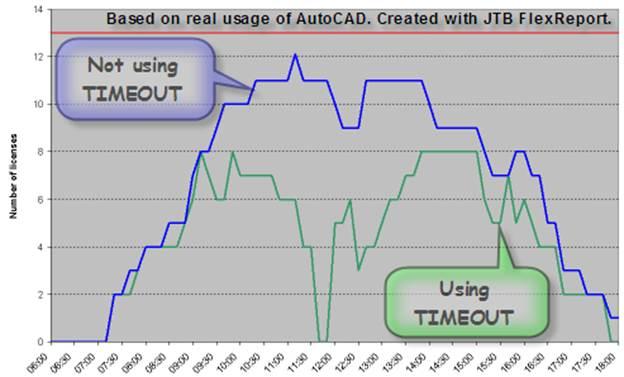
License timeout is set in the options file to determine how long a product session can be idle before the license is reclaimed by the license server. When you set this flag in the options file, a user's license is reclaimed by the license server if the product is idle on a computer for more than the timeout period you define.
If a user's license is lost because of the idle timeout, the product attempts to claim a new license once the user uses the product again. If no license is available, the user can save work before the product shuts down. If a license is available the user will not notice anything and can keep working. Note that this may vary depending on the product and how the vendor has implemented this functionality.
License timeout is not supported by all Autodesk products. But for those that are it is a great way to household on licenses.
You can use the TIMEOUT parameter to set individual license timeouts for each Autodesk product, or use the TIMEOUTALL parameter to set one license timeout for all Autodesk products.
To set license timeout parameters:
· For individual Autodesk products: In the options file, enter the following syntax on its own line (TIMEOUT must be uppercase):
TIMEOUT feature_code n
In the TIMEOUT syntax, “feature_code” is the name of the product (referred to in the INCREMENT line in the license file), and “n” is the number of seconds before an inactive license is reclaimed by the license server.
For example, the syntax TIMEOUT Autodesk_f1 900 means that for the product Autodesk_f1, the license timeout period is 900 seconds.
· For all Autodesk products: In the options file, enter the following syntax on its own line (TIMEOUTALL must be uppercase):
TIMEOUTALL n
In the TIMEOUTALL syntax, “n” is the number of seconds before an inactive license is reclaimed by the license server.
For example, the syntax TIMEOUTALL 900 means that for all Autodesk products, the license timeout period is 900 seconds.
Any of the following activity in the active application prevents the client workstation from being idle:
· Any keystroke.
· Any mouse click.
· Any command, Lisp expression, menu macro or script in progress.
· Any Modal dialog box opened (a dialog box which needs to close before continuing to other tasks).
Unfortunately the Automatic save functionality triggers a command activity. Thus it can take longer time than the minimum timeout before the license is available for others.
The lowest acceptable value for timeout of Autodesk products is 900 seconds (15 minutes).
The lowest acceptable value for timeout of MathWorks is 14400 seconds (4 hours) and for IBM 7200 seconds (2 hours).
If a product crashes a wire is disconnected the session might end up in limbo and might not be returned until the license server is restarted. This in itself is a reason to always make use of timeout.
Recommendation is to use lowest timeout and use it for all features:
TIMEOUTALL 900
Make sure to inform your users about how license timeout works and that they don’t leave a command running or a modal dialog box opened while leaving the application.
To confirm it works open the FlexNet debug log and search for “(INACTIVE)”.
Defining Groups of Users or Computers
Defines a group of users for use in INCLUDE, INCLUDEALL, INCLUDE_ENTITLEMENT, EXCLUDE, EXCLUDEALL, EXCLUDE_ENTITLEMENT, and RESERVE option lines.
By default, computer names (host names) and user names are case sensitive unless the GROUPCASEINSENSITIVE ON statement has been added to the options file. Because the case can change from time to time on machines it is recommended to always use case insensitivity.
Syntax for user groups: GROUP [groupname] [user1] [user2] [user3]
Syntax for host groups: HOST_GROUP [groupname] [computername1] [computername2] [computername3]
The following example defines a group called EngineeringGroup for three users:
GROUP EngineeringGroup userA userB userC
The following example defines a group called DraftingDept with three computers:
HOST_GROUP DraftingDept computer1 computer2 computer3
Anywhere a host name can be used in an options file, an IP-address can be used instead.
Projects
Specific computers can be defined as part of a project by configuring an environment variable on those client machines. This project designation can then be used to control license access in the options file. The project environment variable is an optional component and is not required when you define groups directly in the options file. The value of LM_PROJECT can only be seen in tools using the FlexNet report logs.
Options file and Active Directory integration
If you need to control the license usage using adskflex.opt file integrated with Active Directory Users and Computers, you could use the following Group Policy settings.
Basic strategy to achieve this integration is using Group Policy Objects in the Active Directory and "LM_PROJECT" System variable.
Example work flow would be as follows.
-
Create a New Group in Active Directory and add users and computers who can use the specific Autodesk Product i.e. AutoCAD Users
-
Create Group Policy object to create System Environment variable (i.e. Variable Name: "LM_PROJECT", Value:"ACADUSERS")
-
Target the Variable only to the Certain Security group in Active Directory
-
Create adskflex.opt file on the license server with the following line:
INCLUDE 85871ACD_2013_0F PROJECT ACADUSERS
The above line forces the Users/Computer within Active Directory group "AutoCAD Users" to use AutoCAD 2013 license, all the others would be denied AutoCAD Licenses.
- Stop and Start the license service.
- Login to the domain from the AutoCAD client machine, (or refresh the group policy )
- Whenever you want give a new user access to AutoCAD 2013, It is as simple as adding the user/Computer to the "AutoCAD Users" group in the Active Directory.
Note: If you wish control the usage per user within the same computer, you could use the GPO Delegation (Permissions) tweak to deny the users/group access to the particular GPO.
For complete details see this blog post.
License Borrowing
License Borrowing allows users to borrow a product license from the network license server to use the Autodesk product for a specified time even if the computer is not connected to the network. When a license is borrowed, one license less is available for other users. The license is automatically returned to the license server at the end of the day on the return date set when the license was borrowed. The user can return a license early but that must be done when connected to the network license server and be done from the same user and computer that initially borrowed the license. A borrowed license cannot be returned earlier from the license server. The maximum borrowing period is six months but can be limited by editing the options file.
Most network licensed Autodesk products allow you to use the software while temporarily disconnected from your company's network, such as when you are on business trip or working at a remote location. Unless 6 months are needed set as low limit as possible to avoid licenses from being orphaned, something that can happen if a laptop is stolen during a trip.
Because network licenses are more expensive than single licenses make sure users don’t borrow licenses just to be sure they have a license all the time. Make sure users return the borrowed license as soon as they don’t need it any more.
License Borrowing (Collection licenses only)
When borrowing a license from the server where collection licenses are being issued, it will only borrow a license for the product you choose. There’s currently no way of borrowing an entire collection license. If you borrow a license while AutoCAD 2017 is opened, it will borrow a collection license of AutoCAD not the entire collection. So, if you need access to the software offsite, you need to borrow a collection license for each product you intend to use offline. Note: As per 2017 & 2018 generated license file.
Configure License Borrowing with the Options File
AutoCAD 2004 and AutoCAD 2005 maximum borrowing period is 720 hours (30 days).
AutoCAD 2006 and newer maximum borrowing period is 4320 hours (180 days).
The absolute maximum borrowing period is determined by the BORROW=statement in the license file increment for the product. This cannot be amended.
If the license file has a package increment use both Product and Package feature codes.
Limiting borrowing
You can specify a number of specific licenses that cannot be borrowed.
BORROW_LOWWATER [productfeature] [count]
The following example blocks license borrowing for 5 AutoCAD 2012 licenses:
BORROW_LOWWATER 85730ACD_2012_0F 5
Q: Do you know how to prohibit license borrowing for all users, not just by group or IP range? We want to disable the ability to borrow licenses for all users.
A: Only thing I’m aware of is to make use of adskflex.opt and add multiple rows like this for each feature. *.*.*.* should make it work for all users. I’m not aware of any way to use wildcard for the feature name though.
EXCLUDE_BORROW 86604ACD_2017_0F INTERNET *.*.*.*
Limit borrow period
You can specify the maximum duration of time that a specific license can be borrowed for in hours. This value cannot be above the maximum borrow period specified by Autodesk in the product license file. Note! Licenses are borrowed in increments of 24 hours only. Any number that is more than a 24-hour increment is not used. For example, the number 365 would be rounded down to 360 hours, or 15 days.
MAX_BORROW_HOURS [productfeature] [hours]
The following example limits license borrowing of AutoCAD 2012 licenses to 3 days:
MAX_BORROW_HOURS 85730ACD_2012_0F 72
Excluding license borrowing
You can block the ability to borrow specific licenses for a user, computer, group of users or computers, IP address, IP address range or by LM_PROJECT variable association (computer names and user names are case sensitive). Any users, hosts or IP addresses not explicitly excluded will continue to have the ability to borrow licenses.
EXCLUDE_BORROW [productfeature] [type] [name]
The following examples block borrowing of AutoCAD 2012 licenses for a variety of types:
EXCLUDE_BORROW 85730ACD_2012_0F USER smithj
EXCLUDE_BORROW 85730ACD_2012_0F HOST computer1
EXCLUDE_BORROW 85730ACD_2012_0F GROUP EngineeringGroup
EXCLUDE_BORROW 85730ACD_2012_0F HOST_GROUP DraftingDept
EXCLUDE_BORROW 85730ACD_2012_0F INTERNET 192.168.0.100
EXCLUDE_BORROW 85730ACD_2012_0F INTERNET 192.168.0.*
EXCLUDE_BORROW 85730ACD_2012_0F PROJECT CivilProject
Including license borrowing
You can provide the ability to borrow specific licenses for a user, computer, group of users or computers, IP address, IP address range or by LM_PROJECT variable association (computer names and user names are case sensitive).
Note: Any users, hosts or IP addresses not explicitly included will not have the ability to borrow the specified licenses. If you want to block license borrowing for only a few users, you should consider using the EXCLUDE_BORROW syntax above.
INCLUDE_BORROW [productfeature] [type] [name]
The following examples allow borrowing of AutoCAD 2012 licenses for the specified type only:
INCLUDE_BORROW 85730ACD_2012_0F USER smithj
INCLUDE_BORROW 85730ACD_2012_0F HOST computer1
INCLUDE_BORROW 85730ACD_2012_0F GROUP EngineeringGroup
INCLUDE_BORROW 85730ACD_2012_0F HOST_GROUP DraftingDept
INCLUDE_BORROW 85730ACD_2012_0F INTERNET 192.168.0.100
INCLUDE_BORROW 85730ACD_2012_0F INTERNET 192.168.0.*
INCLUDE_BORROW 85730ACD_2012_0F PROJECT CivilProject
Reserve network licenses
You can reserve a specific count of licenses for a user, computer, group of users or computers, IP address, IP address range or by LM_PROJECT variable association (computer names and user names are case sensitive by default).
RESERVE [count] [productfeature] [type] [name]
The following examples reserve either 1 or 5 AutoCAD 2012 licenses for a variety of types:
RESERVE 1 85730ACD_2012_0F USER smithj
RESERVE 1 85730ACD_2012_0F HOST computer1
RESERVE 5 85730ACD_2012_0F GROUP EngineeringGroup
RESERVE 5 85730ACD_2012_0F HOST_GROUP DraftingDept
RESERVE 1 85730ACD_2012_0F INTERNET 192.168.0.100
RESERVE 5 85730ACD_2012_0F INTERNET 192.168.0.*
RESERVE 5 85730ACD_2012_0F PROJECT CivilProject
The following describes a special case that can happen. Via Up and Ready.
Licensing: options file when there are multiple FEATURE lines for a single feature in the license file
If you have the a license with multiple feature line for a same feature code, applicable when you have some package license and some temporary license in the package
Eg:-
#AutoCAD Mechanical Package License.
PACKAGE 64400AMECH_PP_F adskflex 1.000 \
COMPONENTS="85733AMECH_PP_2012_0F 85545AMECH_PP_2011_0F \
71800AMECH_PP_2010_0F 59200AMECH_PP_2009_0F" OPTIONS=SUITE \
………………………………
INCREMENT 64400AMECH_PP_F adskflex 1.000 permanent 17 \
VENDOR_STRING=commercial:permanent SUPERSEDE DUP_GROUP=UH \
………………………………
#AutoCAD Mechanical 2012 Temporary License.
INCREMENT 85733AMECH_PP_2012_0F adskflex 1.000 24-feb-2012 6 \
VENDOR_STRING=nfr:extendable SUPERSEDE DUP_GROUP=UH \
………………………………
Problem:-
If you create an options file with RESERVE command
RESERVE 5 85733AMECH_PP_2012_0F HOST_GROUP Myeng_group
It will actually reserve 10 Licenses for the same group, because feature code 85733AMECH_PP_2012_0F is repeated in the license file.
Solution:-
In order to specify the exact seats to reserve one has to distinguish a particular group of license by using the option Keywords
The following option keywords are used as feature name modifiers to denote a specific group of licenses:
• VERSION=
• HOSTID=
• EXPDATE=
• KEY=
• SIGN=
• ISSUER=
• NOTICE=
• VENDOR_STRING= (if configured by the publisher as a pooling component)
• dist_info=
• user_info=
• asset_info=
(http://www.globes.com/support/utilities/fnp_LicAdmin_11_10.pdf page 116)
In the above example we could use either one of the following line depending on if the permanent or temporary license which needs to be reserved.
RESERVE 5 85733AMECH_PP_2012_0F:VENDOR_STRING=nfr:extendable HOST_GROUP Myeng_group
OR
RESERVE 5 85733AMECH_PP_2012_0F:VENDOR_STRING= commercial:permanent HOST_GROUP Myeng_group
SIGN can also be used for reserving suite licenses. Via Synergis CAD blog.
SIGN is a character set within the license which is unique to a given license as a whole. You can findmultiple SIGN sections and Autodesk recommend using the first SIGN within the PACKAGE grouping, or, if you are not a subscription customer you should use the first SIGN section under the INCREMENT grouping of the license. Because the SIGN section is unique, it can be used to reserve suite licenses.
You cannot reserve an individual component/feature from your suite license; you will need to reserve the entire suite. Some would think to reserve all of the components or the Package feature itself (85787BDSPRM_F) to reserve the entire suite license, but doing so will not work successfully. To reserved, Include, exclude, and other syntax for managing your suite licenses you can use the following:
RESERVE [count] [COMPONENT] [:] [SIGN] [group] [name]
EXAMPLE:
RESERVE 5 85787BDSPRM_2012_0F: SIGN=”1352 03CA 597E 74FC 12A8 \
42D4 5372 4752 7617 B9A9 78AD ACAB 1AB5 6256 35E9 07CC AC43 \
0580 8CDA 3545 488B 47DA AA73 DC11 8712 D875 916F 4292 B88D \
6F28?
GROUP architecture_group
Restrict maximum license usage
You can limit usage of specific licenses for a user, computer, group of users or computers, IP address, IP address range or by LM_PROJECT variable association (computer names and user names are case sensitive by default).
MAX [count] [productfeature] [type] [name]
The following examples set a limit of either 1 or 5 AutoCAD 2012 licenses for a variety of types:
MAX 1 85730ACD_2012_0F USER smithj
MAX 1 85730ACD_2012_0F HOST computer1
MAX 5 85730ACD_2012_0F GROUP EngineeringGroup
MAX 5 85730ACD_2012_0F HOST_GROUP DraftingDept
MAX 1 85730ACD_2012_0F INTERNET 192.168.0.100
MAX 5 85730ACD_2012_0F INTERNET 192.168.0.*
MAX 5 85730ACD_2012_0F PROJECT CivilProject
Excluding license usage
You can block access to specific licenses for a user, computer, group of users or computers, IP address, IP address range or by LM_PROJECT variable association (computer names and user names are case sensitive). Any users, hosts or IP addresses not explicitly excluded will continue to have access to these licenses.
EXCLUDE [productfeature] [type] [name]
The following examples block access to AutoCAD 2012 licenses for a variety of types:
EXCLUDE 85730ACD_2012_0F USER smithj
EXCLUDE 85730ACD_2012_0F HOST computer1
EXCLUDE 85730ACD_2012_0F GROUP EngineeringGroup
EXCLUDE 85730ACD_2012_0F HOST_GROUP DraftingDept
EXCLUDE 85730ACD_2012_0F INTERNET 192.168.0.100
EXCLUDE 85730ACD_2012_0F INTERNET 192.168.0.*
EXCLUDE 85730ACD_2012_0F PROJECT CivilProject
Including license usage
You can provide access to specific licenses for a user, computer, group of users or computers, IP address, IP address range or by LM_PROJECT variable association (computer names and user names are case sensitive). Any users, hosts or IP addresses not explicitly included will not have access to the specified licenses. If you want to block license usage for only a few users you should consider using the EXCLUDE syntax.
INCLUDE [productfeature] [type] [name]
The following examples provide access to AutoCAD 2012 licenses for the specified type only:
INCLUDE 85730ACD_2012_0F USER smithj
INCLUDE 85730ACD_2012_0F HOST computer1
INCLUDE 85730ACD_2012_0F GROUP EngineeringGroup
INCLUDE 85730ACD_2012_0F HOST_GROUP DraftingDept
INCLUDE 85730ACD_2012_0F INTERNET 192.168.0.100
INCLUDE 85730ACD_2012_0F INTERNET 192.168.0.*
INCLUDE 85730ACD_2012_0F PROJECT CivilProject
Report log creation
You can configure the creation of a report log (RL) file for use with Flexera FlexNet Manager reporting tools or SAMreport-lite usage reporting tools. For more information about configuring them you should refer to the related documentation.
The plus sign (+) preceding the report log file path indicates that the license manager should append to the report log instead of overwriting it. Also, the path for the report log should not contain spaces (or be enclosed by quotations) and must already exist (the license manager will not create this location for you). The license manager will create the report log file.
REPORTLOG +<Path\ReportLog.rl>
The following example defines a report log file to be created in a specific location:
REPORTLOG +"C:\Reports\MyServer.rl"
Sample Options File
Below is a sample of an options file.
# Comment rows are starting with #
TIMEOUTALL 900
GROUPCASEINSENSITIVE ON
GROUP Drafters pete john emma
HOST_GROUP DraftingDept computer1 computer2 computer3
BORROW_LOWWATER 85730ACD_2012_0F 5
MAX_BORROW_HOURS 85730ACD_2012_0F 240
EXCLUDE_BORROW 85730ACD_2012_0F USER smithj
INCLUDE_BORROW 85730ACD_2012_0F GROUP Drafters
RESERVE 1 85730ACD_2012_0F HOST computer1
MAX 5 85730ACD_2012_0F HOST_GROUP DraftingDept
EXCLUDE 85730ACD_2012_0F PROJECT CivilProject
INCLUDE 85730ACD_2012_0F INTERNET 192.168.0.*
REPORTLOG +"C:\Reports\MyServer.rl“
Changing server location of the FlexNet licensing service
Automate this using a login script updating the registry or Group Policy Object setting.
Example:
On Error Resume Next
Set WshShell = Wscript.CreateObject("Wscript.Shell")
Set WshSysEnv = WshShell.Environment("SYSTEM")
WshSysEnv.item("ADSKFLEX_LICENSE_FILE") = "@SERVER1;@SERVER2;@SERVER3"
See Knowledge Base document TS1066086.
Using an IP address in place of server hostname
See Knowledge Base document TS1053533.
Network License File described
The network license file you receive from Autodesk contains licensing information required for a network installation. It also contains an encrypted digital signature that is created when Autodesk generates the file.
The license file configures network license servers to manage licenses.
The following table defines each license file parameter.
|
Definitions of license file parameters |
|||
|
Parameter |
Definition |
Example |
|
|
SERVER |
Host Name |
Host name of the server where the Network License Manager resides |
LABSERVER |
|
|
Host ID |
Ethernet address of the server where the Network License Manager resides |
03D054C0149B |
|
|
Port Number |
Optionally specify a port to be used |
port=27000 |
|
USE_SERVER |
[None] |
|
|
|
VENDOR |
Vendor Daemon |
Name of the server-side Autodesk vendor daemon |
adskflex.exe |
|
|
options_file_ |
Full path to the end-user options file for this daemon. FLEXnet Licensing does not require an options file. |
options="c:\path\options.opt" |
|
|
Port Number |
Network port number reserved and assigned for use only by Autodesk products running the Autodesk vendor daemon |
port=2080 |
|
PACKAGE |
Name |
Name of feature code group |
SERIES_1 |
|
|
Version |
Internal version number reference |
1.000 |
|
|
COMPONENTS |
List of feature codes supported in the package |
COMPONENTS= "526000REVIT_9_OF\ 51200ACD_2007_OF\ 513001INVBUN_11_OF" |
|
|
OPTIONS |
|
OPTIONS=SUITE |
|
|
SUPERSEDE |
Replacement for any existing Increment line of the same feature code from any license files on the same license server that have a date earlier than the defined Issue Date |
SUPERSEDE |
|
|
SIGN |
Encrypted signature used to authenticate the attributes of the license file |
SIGN=0 SIGN2=0 |
|
INCREMENT |
Feature Code |
Product supported by the license file |
85730ACD_2012_0F |
|
|
Expiration Date |
Amount of time the licenses are available |
permanent |
|
|
Number of Licenses |
Number of licenses supported by the license file |
25 |
|
|
VENDOR_STRING |
License usage type and license behavior of the product that is supported by the license file |
COMMERCIAL |
|
|
BORROW |
Definition of the license borrowing period for the licenses defined under the same increment line. In this example, the maximum period that licenses can be borrowed is 4320 hours (180 days), unless otherwise noted. License borrowing is disabled when this parameter is absent in the license file. |
BORROW=4320 |
|
|
DUP_GROUP |
Definition of multiple license requests when the same user and same host share the same license |
DUP_GROUP=UH |
|
|
ISSUED |
Date that the license file was generated by Autodesk |
15-jul-2010 |
|
|
Serial Number |
Serial number of the Autodesk product |
123-12345678 |
|
|
SIGN |
Encrypted signature used to authenticate the attributes of the license file |
SIGN=6E88EFA8D44C |
License File Examples
Here is an example of a completed license file for a single or distributed license server model:
SERVER XXHP0528 0019bbd68993
USE_SERVER
VENDOR adskflex port=2080
INCREMENT 57600ACD_2009_0F adskflex 1.000 permanent 5 \
VENDOR_STRING=commercial:permanent BORROW=4320 SUPERSEDE \
DUP_GROUP=UH ISSUED=09-Jan-2008 SN=123-12345678 SIGN="1393 \
E368 816E D417 C1CD 7DBD 7B90 1354 D6F0 48FE EBB8 9C84 C3AF \
7D79 BEE1 0181 0655 76FF 996C B707 14B5 D4DE A3FE 0B2D 2D36 \
057C A579 7866 26BF 44E2" SIGN2="1280 943B 53A7 9B93 E00B D967 \
D821 BD37 BE6D B78A F074 B223 88AA 242C DD0A 1292 D56F 4108 \
62CD FA35 E365 0736 A011 7833 8B35 7BFF DAD8 34A8 452F 2EB4"
Here is an example of a completed license file for a redundant license server model:
SERVER CCN12378042 001cc4874b03 27005

SERVER XXHP0528 0019bbd68993 27005

SERVER CCN12378043 001cc4874b10 27005

USE_SERVER

VENDOR adskflex port=2080

INCREMENT 57600ACD_2009_0F adskflex 1.000 permanent 5 \

    VENDOR_STRING=commercial:permanent BORROW=4320 SUPERSEDE \

    DUP_GROUP=UH ISSUED=10-Jan-2008 SN=123-12345678 SIGN="11C4 \

    CA79 07FC 7AD0 409A 6E04 6E98 D76C 197C 0416 076C B211 1CDD \

    D0AB 698B 16BF 7A0E D4F8 1CFE 2985 644F 64CD CECE 0DDB 5951 \

    3262 7C31 13A8 F08F 55B2" SIGN2="19A6 FDA3 2ED5 5301 8675 7B81 \

    1B0E 451B 19F1 1A99 C8E9 CBA6 8CB3 6AC3 8B38 1519 13F2 2373 \

    82AE 55E5 1A25 4952 4458 F3A2 6F28 D25D 1DC0 E066 209B 0953"
You can combine a license file for different releases of the same Autodesk product or for different Autodesk products, and run all products from one license server.
Here is an example of the contents of a combined license file for AutoCAD 2008 and AutoCAD 2009:
SERVER XXHP0528 0019bbd68993

USE_SERVER

VENDOR adskflex port=2080

INCREMENT 57600ACD_2009_0F adskflex 1.000 permanent 5 \

    VENDOR_STRING=commercial:permanent BORROW=4320 SUPERSEDE \

    DUP_GROUP=UH ISSUED=09-Jan-2008 SN=123-12345678 SIGN="1393 \

    E368 816E D417 C1CD 7DBD 7B90 1354 D6F0 48FE EBB8 9C84 C3AF \

    7D79 BEE1 0181 0655 76FF 996C B707 14B5 D4DE A3FE 0B2D 2D36 \

    057C A579 7866 26BF 44E2" SIGN2="1280 943B 53A7 9B93 E00B D967 \

    D821 BD37 BE6D B78A F074 B223 88AA 242C DD0A 1292 D56F 4108 \

    62CD FA35 E365 0736 A011 7833 8B35 7BFF DAD8 34A8 452F 2EB4"

INCREMENT 54600ACD_2008_0F adskflex 1.000 permanent 3 \

    VENDOR_STRING=commercial:permanent BORROW=4320 SUPERSEDE \

    DUP_GROUP=UH ISSUED=09-Jan-2008 SN=123-12345678 SIGN="1E6E \

    4B61 5712 4766 92A0 6782 9EF4 3F47 56A1 1F38 6DE8 C0C7 90AC \

    7289 152E 0EA2 CC0D 3F10 577A 0489 CEB6 10D5 FBCC B552 0C9D \

    5966 91A6 59F0 2788 FACE" SIGN2="1DDF 3B9D 3392 71D5 AB08 7E05 \

    8497 111E 092F 0E54 8DC2 2BED 17C2 2CC1 981B 0EC2 BC15 8F00 \

    C79A ABFD 2136 BABA 2EDF E941 EA53 32C6 597F F805 5A8A 599A"
The license file might be corrupted if edited in a non-ASCII editor like Wordpad or Word. Use Notepad. Knowledge Base document TS1068266 describes how lmgrd can crash.
The machine name and daemon ports in the license file can be changed. Spare network adapter can be used and if the machine dies you move the network adapter to another machine and quickly get the licenses up and running again.
Comment rows in the license file are starting with #
Example:
VENDOR adskflex port=2080
# 5 AutoCAD 2009 licenses
INCREMENT 57600ACD_2009_0F adskflex 1.000 permanent 5 \
Prior version licenses described
Previous Version support is an exclusive benefit to Subscription customers that allows you to run the current version of an Autodesk product plus the three previous versions of that same product. For network products, Previous Version support is provided via PACKAGE increments in the Autodesk license files. Here is an example of a PACKAGE increment for AutoCAD 2012, which includes the feature codes for AutoCAD 2012 through AutoCAD 2009:
SERVER myserver 12345678abcd
USE_SERVER
VENDOR adskflex port=2080
PACKAGE 64300ACD_F adskflex 1.000 COMPONENTS="85730ACD_2012_0F \
85536ACD_2011_0F 71200ACD_2010_0F 57600ACD_2009_0F" \
OPTIONS=SUITE SUPERSEDE ISSUED=11-Mar-2011 SIGN="0A16 AA48 D7D7 3F0F 6725 B01B 2E1B B7DB CC2E B13B 57C6 4069 F07A 8B10 D066 015C B7B7 F254 23B8 8C90 2B05 95D8 6977 4573 9FE8 3778 E2B0 3E3C 37D7 9A25" SIGN2="0941 23D1 7440 CFA3 FEAF A59F FF0A 991D 9B96 7828 E4D9 4599 EFED 67AB 64AF 1E5C C7F8 25F0 31E5 C80F 1F34 EEE6 8482 8FB8 3D4A 9C7A 4E76 5EDA 0257 37D9"
Although Previous Version support allows Subscription customers to run the current plus three previous versions of the same network product, it does not grant additional licenses. Each unique product version still consumes a single license when launched.
For example, if you have a package license for two seats of AutoCAD 2018, the following scenarios can be expected:
- You can install AutoCAD 2018, 2017, 2016, and 2015. If you still have installations of Autocad 2014 running in your environment those will continue to obtain a license however access to the installer for 2014 will not be available on your download page in Autodesk account.
- Two computers, each running AutoCAD 2018, will consume two licenses. No licenses will be available for other users.
- One computer, running AutoCAD 2017 and AutoCAD 2015 simultaneously, will consume two licenses. No licenses will be available for other users.
- One computer, running three instances of AutoCAD 2018 will consume only one license. One license will still be available for other users.
Package Licenses for Suites
Package licenses for Suite products enable every application from the same release to run with a shared Suite license. For example, if you have a package license for AutoCAD Design Suite Premium 2017, you can run AutoCAD 2017, Showcase 2017, and 3ds Max 2017 at the same time and only consume one license. Running a product from another release, such as AutoCAD 2015, will consume an additional license.
Package Licenses for Industry Collections
Package licenses for Industry Collections enable every application in the Industry Collection to run with a shared license regardless of the release. For example, if you have a package license for the Product Design Collection, you can run AutoCAD 2017 and AutoCAD 2016 at the same time (for multi-user only, 1 license consumed), or AutoCAD 2017 and 3ds Max 2016 at the same time (for single or multi-user, one license consumed).
How Mixed Licenses are Consumed
If a license file contains a mix of different license types for the same product, a ranking logic determines which licenses from the pool are consumed first. Subscription licenses are consumed first, followed by perpetual licenses. Additionally, point products are consumed before collections that include the point product, which in turn are consumed before suites that include the point product. This logic optimizes the number of available licenses by assigning suite licenses only when no other licenses are available.
See Knowledge Base document TS1085008 describing Understanding Previous Version support for Autodesk Point products.
Beginning with the 2018 release, package licenses will extend to 4 previous versions back to ease the process of transitioning from previous versions. The list of eligible previous versions and versions available for download on Autodesk account will continue to be the current version plus 3 previous versions.
For example, a package license for AutoCAD 2018 provides access to AutoCAD 2018 through AutoCAD 2014. Running an instance of any one of these versions consumes one license in the package. Running more than one version, even on the same machine, will consume more than one license in the package unless the license consumed is from an Industry Collection. Package licenses created for 2017 and earlier versions of Autodesk software contain current plus 3 previous versions.
A multi-user Industrial Collection license will only consume a single license if the user launches different versions of the product within the collection on the same machine. For example if AutoCAD 2016 is launched with a Collection (multi-user) license and AutoCAD 2017 was also launched by the same user/machine, only a single license would be consumed. Same holds true if 3Ds Max 2015 was launched along with AutoCAD 2017 on the same machine, a single Collection license is consumed. Note: As per 2017 & 2018 generated license file. Multi-user licenses of Point Product or Suites work as normal and will consume separate license to support the launching of products across yearly releases.
Clic licenses do not have the serial number created for the current version only for the previous versions the Serial Number is created.
For the previous version, select the previous version you would like to download on Autodesk Account main page.
Previous version gets generated with the generic serial number after the product is downloaded (serial number will always start with t 919 + your contact ID 84887571)
The previous version to be activated online with the serial number and product key.
Suite license described
Previous Version support is an exclusive benefit to Subscription customers that allows you to run the current version of an Autodesk product plus the three previous versions of that same product. For network products, Previous Version support is provided via PACKAGE increments in the Autodesk license files. Here is an example of a PACKAGE increment for Autodesk Design Suite Premium 2012:
SERVER myserver 12345678abcd
USE_SERVER
VENDOR adskflex port=2080
PACKAGE 85690DSPRM_F adskflex 1.000 COMPONENTS="85784DSPRM_2012_0F \
85655DSPRM_2011_0F 71200ACD_2010_0F 83900MBXPRO_2010_0F \
70000MAXDES_2010_0F 57600ACD_2009_0F 612003DSMAX_2009_0F" \
OPTIONS=SUITE SUPERSEDE ISSUED=14-Jul-2011 SIGN="0AF0 DCAC 480B D442 41A1 8858 3830 2A84 3A71 7941 6106 9604 F4B0 8C99 6E90 146D B3EB 23A7 81F8 E3F3 A1E9 9ABB 5E12 C237 262D 3691 1FAE 607E 60C9 6A85" SIGN2="12EB A008 D516 2AA7 798E 36E4 9C51 136F B3CE D7C9 D55D 2F16 2139 2F2A 8957 015C 8F95 F9F3 0995 554F F25A 9431 3BD4 47A9 A4CA D3C7 3571 9191 C270 7867"
This PACKAGE increment includes the feature codes for Autodesk Design Suite Premium 2012 and Autodesk Design Suite Premium 2011. Since 2011 was the first release of Autodesk Design Suite Premium, Previous Version support is provided for the 2010 and 2009 versions of the products included in the Suite using the individual product feature codes.
Previous Version support allows Suite licenses to only consume a single license for every application from the same release year of the Suite. If the Autodesk Suite product did not exist in the previous year then each previous version of a product that is launched will consume a separate license. Since no Autodesk Suites exist prior to the 2011 release year, launching a previous version of all 2010 and 2009 products will always consume one license each.
For example, if you have a package license for Autodesk Design Suite Premium 2012, the following scenarios can be expected:
· Running AutoCAD 2012, 3ds Max Design 2012, and Mudbox 2012, on the same workstation and at the same time, only consumes one license.
· Running Showcase 2011 and Mudbox 2011, on the same workstation and at the same time, also only consumes one license because there is a 2011 version of Autodesk Design Suite Premium.
· Running AutoCAD 2010 and 3ds Max Design 2010, on the same workstation at the same time, consumes two licenses (one for each product) because there was no version of Autodesk Design Suite Premium 2010.
Package licenses for Suite products consume a single license for every application from the same release year of the Suite. For example, if you have AutoCAD Design Suite Premium 2016, you can run AutoCAD 2016, Showcase 2016, and 3ds Max 2016 at the same time and only consume one license.
See Knowledge Base document TS15255311 describing Not all Previous Version licenses are available after activating an Autodesk Design Suite.
See Knowledge Base document TS16961119 describing Understanding Previous Version support for Autodesk Suite products.
Package License described
Autodesk offers a package license file option, which allows the use of a suite of products that are packaged and sold together. Running an instance of any one of the features uses one license of the package. Packaged license files support prior versioning for subscription users. Package license files operate under the following guidelines:
· Package license files come with the current version of the software and three previous versions of the same product.
· License files can be combined with license files for different products. For more information about combining license files, see Example of a Package License File for Combined Autodesk Product Versions.
· Package license files cannot be combined with non-package license files for product versions contained in the package. For example, you cannot combine an Autodesk 2009 package license file with a regular license file for an Autodesk Product 2008, 2007, or 2006.
· Both the PACKAGE and INCREMENT sections of the license are required for licensing to work properly. When you combine license files, be sure to include both of these sections.
· License borrowing, option files, and licensing cascading work the same for package licenses as they do for regular license files.
· A new license file supersedes an older one.
Prior version support for subscription customers allow usage of current version plus the three prior releases. In the license file there is a PACKAGE part describing what can be used.
See also the subject Prior version licenses described and Suite license described above.
Here is an example of a completed package license file for a single or distributed license server model:
SERVER Server1 1a34567c90d2

USE_SERVER

VENDOR adskflex port=2080

PACKAGE SERIES_1 adskflex 1.000 COMPONENTS="54700REVIT_2009_0F \

    54600ACD_2009_0F 51300INVBUN_11_0F" OPTIONS=SUITE SUPERSEDE \

    ISSUED=09-Jan-2008 SIGN="1707 9EAC CBCB 2405 692E 4A89 \

    AA26 30CC 2AC2 D6B3 A61B AB5E 492E 3EBD 0B48 4E75 193A DA82" \

    FC45 C009 E360 944A 14BA E99C 9B24 5A1B 4A44 083A BE5F 3827 \

    SIGN2="004A FC90 AB47 3F6B 59BC 0E6D 6681 6971 A76A BA52 98E2 \

    5671 26B3 0E78 791B 109F 0591 7DC3 F09F 4D8D 4FB7 E341 4A03 \

    CD68 1D77 27F8 8555 9CF7 DEDD 9380"

INCREMENT SERIES_1 adskflex 1.000 permanent 100 \

    VENDOR_STRING=commercial:permanent BORROW=4320 DUP_GROUP=UH \

    SUITE_DUP_GROUP=UHV SN=123-12345678 SIGN="1707 9EAC CBCB \

    692E 4A89 FC45 C009 E360 944A 14BA E99C 9B24 5A1B 4A44 BE5F \

    3827 AA26 30CC 2AC2 D6B3 A61B AB5E 492E 3EBD 0B48 DA82" \

    SIGN2="004A FC90 AB47 3F6B 59BC 0E6D 6681 6971 A76A BA52 \

    5671 26B3 0E78 791B 109F 0591 7DC3 F09F 4D8D 4FB7 E341 4A03 \

    CD68 1D77 27F8 8555 9CF7 DEDD 9380"
Here is an example of a completed package license file for a redundant license server model:
SERVER 1a34567c90d2 27005

SERVER 2a34567c90d2 27005

SERVER 3a34567c90d2 27005

USE_SERVER

VENDOR adskflex port=2080

PACKAGE 64300ACD_F adskflex 1.000 COMPONENTS="57600ACD_2009_0F \

    54600ACD_2008_0F 85730ACD_2012_0F 64300ACD_F" \

    OPTIONS=SUITE SUPERSEDE ISSUED=27-May-2008 SIGN="1092 05D8 \

    A206 276B 2C84 EFAD ACA5 C54B 68A4 653E C61F 31DE C8CE B532 \

    CFBB 0006 5388 347B FDD6 A3F4 B361 7FD4 CDE4 4AAC 0D11 B0EF \

    4B44 BFD6 3426 97DD" SIGN2="0670 B01A D060 0069 FF25 F1CD D06B \

    314E E7C9 3552 5FFA 4AC7 28A7 C897 F56A 19BB FB1C 754E 6704 \

    DEEA AC4E F859 2E9B 64B6 0DD0 9CCE 9556 269F EAC0 2326"

INCREMENT 64300ACD_F adskflex 1.000 permanent 50 \

    VENDOR_STRING=commercial:permanent BORROW=4320 SUPERSEDE \

    DUP_GROUP=UH SUITE_DUP_GROUP=UHV ISSUED=27-May-2008 \

    SN=399-99999999 SIGN="1B5B 8D70 4CAD 32E5 9CA2 82E0 5C47 291C \

    35AB 9B9C 5B3E 5067 F61B 4139 1B32 0716 1FD3 5105 A991 B78E \

    9D1E 63AB BC23 0D1E B70C 2A05 E1C1 F605 ABB1 2EA8" SIGN2="01D6 \

    31F5 2951 4500 E5C8 058F 7490 9789 9EF4 CBED DA27 5F06 6780 \

    9033 2018 0C3B E1E0 3580 E60E C2BB B4AB 8D6A 4245 3059 8CA6 \

    2EFE DFAE 027F 2ABE 3F2B"
Here is an example of a completed package license file for combined Autodesk product versions:
SERVER servername 123456789111

USE_SERVER

VENDOR adskflex port=2080

PACKAGE 64300ACD_F adskflex 1.000 COMPONENTS="57600ACD_2009_0F \

    54600ACD_2008_0F 85730ACD_2012_0F 64300ACD_F" \

    OPTIONS=SUITE SUPERSEDE ISSUED=25-Jun-2008 SIGN="03EF DE18 \

    8046 0124 4EA4 6953 F82D 3169 7C24 D0DE E58E 8168 FFA3 D891 \

    B43B 08D8 7E7F C6ED CBCC FE2A BB0A 4566 C2AE F1C1 D373 8348 \

    E6E3 884A E398 1C78" SIGN2="07AC D696 8844 D19F AB00 8B75 53A3 \

    2F76 91DF AED0 3231 1506 0E6B ADC6 C3B8 1797 93B5 9756 8C0F \

    8811 56E6 B2BA 0523 FE2E 82B7 1628 076F 173B F37C 7240"

INCREMENT 64300ACD_F adskflex 1.000 permanent 2 \

    VENDOR_STRING=commercial:permanent BORROW=4320 SUPERSEDE \

    DUP_GROUP=UH SUITE_DUP_GROUP=UHV ISSUED=25-Jun-2008 \

    SN=399-99999999 SIGN="1CCB E88D B819 8604 06FA 9AEE 42F1 CBEA \

    37B9 3CFA A0A8 697F 9CB1 8354 6256 05ED 69D4 D2FF D512 6A2E \

    D5DD B722 EF5B 3172 BA95 4625 F8D3 DD24 BB39 6A58" SIGN2="0DFF \

    FA6F C378 20E0 2622 BE52 B434 F99F 2681 2B93 64F2 CE0C 7F4A \

    7024 B3D1 051A 6920 72BD DE35 8920 E6A1 C8D6 AF23 7BE7 CC91 \

    6916 70B1 9E80 AB07 1644"

PACKAGE 64800INVPRO_F adskflex 1.000 \

    COMPONENTS="59600INVPRO_2009_0F \

    55300INVPRO_2008_0F 51400INVPRO_11_0F 49000INVPRO_10_0F" \

    OPTIONS=SUITE SUPERSEDE ISSUED=25-Jun-2008 SIGN="1306 5990 \

    F8A1 56FB 1D8A 9DA7 D6AE 8E9E F6EC 2862 367A 36E2 C5FB E6E1 \

    4AAA 0128 8C2D 95FD 09B2 ABA1 6F98 A0A3 70DE 3220 6835 7E51 \

    3849 9D81 8BDC 9DC1" SIGN2="0021 AA08 F2E7 8AEB 5345 341A 7E42 \

    3001 B8C5 DFC2 6EB8 87C5 C04A AE43 A10F 1DA1 EF8A F0FA 10F5 \

    AC81 1E22 789F A18D 650F 6BBB 563A BDA5 DD1C 82EC 27F6"

INCREMENT 64800INVPRO_F adskflex 1.000 permanent 2 \

    VENDOR_STRING=commercial:permanent BORROW=4320 SUPERSEDE \

    DUP_GROUP=UH SUITE_DUP_GROUP=UHV ISSUED=25-Jun-2008 \

    SN=399-99999966 SIGN="0BE4 51F4 570C DC48 5E66 F952 629E EDF0 \

    019C 6FF7 0509 1FF0 D4FB 3B16 1981 073F 31EC A241 8CB3 8782 \

    E655 00C6 E097 D5EF B0D8 67D3 199D 699D 2E09 B16F" SIGN2="1254 \

    3E37 0CE4 F42D B7CD 858C 92FC A963 5274 770F 9354 FE29 E117 \

    205D C632 0C4E AEC0 7501 9D9E FFEB D84D F154 16A1 E120 339A \

    FDBF 3F07 4477 B8B3 5DA4"
Cascading Sequences and License Borrowing
License borrowing, options files and license cascading work the same for package license files as they do for regular license files. When you configure an options file, use the feature codes of the individual product versions contained within the package. For example, if you want to reserve 5 licenses of AutoCAD in an options file, you will need four separate RESERVE statements, one for the feature code that corresponds to each version.
License borrowing, options files and license cascading work the same for package license files as they do for regular license files. When configuring options file parameters for a package license, use the PACKAGE code (for example, 64300ACD_T_F) and not the product/version feature code (86445ACD_2016_0F).
License Borrowing (Collection licenses only)
When borrowing a license from the server where collection licenses are being issued, it will only borrow a license for the product you choose. There’s currently no way of borrowing an entire collection license. If you borrow a license while AutoCAD 2017 is opened, it will borrow a collection license of AutoCAD not the entire collection. So, if you need access to the software offsite, you need to borrow a collection license for each product you intend to use offline. Note: As per 2017 & 2018 generated license file.
Combining and Configuring Package License Files
Here are a few notes about modifying package license files:
- Combining License Files: Package license files may be combined as usual with license files for different products however you cannot combine package license files with a non-package license file that includes product versions contained in the package license. Doing so will disable the older license INCREMENT for the product and only the package license count will be available. For example, do not combine an AutoCAD 2016 package license file with a regular license file for AutoCAD 2016, 2015, 2014 or 2013.
Both the PACKAGE and INCREMENT sections of the license file are required for licensing to work properly so you must include both of these sections when you combine license files.
- Controlling Version Access: Package license files come with licensing support for the current version and three previous versions of the same product only. It is not possible to configure the software versions included in the package or use it to control user access to specific products.
- Replacing Package License Files: If you have an existing package license file and request a new one, the new license file will supersede the older license file.
If you have a combination of Subscribe and non-Subscribe products, DO NOT combine licenses into one file. They will need to be on different servers/workstations/virtual machines to avoid incorrect licensing count.
Cascading Behavior for the Autodesk Industry Collections
Q: You have some doubts with license consuming and you want to know what's the cascading behavior for the Autodesk Industry Collections
A:
The cascading sequence for Autodesk Software is the following:
- Single Product - Term base License.
- Single Product - Permanent License.
- Collections.
- Suites - Term base License.
- Suites - Permanent License.
E.g. Launching AutoCAD.
- License manager looks for a term based AutoCAD license.
- If it can't find one then it looks for perpetual based AutoCAD License.
- If it can't find one then it looks for a related Collection license.
- If it can't find one then it looks for a related term based Suite license.
- If it can't find one then it looks for a related perpetual based Suite License.
Collections will always be taken before Suites; this is as designed and there is no way to modify this behavior.
The best way to attempt to control the cascading behavior is to use an Options File.
Please be aware that the cascading sequence works differently between Collection products if you have more than one Collection in the license file. In that case:
- The older issued Collection listed in the license file will cascade first.
- If the issue dates are the same then the first Collection listed within the license file will cascade.
Updating network license files
If you purchase more network licenses make sure you get the INCREMENTS correct or you might end up with less licenses available than expected. If the issue date is the same multiple increments of the same feature can be used otherwise only the one with the most recent date.
Combining network license files
Only one service should be configured in LMTOOLS for Autodesk products. Combine multiple Autodesk product license files into a single file and configure them as a single service.
Licenses for different releases of the same product or licenses for different Autodesk products can be combined in one license file.
Multiple licenses for the same product and version or a combination of package licenses and non-package licenses cannot be combined in one license file.
If you have 10 licenses of AutoCAD 2012 and you need 5 more licenses you need to request a new license file from Autodesk for the 15 licenses and replace the license file or the increments in the existing license file.
Make sure to backup your license files first and only edit using Notepad.
Take a copy of the most recent license file. Copy everything except the first three rows (rows starting with SERVER, USE_SERVER and VENDOR) from the other license file and insert between row 3 and 4 or at the bottom of the new license file.
Always combine all increments included in all license files, including PLIST increments. FlexNet will automatically determine which PLIST is the most current and use that increment accordingly. If you fail to include PLIST increments, certain Autodesk products may not be able to acquire a network license.
Once the license files are combined, click ReRead License File on the LMTOOLS Start/Stop/Reread tab to make the changes effective. Sometimes it may be necessary to stop and restart the license manager before the new license file will be read.
Combining Autodesk with another vendor's products already using FLEXlm
Tip: It’s good practice to specify the port for the vendor daemon in the license file.
Issue
You want to set up the Autodesk Network License Manager with the license manager of another vendor that also uses FLEXnet technology.
Solution
With FLEXnet license management technology, you can administer licenses from more than one vendor. This is done by configuring a separate service for each vendor’s daemon with the LMTOOLS utility. The Network License Manager has three main components:
- The FLEXnet license manager master daemon (lmgrd.exe).
- The vendor daemon (the Autodesk vendor daemon is adskflex.exe).
- The license file, which is obtained from each vendor.
To set up network licensing for two or more products:
- Install the Autodesk Network License Manager.
- Install the other license managers as instructed by that vendor.
- Specify a unique port for each service in the license file.
- Configure and start the Autodesk service.
- Configure and start other vendors one at a time.
Note: Make sure you back up all license files before you begin this procedure.
Installing the License Managers
For information about installing the Autodesk Network License Manager, refer to the Network Licensing Guide. For information about installing another vendor’s license manager, refer to that vendor's documentation.
Specify a Port for each Vendor’s Service
Specifying a port for each vendor will help to avoid conflicts if the license server is restarted. To specify a port, you will need to modify the license file provided to you by the vendor:
- Using Notepad or another text editor (do not use Microsoft Word), open the license file and append a port to the SERVER line of the license file.
The top line of a license file contains the server hostname and host id. You can append a specific port to the end of this line. For example:SERVER servername1 123456abcdef 27001
In this example, the hostname is servername1, the host id is 123456abcdef, and the port is 27001. The default ports are 27000-27009. - Save the changes to the license file.
Note: Specifying a port outside of the 27000-27009 range should be avoided unless the vendor specifies that a particular port outside of the range should be used instead.
Configure the FLEXnet License Service for your Autodesk products
- In the LMTOOLS utility, click the Config Services tab.
- In the Service Name text box, enter a service name, such as “Autodesk”.
- Browse to the location of the lmgrd.exe file.
- Browse to the location of the Autodesk license file (the vendor daemon is specified in the license file).
- Browse to the location of the FLEXnet debug log file. To create the debug log file, browse to the folder where you want to place the debug log file and type debug.log in the File Name field.
- Select the Use Services and Start Server at Power Up check boxes.
- To save the Autodesk service, ensure that the correct service name is in the Service Name field. Do not save the Autodesk service under the name of the other vendor.
- Click Save.
- Click Yes to confirm that you are saving the service with the correct name.
Start the FLEXnet License Service for your Autodesk product
- In the LMTOOLS utility, click the Start/Stop/Reread tab.
- Click Start Server.
- Click the Server Status tab.
- Click Perform Status Inquiry to confirm that the Autodesk service has started and licenses have been issued.
Configure the FLEXnet License Service for the other vendor(s)
- In the LMTOOLS utility, click the Configure Services tab.
- On the Configure Services tab, browse to the location oflmgrd.exe that was installed by that vendor’s installation.
- Browse to the location of the other vendor’s license file.
- Browse to the location of the FLEXnet debug log file. Specify a file name that is different from the Autodesk service.
- Select the Use Services and Start Server at Power Up check boxes.
- To save the other vendor’s service, make sure that the correct service name is in the Service Name field. Do not save it with the same name as the Autodesk service.
- Click Save.
- Click Yes to confirm that you are saving the service with the correct name.
Start the Other Vendor’s License Server
To start the license server, either restart the server, or follow the steps below:
- In the LMTOOLS utility, on the Configure Services tab, select the FLEXnet license service that you would like to start.
- On the Start/Stop/Reread tab, click Start Server. The license service will typically start in 10-20 seconds.
- If you would like to start the other service, repeat Steps 1 and 2 for that service.
Cascade licensing and the PLIST increment
License Cascading applies only to mixed-product environments and allows a product to run from a more expensive license.
The INCREMENT PLIST in the license file was used for this up until the 2009 versions but now only exists for the legacy products. For 2010 products and newer the priority list is defined in the ProductInformation.pit file (encrypted) on the client machine.
The product will attempt to pull a license sequentially until it finds a license or reaches the end of the cascade list.
Link to cascade sequences: https://knowledge.autodesk.com/customer-service/network-license-administration/managing-network-licenses/cascade-licensing/cascading-sequences-for-autodesk-products
Cascading cannot be changed.
Disabling Cascading
In 2016 and later releases only, you can disable cascading by setting the value of the environment variable ADSK_CASCADING_OVERRIDE to 0 (a setting of 1 enables cascading). This setting applies across all products. Cascading is automatically disabled for Autodesk Enterprise Token Flex (using product code 535H1) regardless of the setting.
Important: Cascading is essential for suite licensing. Do not disable cascading for suites.
Examples of Cascade Licensing
#1: Mixed pool of Point product and Suite product licenses
A customer has two AutoCAD licenses, one Revit Architecture license, and one Building Design Suite Premium license, for a total of four licenses.
- User A runs AutoCAD and pulls one AutoCAD license.
- User A then runs Revit Architecture, pulling the one Revit Architecture license. At this point, User A has consumed two licenses on his machine.
- User B runs AutoCAD and pulls the remaining AutoCAD license.
- User B then runs Revit Architecture and, since the sole Revit Architecture license is already in use, it cascades up and uses the Building Design Suite Premium license. At this point, User B has consumed two licenses and all available licenses are in use.
Lesson: When a user starts a Point product, the Point product license will be checked out, if available. If there are no available Point product licenses, a Suite license will be checked out instead.
- Within a couple minutes, the Cascade Licensing logic detects the Suite license and returns the AutoCAD license to the pool leaving User B as having consumed only one license on his machine.
Lesson: Once there is a Suite license on the users machine, any lower ranking product licenses will automatically be returned.
#2: Mixed pool of Point product and Suite product licenses
A customer has one AutoCAD 2016 license, and one AutoCAD Design Suite Premium 2016 license, for a total of two licenses.
- A user runs AutoCAD and pulls the one AutoCAD license.
- The same user then runs Autodesk Showcase, pulling the one AutoCAD Design Suite Premium license. Because both products are part of AutoCAD Design Suite Premium, AutoCAD switches over to using the Design Suite Premium license. The AutoCAD license is returned to the pool and is available for another user.
- The user then starts Autodesk 3ds Max on the same machine. Since Autodesk 3ds Max is also part of AutoCAD Design Suite Premium, it also uses the Design Suite Premium license. No new license is required and it shares the license with AutoCAD and Autodesk Showcase. There is still an AutoCAD license available in the pool.
Lesson: All products included in a Suite can run using a single Suite license on the same machine.
#3: Mixed pool of Suite product licenses
A customer has 10 AutoCAD Design Suite Premium licenses, one AutoCAD Design Suite Ultimate license, and two Autodesk Building Design Suite Ultimate licences, for a total of 13 licenses.
- 11 users launch 3ds Max simultaneously. The first 10 users consume all the AutoCAD Design Suite Premium licenses and the 11th user takes the sole AutoCAD Design Suite Ultimate license.
- Two more users launch 3ds Max, for a total of 13 licenses needed. These two users consume the two Building Design Suite Ultimate licenses. At this point, all 13 licenses are in use.
Lesson: If multiple suite licenses on a server share a common product—in this case, Autodesk 3ds Max—the first license that will be used will be the one listed first (lowest ranking) in the cascading sequence. When those licenses are all consumed, cascading will move to the next highest ranking product available in the license pool. For example, the cascading sequence for Autodesk 3ds Max 2016 includes the following order of products:
Autodesk 3ds Max 2016
AutoCAD Design Suite Premium 2016
3ds Max Entertainment Creation Suite Standard 2016
3ds Max with SoftImage 2016
AutoCAD Design Suite Ultimate 2016
Building Design Suite Premium 2016
Infrastructure Design Suite Premium 2016
…
How does cascading work with a Distributed License environment?
The cascade order is what controls the license being pulled. Although your programs will see separate "distributed" servers, you should look at your licensing as a one large pool. The product will pull the lowest license in the cascade order/list/sequence it can find, regardless of where it is on the servers.
For example, the cascade order for AutoCAD Civil 3D 2015 is:
- AutoCAD Civil 3D 2015
- Infrastructure Design Suite Premium 2015
- Infrastructure Design Suite Ultimate 2015
- Design Academy 2015
- Education Master Suite 2015
You have inserted an ADSKFLEX_LICENSE_FILE variable to direct your distributed servers. You are looking at Server 1, Server 2, and then Server 3, and the variable is in this order.
Example 1:
Server 1 has an Infrastructure Design Suite Premium License running (2nd in cascade order)
Server 2 has an Infrastructure Design Suite Ultimate License running (3rd in cascade order)
Server 3 has a Civil 3D License running (1st in cascade order)
You start Civil 3D:
- It looks to server 1 for the FIRST license in the cascade order, which is Civil 3D. It does not find it.
- It looks to server 2 for the FIRST license in the cascade order, which is Civil 3D. It does not find it
- It looks to server 3 for the FIRST license in the cascade order, which is Civil 3D. It finds it, checks out the license, and the program opens.
Example 2:
Server 1 has an Infrastructure Design Suite Ultimate License running (3rd in cascade order)
Server 2 has a Design Academy License running (4th in Cascade order)
Server 3 has an Education Master Suite License running (5th in cascade order)
You start Civil 3D:
- It looks to server 1 for the FIRST license in the cascade order, which is Civil 3D. It does not find it.
- It looks to server 2 for the FIRST license in the cascade order, which is Civil 3D. It does not find it
- It looks to server 3 for the FIRST license in the cascade order, which is Civil 3D. It does not find it
- It looks to server 1 for the SECOND license in the cascade order, which is Infrastructure Design Suite Premium. It does not find it.
- It looks to server 2 for the SECOND license in the cascade order, which is Infrastructure Design Suite Premium. It does not find it.
- It looks to server 3 for the SECOND license in the cascade order, which is Infrastructure Design Suite Premium. It does not find it.
- It looks to server 1 for the THIRD license in the cascade order, which is Infrastructure Design Suite Ultimate. It finds the license and opens.
Note: Using the FLEXLM_TIMEOUT variable means that the program will wait the listed milliseconds for EACH step of the above license process. Only use the FLEXLM_TIMEOUT variable if you need it, and keep it as low as possible. Do not insert it as a matter of install habit.
How Mixed Licenses are Consumed:
If a license file contains a mix of different license types for the same product, a ranking logic determines which licenses from the pool are consumed first. Subscription licenses are consumed first, followed by perpetual licenses. Additionally, point products are consumed before collections that include the point product, which in turn are consumed before suites that include the point product. This logic optimizes the number of available licenses by assigning suite licenses only when no other licenses are available.
If multiple suite licenses on a server share a common product—in this case, AutoCAD—the first license that will be used will be the one listed first (lowest ranking) in the cascading sequence. When those licenses are all consumed, cascading will move to the next highest ranking product available in the license pool.
The main advantage of a package license for a collection is....
Package licenses for Industry Collections enable every application in the Industry Collection to run with a shared license regardless of the release. For example, if you have a package license for the AEC Collection, you can run AutoCAD 2017 and AutoCAD 2016 at the same time (for multi-user only, 1 license consumed), or AutoCAD 2017 and 3ds Max 2016 at the same time (for single or multi-user, one license consumed).
A disadvantage of a collection....
Only when borrowing licenses it will consume two licenses for AutoCAD & Revit regardless of the version
When you have a network license and a user launches a given application, it will try to pull the lowest license possible. However term based (multi-user) license like collection will always get pulled first over any perpetual license if you continue to keep them.
“Due to the new License Cascading behavior, users should launch the higher product first, then the lowest license after (i.e. Open Inventor Professional first, then AutoCAD afterwards). That way, the user would only consume 1 license.” Launching the lower product first will result in 2 licenses consumed. New for 2018 products.
See also https://knowledge.autodesk.com/customer-service/network-license-administration/managing-network-licenses/cascade-licensing and https://knowledge.autodesk.com/customer-service/network-license-administration/managing-network-licenses/package-licenses
Dynamic Licensing in Inventor Products
Inventor always tries to start with the most economical license using the cascading sequence and when certain commands are activated more expensive licenses are checked out.
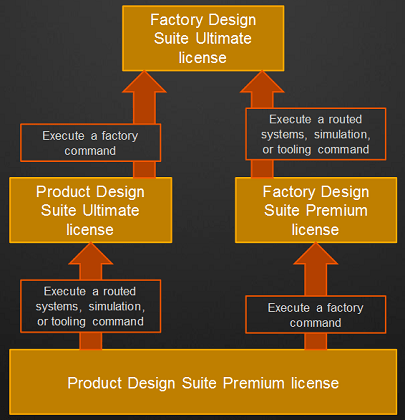
How products find license servers
On the client machine the product look for licenses in this order:
1. ADSKFLEX_LICENSE_FILE environment variable and if multiple servers are specified they are searched for in the order they are specified
2. Windows registry
HKEY_LOCAL_MACHINE\SOFTWARE\FLEXlm License Manager\ADSKFLEX_LICENSE_FILE
3. LM_LICENSE_FILE environment variable
4. Licpath.loc located in the root installation folder of the product
5. If no available licenses are found there, the License Finder dialog box is displayed.
It is good practice to use the port otherwise all ports between 27000 and 27009 will be tested until the license server is found and if you have many license servers this can take some time.
Bad example: ADSKFLEX_LICENSE_FILE=@server1; @server2
Good example: ADSKFLEX_LICENSE_FILE=27000@server1;27000@server2
See Knowledge Base documents TS37913, TS71384, TS1065268 and TS64909
How to specify license servers using the ADSKFLEX_LICENSE_FILE environment variable
To use an environment variable to specify one or more license servers for your Autodesk products:
- On the Start menu (Windows), click Settings > Control Panel.
- Double-click System.
- In the System Properties dialog box, click the Advanced tab.
- Click Environment Variables.
- Under System Variables, click New.
- In the Variable Name box, enter ADSKFLEX_LICENSE_FILE
- In the Variable Value box, enter the license server(s) in the following format:
@server1;@server2;@server3 (where server is the hostname or IP address of your license server)
If you wish you specify a custom port for the server format the value as port@server where port is the custom port number your license server is running on.
- Click OK to close each dialog box.
Consider the following when using the ADSKFLEX_LICENSE_FILE environment variable to specify license servers:
- This variable is automatically set during a client installation from a deployment that is configured for distributed servers.
- Autodesk licensing will search all servers listed in the environment variable and will use the lowest ranking license it finds first. Refer to Understanding Cascade Licensing for Autodesk Products for more information on how products are ranked.
- There is no maximum number of servers that you can specify, but an environment variable does have certain character limitations, which depend on the version of Windows® operating system that you use.
- You do not need to restart your system for this change to take effect. The setting becomes valid once you close the System Properties dialog box.
- This variable automatically overwrites the current license server settings, such as the licpath.lic file and registry cache.
- Only products that use the ADSKFLEX.EXE vendor daemon are affected by the ADSKFLEX_LICENSE_FILE environment variable. For non-Autodesk products that use other vendor daemons, you should contact the appropriate product vendor directly for similar variables.
- A three-server redundant triad. The triad is a single entry on the license search path and is specified using a comma-separated list of three port@hosts (for example, port1@host1,port2@host2,port3@host3).
- It is good practice to use the port otherwise all ports between 27000 and 27009 will be tested until the license server is found and if you have many license servers this can take some time.
FlexNet feature code descriptions for Autodesk products
JTB World is hosting an extensive list of Autodesk product features codes at: http://www.jtbworld.com/jtbflexreport/FLEXnet_FLEXlm_feature_codes.htm
How to set up priority user access
This requires distributed servers where only high priority users have feature access privileges on certain servers the rest of the user population only draws on the other servers.
1. Setup multiple license servers each controlling a portion of your license seat count.
2. Designate one or more servers to only service Priority Users.
3. Set the ADSKFLEX_LICENSE_FILE variable for Priority Users to include all servers.
4. Set the ADSKFLEX_LICENSE_FILE variable for the general user population not to include the Priority License Server(s).
5. Set an Include statement in the options file for each feature on the Priority Server(s) to allow license access only by Priority Users.
Backup servers
The Autodesk license agreement allow you to set up a backup server and request a license file for it. On the back up server check off the box Use Services, and Start Server at Power Up on the config services tab in lmtools.exe.
One method that has been piloted by companies together with Autodesk is to create a virtual FlexNet license server that is automatically started if the primary license server goes down. The cost is the time to set it up and manage it as well as the Windows OS license cost.
Restricting Access to FlexNet License Service
By default FlexNet allows access from other servers and machines including the ability to reread and shut down the License Service.
You can use -local as an argument to lmgrd.exe to prevent non-local users from shutting down the service.
You have to start the contents of the cmdlineparams value with a space or it will not work.
The following .reg snipped can be used to do it for a service named ADSK_FLEX_SERVICE:
Windows Registry Editor Version 5.00
[HKEY_LOCAL_MACHINE\SOFTWARE\FLEXlm License Manager\ADSK_FLEX_SERVICE]
"cmdlineparams"=" -local"
When lmgrd is started with this argument, this line can be seen in the debug log:
08:45:21 (lmgrd) lmdown/lmreread only allowed on this node
Troubleshoot network license issues
Windows Services Console and Task Manager
The vendor daemon service can be found in Windows Services Console having the same name as specified when creating it in LMTOOLS.
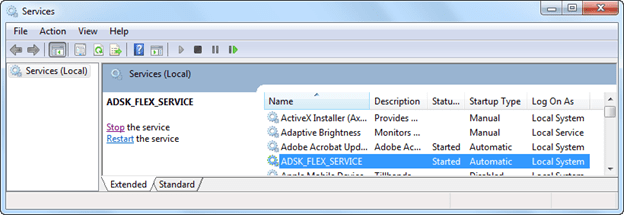
The processes lmgrd.exe and adskflex.exe should be seen in Windows Task Manager.
Using Microsoft’s Process Explorer the service lmgrd.exe (here ADSK_FLEX_SERVICE) can be seen as well as its child process lmgrd.exe and its child process adskflex.exe

Network License Manager startup
These steps are taken when LMGRD starts.
1. LMGRD writes to the debug log
2. Reads the license file
3. Starts the vendor daemon (ADSKFLEX)
4. ADSKFLEX writes to the debug log file
5. Reads the license file
6. Reads option file (if found)
7. Writes report log (if configured)
Application startup
These steps are taken when an application starts.
1. Application is executed
2. Application generates a request for a license
3. Server resolution occurs
4. LMGRD receives request
5. LMGRD determines the appropriate Vendor Daemon
6. Request is passed to Vendor Daemon (ADSKFLEX)
7. ADSKFLEX grant or denies a license
8. ADSKFLEX maintains a hearbeat with each active application session (Every session per machine started will write to the debug log even though only one license is used)
FlexNet debug log
The FlexNet debug log file is useful to find out what happens in the Network License Manager and to identify and diagnose problems.
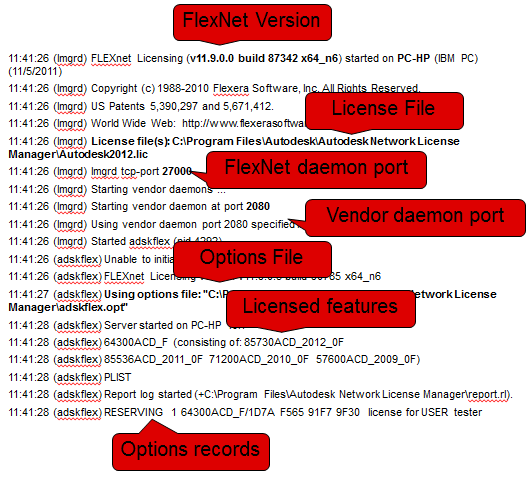
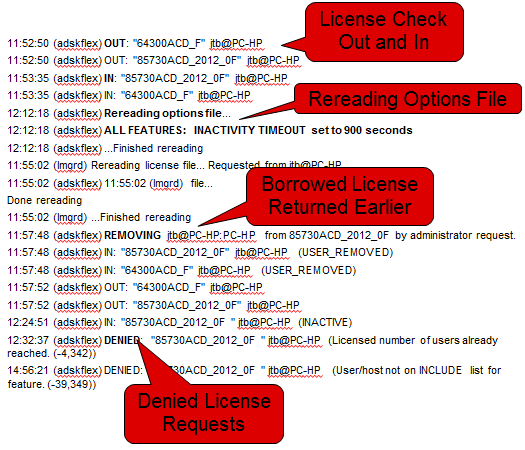
In this row we can see that the FlexNet version is 11.9.
11:41:26 (lmgrd) FLEXnet Licensing (v11.9.0.0 build 87342 x64_n6) started on PC-HP (IBM PC) (11/5/2011)
The License Manager port being used is 27000.
11:41:26 (lmgrd) lmgrd tcp-port 27000
The vendor daemon (adskflex) port using is 2080.
11:41:26 (lmgrd) Using vendor daemon port 2080 specified in license file
Confirming that the options file is loaded.
11:41:27 (adskflex) Using options file: "C:\Program Files\Autodesk\Autodesk Network License Manager\adskflex.opt"
Confirming features issued by the license file.
11:41:28 (adskflex) 64300ACD_F (consisting of: 85730ACD_2012_0F
11:41:28 (adskflex) 85536ACD_2011_0F 71200ACD_2010_0F 57600ACD_2009_0F)
Confirming that the options file is being used as expected.
11:41:28 (adskflex) RESERVING 1 64300ACD_F/1D7A F565 91F7 9F30 license for USER tester
Checked out licenses and checked in licenses.
11:52:50 (adskflex) OUT: "85730ACD_2012_0F" jtb@PC-HP
11:53:35 (adskflex) IN: "85730ACD_2012_0F" jtb@PC-HP
Example of rows when a user is returning a license earlier to the license server.
11:57:48 (adskflex) REMOVING jtb@PC-HP:PC-HP from 85730ACD_2012_0F by administrator request.
11:57:48 (adskflex) IN: "85730ACD_2012_0F" jtb@PC-HP (USER_REMOVED)
11:57:48 (adskflex) IN: "64300ACD_F" jtb@PC-HP (USER_REMOVED)
11:57:52 (adskflex) OUT: "64300ACD_F" jtb@PC-HP
11:57:52 (adskflex) OUT: "85730ACD_2012_0F" jtb@PC-HP
This shows what can happen when a product cascades. AutoCAD 2012 is started but no 64300ACD_F licenses are available so it uses the 65900REVITS_F feature instead.
12:00:16 (adskflex) ALL FEATURES: INACTIVITY TIMEOUT set to 900 seconds
12:00:16 (adskflex) RESERVING 2 64300ACD_F/1D7A F565 91F7 9F30 licenses for USER tester
12:00:16 (adskflex) RESERVING 2 85730ACD_2012_0F/1D7A F565 91F7 9F30 licenses for USER tester
12:00:16 (adskflex) RESERVING 2 85536ACD_2011_0F/1D7A F565 91F7 9F30 licenses for USER tester
12:00:16 (adskflex) RESERVING 2 71200ACD_2010_0F/1D7A F565 91F7 9F30 licenses for USER tester
12:00:16 (adskflex) RESERVING 2 57600ACD_2009_0F/1D7A F565 91F7 9F30 licenses for USER tester
12:00:16 (adskflex) ...Finished rereading
12:00:38 (adskflex) OUT: "65900REVITS_F" jtb@PC-HP
12:00:38 (adskflex) OUT: "85791REVITS_2012_0F" jtb@PC-HP
12:02:40 (adskflex) IN: "85791REVITS_2012_0F" jtb@PC-HP
12:02:40 (adskflex) IN: "65900REVITS_F" jtb@PC-HP
LMUTIL lmstat will show the following, but there is no way to see product using the feature.
Users of 65900REVITS_F: (Total of 1 license issued; Total of 1 license in use)
"65900REVITS_F" v1.000, vendor: adskflex
floating license
jtb PC-HP PC-HP (v1.000) (PC-HP/27000 106), start Sat 11/5 12:05
In some cases when a user is denied a license there is no record of it in the FlexNet debug log. The user might see the Licensing Error: A valid license could not be obtained by the network license manager. If you are still unable to access a license, contact your system administrator. Error [0.0.0]
One example is if the host PC-HP is excluded in the options file like this: EXCLUDEALL HOST PC-HP
The debug log does not show if a feature is borrowed but LMUTIL lmstat does.
This lists the various informational messages used within FlexNet Publisher.
|
Message |
Description |
|
Connected to host |
This daemon is connected to its peer on host. |
|
CONNECTED, master is host |
The license daemons log this message when a quorum is up and everyone has selected a master. |
|
DENIED: num_lic feature to user |
user was denied access to num_lic licenses of feature. |
|
EXITING DUE TO SIGNAL nnn |
All daemons list the reason that the daemon has exited. |
|
EXPIRED: feature |
feature has passed its expiration date. |
|
IN: “feature” user (num_lic licenses) |
user has checked in num_lic licenses of feature. |
|
Lost connection to host |
A daemon can no longer communicate with its peer on node host, which can cause the clients to have to reconnect, or cause the number of daemons to go below the minimum number, in which case clients may start exiting. If the license daemons lose the connection to the master, they kill all the vendor daemons; vendor daemons shut themselves down. |
|
Lost quorum |
The daemon lost quorum, so it processes only connection requests from other daemons. |
|
MULTIPLE vendor servers running. |
The license server manager has detected that multiple vendor daemons with the same vendor name are running. Shutdown lmadmin or lmgrd and all vendor daemons and then restart lmadmin or lmgrd. |
|
OUT: feature user (num_lic licenses) |
user has checked out num_lic licenses of feature. |
|
RESERVE feature for USER user |
A license of feature is reserved for either user or host. |
|
REStarted vendor (internet port |
Vendor daemon vendor was restarted at TCP/IP port nnn. |
|
Retrying socket bind (address in |
The license servers try to bind their sockets for approximately six minutes if they detect “address in use” errors. |
|
Selected (EXISTING) master host. |
This license daemon has selected an existing master host as the master. |
|
SERVER shutdown requested. |
A daemon was requested to shut down via a user-generated kill command. |
|
Server started on host for: |
A (possibly new) server was started for the features listed. |
|
Shutting down vendor |
The license server manager is shutting down the vendor daemon vendor. |
|
SIGCHLD received. Killing child servers. |
A vendor daemon logs this message when a shutdown was requested by the license daemon. |
|
Started vendor |
The license server manager logs this message whenever it starts a new vendor daemon. |
|
TIMESTAMP |
A vendor daemon logs this message at regular intervals. The default interval between vendor daemon timestamps is 6 hours 5 minutes. |
|
Trying to connect to host |
The daemon is attempting a connection to host. |
Perform Status Enquiry
LMTOOLS or the LMSTAT argument of LMUTIL can be used to perform a status enquiry.
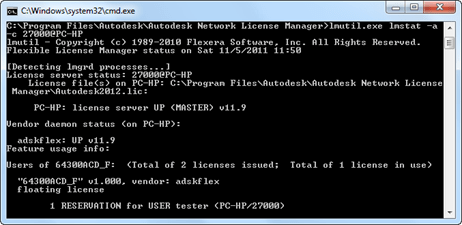
Row showing the number of issued and in use licenses for a feature
Users of 85730ACD_2012_0F: (Total of 1 license issued; Total of 1 license in use)
Row showing a license that is in use
jtb PC-HP PC-HP (v4.000) (PC-HP/27000 301), start Sat 11/5 13:40
Row showing a borrowed license.
jtb PC-HP PC-HP (v1.0) (PC-HP/27000 101), start Sat 11/5 12:36 (linger: 40980)
Row showing a reserved license.
1 RESERVATION for HOST tester (PC-HP/27000)
Increasing verbosity of FlexNet errors on the server
The argument -verbose can be used when running lmutil.exe and will display longer description for all errors found.
Increasing verbosity of FlexNet errors on the client
You want a more detailed explanation of why a network licensing error has occurred.
You can increase the information that is displayed when a network licensing error occurs by setting the FLEXLM_DIAGNOSTICS environment variable on your computer. In addition, a log file will be created that contains the error information. This log file will be located in the “Program files” folder of the respective Autodesk product (or on the Desktop or My Documents folder) and will be named flex###.log, where ### is a three digit number.
To set the FLEXLM_DIAGNOSTICS environment variable
1. Click Start menu (Windows) > Settings > Control Panel.
2. In the Control Panel, double-click System.
3. In the System Properties dialog box, click the Advanced tab.
4. Click Environment Variables.
5. Under System Variables, click New.
6. In the Variable Name box, enter FLEXLM_DIAGNOSTICS
7. In the Variable Value box, enter 3
8. Click OK to close each dialog box.
When ready the variable FLEXLM_DIAGNOSTICS can be deleted.
Losing Your Connection to the License Server
FLEX service did not start automatically
Make sure that Start Server at Powerup option is selected in LMTOOLS.
Check Windows Event Viewer, if there is an error message similar to “FLEXlm service failed to start. Cannot find the network path.” make sure to use only valid, local drive letter paths when you configure the FLEX service in LMTOOLS.
Network licenses are not released after exiting product
If you find that licenses are not being returned to the Network License Manager pool for a long period of time after the connection with a client workstation is lost a workaround can be to make use of TIMEOUT or TIMEOUTALL in the options file.
When a client machine crashes, the license is still checked out by the license server until the time out period.
You can use the LMREMOVE utility to free licenses. You will need to get the needed information about the locked license by using the LMSTAT command.
How to change the lmgrd port number on a FlexNet server and client
It’s also described how the adskflex port can be changed.
See Knowledge Base document TD1321.
Network licensing error [1.5.-4] when starting the software
When you tried to start AutoCAD® based software from a client workstation, the following error message was displayed:
The network license manager was not able to get a valid license. If this problem continues, please contact your system administrator. Error [1.5.-4]
All available licenses are either reserved for other users or are in use.
See Knowledge Base documents TS69953 and TS1059136.
No such Feature Exists error [1.5.-5] when starting the software
When you tried to start AutoCAD®-based software from a client workstation, the following error message was displayed: The network license manager was not able to get a valid license. If this problem continues, please contact your system administrator. Error [1.5.-5]
Correct feature code does not exist in license file to support the product.
Ensure that the product is looking to the correct license server and that the feature for the product exists in the license file.
For 2009 products and earlier ensure PLIST from the most recent license file exists in the license file.
Ensure that the Network License Manager status shows available licenses without errors.
See Knowledge Base documents TS1076387 and TS1059136.
Error when network version of software is started: Error [1.5.-12]
Because of port filtering done at the client workstation or at the license server, this error may be generated when starting an Autodesk product that uses FLEXlm license management technology. The Autodesk Network License Manager needs unrestricted access to TCP port 2080 and ports 27000 - 27009.
See Knowledge Base document TS68138.
Error: FlexLM error [1.5.-14]
Bad SERVER Hostname in License File
Possible causes and solutions: DNS name resolution issue, where Server Hostname does not translate to correct IP address. DNS not working or is improperly configured. Incorrect entry in local “Hosts” file can be solved by substituting server IP Address for the Hostname of server in the licpath.lic file.
Error [1.5.-15] or [1.5.-18] when starting the software
When you tried to launch your AutoCAD®-based software, the following error message was displayed: The network license manager was not able to get a valid license. If this problem continues, please contact your system administrator. Error [1.5.-15] or [1.5.-18]
Possible causes could be that communication is blocked by a firewall either on the server or client machine, the server is not powered on or accessible or the client machine points to a non-existing server.
This error can occur if the Internet Protocol version 6 (IPv6) component is enabled on your server's operating system.
This situation can occur when you access the license manager through a VPN, dial-up or a slow DSL/ISDN link and when accessing licenses over long distances.
Possible solutions are to make sure the ports 2080, 27000-27009 are not being filtered or blocked or set the FLEXLM_TIMEOUT environment variable to extend the license request timeout.
See Knowledge Base documents TS71257, TS1059136, TS1101507 and TS1057817.
Error: FlexLM error 1.5.-18
Explanation of the client product license alert: A valid license could not be obtained by the network license manager. Try again. If you are still unable to access a license, contact your system administrator. Error [1.5.-18]
Possible causes:
· No licenses left to be issued
· No licenses for that feature in license file
· License Manager is not started
· Autodesk Network License Manager version is out-of-date
· Errors in the license file like PLIST is missing
· If all licenses are reserved using the option (OPT) file or in use you might get this message but unfortunately there is nothing in the debug log indicating the denial.
See Knowledge Base documents TS1076426, TS1056448, TS70382, and TS1059136.
No Valid License Error [1.5.-96], [1.5.-97], [1200.5.-96], [1200.5.-97]
You received this error message because the client computer was not able to communicate with the license server. You can resolve this issue using one of the following methods:
Make sure the ports 2080, 27000-27009 are not being filtered or blocked or set the FLEXLM_TIMEOUT environment variable to extend the license request timeout.
The error indicates that there is an issue with the HOSTNAME. You can substitute the ip address of the server for the HOSTNAME of the server in the licpath.lic file on the client computer.
See Knowledge Base document TS1053258.
Error getting status: Cannot connect to license server system.
Using LMSTAT this error can show: Error getting status: Cannot connect to license server system. (-15,10:10060 "WinSock: Connection timed out")
Solution is usually to open any of the ports being used.
Lmstat is not finding server
If license servers cannot be reached using LMSTAT you can try to set the timeout to something. Use the argument -t for timeout with lmutil.exe lmstat. It is probably microseconds so a value of 1,000,000 would be a second. Try increase with a second until it works.
Corrupt CascadeInfo.cas file results in failure of cascading functionality
Cascading functionality is lost due to a corrupt CascadeInfo.cas file.
If the CascadeInfo.cas file is corrupt due to a power failure or any reason, cascading functionality will not be available. This issue only applies to network licensed products and does not affect stand-alone licensed products.
See Knowledge Base document TS13894457.
Valid host ID characters for network license files
See Knowledge Base document TS64910.
Using the licpath.lic file for Autodesk network license enabled products
See Knowledge Base document TS65652.
LMTOOLS Error: Data Execution Prevention
After you restarted the license server, you received an error message similar to the following:
Data Execution Prevention – Microsoft Windows To help protect your computer, Windows has closed this program. Name: LMTOOLS Utility
To resolve this error, you need to change the Data Execution Prevention settings in Windows.
See Knowledge Base document TS1067712.
FlexNet License Administrator
The latest FlexNet Publisher license server manager, lmadmin, is currently available for selected platforms. lmadmin offers a graphical user interface that provides a number of server administration improvements around usability, efficiency, and capability.
FlexNet License Administrator is not supplied by Autodesk.
Autodesk® License Manager and server clustering
Clustered servers are not supported by the Autodesk® License Manager. The Network License Manager cannot be run in a clustered server environment. Clustered servers have not been tested with the Network License Manager. As a result, they are not supported.
See Knowledge Base document TS40213.
NIC Failure Recovery
If the authenticating NIC (network interface card) survives a server failure the NIC can be moved to the replacement hardware and the license file reused.
If the new server inherits the failed units name nothing else is required
If the replacement hardware used a different hostname then the license file server name parameter must be edited.
Single and Distributed server NIC replacement does not affect other servers
If the NIC fails or is on the Server system board a new license file will be required
If the failed server was a member of a redundant pool then a new redundant license file must be obtained and installed on each redundant member.
Usage across WAN
See Knowledge Base document TS17859.
License management and support for VPN connections
Autodesk has not tested VPN connections for license management and does not support this type of connection.
See Knowledge Base document TS73294.
Autodesk Product Support and Knowledge Base
Problems configuring the Autodesk Network License Manager (FlexNet) see Knowledge Base document TS1076366.
Network licensing errors during software startup see Knowledge Base document TS1076386.
Product Support page: www.autodesk.com/support
To easily find a specific document use http://usa.autodesk.com/getdoc/id=XXXXX and replace XXXXX with the document ID. Example http://usa.autodesk.com/getdoc/id=TS1056448
Switching Between Three-Server Redundancy and Single-Server Configuration
While running, the license server manager (lmadmin or lmgrd) is not designed for switching from three-server redundancy to a single-server configuration (and vice-versa). To switch configurations, you need to do the following:
1. Shut down the license server manager in the single-server configuration or, in a three-server redundancy, all the license server managers currently running.
2. Do one of the following:
• For lmadmin:
a. From the lmadmin installation directory on a given machine, import the required license files for the new configuration to which you are switching (either the three-server-redundant or single-server configuration):
lmadmin -import <new_license_file_list> -force
b. Restart lmadmin.
• For lmgrd:
To restart lmgrd on a given machine in the configuration to which you are switching (either the threeserver-redundant or single-server configuration), enter the following from the directory in which lmgrd is located:
lmgrd -c <new_license_file_list>
Network license files on Mac
The network license files on Mac are located in the following directories:
Maya License Server: /var/flexlm/adskflex_server.lic
Mac Client: /var/flexlm/maya.lic
Smoke License Server: /usr/local/flexnetserver/adsk_server.lic
Smoke License Client: /var/flexlm/autodesk.lic
For AutoCAD, it is located here:
*AutoCAD License Server: /usr/local/flexnetserver/adsk_server.lic
AutoCAD Client: /Applications/Autodesk/AutoCAD 2012/AutoCAD.app/Contents/licpath.lic
When configuring a license server on the Mac, you can put the license file anywhere but it's best to put it in: /usr/local/flexnetserver.
If you are using AutoCAD on Mac and you are using a license server that is Windows based, you should use the IP address of the Windows computer.
About Losing Your Connection to the License Server
Explains license server errors that require the restart of an Autodesk product.
When an Autodesk product is running, it communicates with the license server at regular intervals using a method known as the “heartbeat” signal. If the heartbeat signal is lost, the server tries to reconnect. If the server cannot reconnect, the user receives a license error.
If the product stops working because it has lost a connection to the license server, you must shut down the product, and then restart it. Most Autodesk products give you the opportunity to save open documents before shutting down. If the problem causing the original loss of the heartbeat signal is resolved and licenses are available on the server, you can restart your Autodesk product. If you are running several Autodesk products when a license server connection is lost, the error messages for different products typically appear after different time delays, based on product settings.
Disabling Cascading
In 2016 and later releases only, you can disable cascading by setting the value of the environment variable ADSK_CASCADING_OVERRIDE to 0 (disabled). (A setting of 1 enables cascading.) This setting applies across all products. Cascading is automatically disabled for Autodesk Enterprise Token Flex (using product code 535H1) regardless of the setting.
Important: Cascading is essential for suite licensing. Do not disable cascading for suites.
AutoCAD network unavailable license alerts
If you wonder what happens to users of AutoCAD if the Autodesk Network License Manager is unavailable for whatever reason, here’s what.
Users that try to start AutoCAD will get the FlexNet License Finder dialog box showing up.
Your application was not able to obtain a license because the FlexNet license server manager could not determine where to find the licensing data it needs. Please choose one of the following: Specify the License Server System or Specify the License File
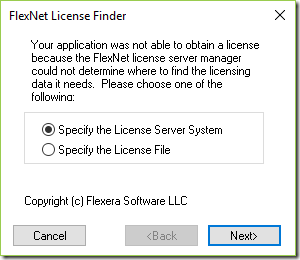
Pressing Cancel shows the Licensing Error dialog box.
Network License Not Available
Common causes: all licenses are in use, the server is down, or the license has expired. Contact your system administrator or support.
Error [-15.570.0]
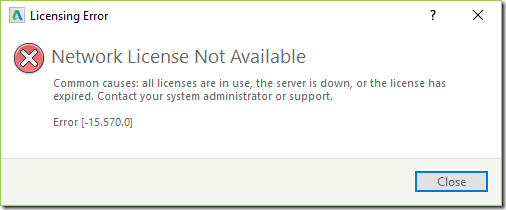
Finally this License Error dialog box shows.
The License manager is not functioning or is improperly installed. AutoCAD will shut down now.
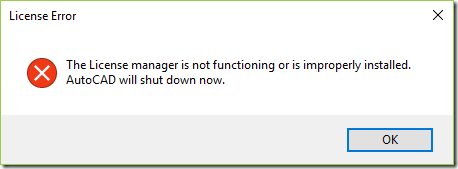
But what if a user is already running AutoCAD while the license manager gets unavailable?
After 2 hours this Unavailable License Alert dialog box will show up.
Your license is no longer available.
To re-establish the license, close and then restart this product.
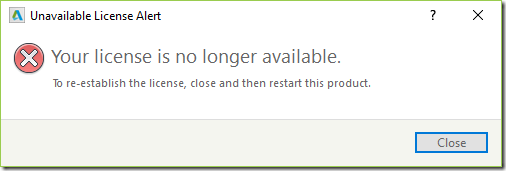
If the user keeps using AutoCAD there is a 2 minutes grace follow by this Network License – Lost Connection dialog box.
A valid license could not be obtained from the network license manager. Please save your work and shutdown.
6 minutes remain before AutoCAD will shut down.
Save drawings and quit – All open drawings will be saved and the application will be shut down immediately.
Continue working – Return to the application to manually save your work during the grace period.
Quit without saving – The application will quit without saving any open drawings.
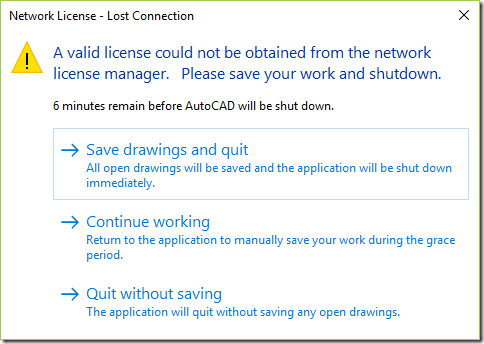
If the user click on Continue working and does not close AutoCAD the above dialog box will show up when there are 4 minutes remaining and eventually again when 2 minutes are remaining. If still using AutoCAD this final “Network License – Out of Time” dialog box shows up.
A valid license could not be obtained from the network license manager. What do you want to do?
AutoCAD will be closed now.
Save drawings and quit – All open drawings will be saved and the application will be shut down immediately.
Quit without saving – The application will quit without saving any open drawings.
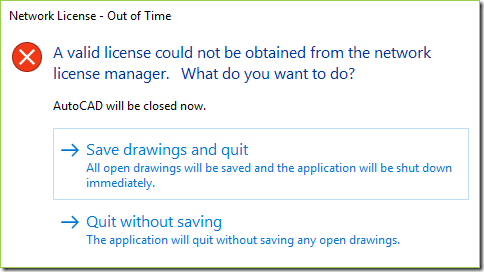
What is a Point Product?
It is an individual application such as AutoCAD, Revit, or Inventor as opposed to a suite or collection.
What is a Clic License?
Clic stands for Cloud Licensing.
With Clic licensing model the permissions are based on Named User sign in, not serial number. The Autodesk updates are immediately available for the Clic licenses.
The Click Licenses are only available on the eStore. (Not all products and applications are Clic enabled)
The Clic licenses are available for download in your Autodesk Account. Sign into Autodesk Account. Select the current version for download ( No Serial Number is required - just sign in).
No Serial Number Needed - Just Sign In (Autodesk ID Licensing)
Previous version for Clic licenses
What is a Multi-User License?
Network licenses that are managed on an internal server for distribution of licenses.
What is a Single-User License?
Standalone licenses where users are required to sign-in to authenticate and activate their named user license. Contract Managers are responsible to assigning users access.
Industry Collections licensing
- There is not a single download of an industry collection
- Users download individual products they need
- Specific Product key for each child product
- Installation and deployment are on a product basis
- Only 2 of the included Industry Collections (IC) products can be run at same time. See Industry Collections Concurrent Access Titles. Individual users of an industry collection may access no more than two (2) of the desktop titles provide in the link at any one time. Hence, customers can only use 2 products from the list provided as well as use the others that are not on the list simultaneously. This restriction has been removed.
- Products assignment: Named User is assigned per Collection, not per individual product (in User Management, the Contract Manager needs to check the box "Assign desktop product access").
- Services assignment: Contract Manager can assign all services to a User, or the services can only be assigned individually.
- 3 users can be assigned per Cloud service for multi-user access
- Term licenses will always be consumed before perpetual license of the same type. The order of license is pulling is as follows: Point Product term-Point product perpetual- Collections- Suites term-Suites perpetual
- Industry collections are not self optimizing. Individual products will not be returned if the individual product is part of the Collection and the Collection is then checked out.
- Only one license will be consumed for all versions running simultaneously. AutoCAD 2017, 16, 15 running simultaneously will consume only one license unlike Suites
- Each IC product will consume an entire IC seat for off network use. When a license is borrowed, it reduces the count of available licenses in the network license pool.
- IC licenses cannot be divided. The whole IC is used by one user at a time for multi user access. Single user licenses cannot be shared.
AQs:
1. Can the customer install different software on different computers?
If the customer has a single-user IC then he can install the license on any number of computers but can login only 3 times simultaneously. Which means that the customer can install different products on different computers with the same login details (assuming that the same user will be using the license at the same time). However, for IC the customer can use only 2 products out of the Collection at the same time. Single-user’s login details may not be shared with anyone else.
If it’s a multi-user IC, then the customer will be able to install the product on different computers but the usage is 1 seat per user. Hence, only 1 user will be able to use the product at a time on one computer. Again 1 user can only use 2 products of the IC at the same time.
2. Are the users able to access different software from different computers at the same time?
For single-user: the customer can install the product on different computers at the same time. He can login only 3 times simultaneously and use only 2 products at the same time.
For multi-users: yes they can access from different computers, different software but again its only 1 user per seat and only 2 products can be used by the user at a time on the same computer. Multi-users must be connected to the central license manager when using licenses from the central server
Please refer to the Software License Agreement for your specific product for more information.
3. What are the differences between single-user and multi-user licenses?
4. Effective immediately, we have removed the industry collection concurrent title restriction and are allowing customers to use as many products concurrently within the collection as they need to support their workflows. The industry collections continue to evolve and are increasingly focused on the support of multi-product workflows. We removed this restriction as the limitation did not support this progression.
Single-user licenses:
Works like existing single-user Subscription offerings
Cloud-based authentication and licensing
The user is named to the entire IC
A license can not be assigned to multiple users.
Named user has full access to the desktop and services
Can not name multiple users to cloud services
One SN for all products in an IC
30 day max offline use
Internet connection is required
Multi-user licenses:
Works like existing multi-user Subscription offerings
Ability to download and distribute individual products
IC are indivisible: only one user can access the collection at a time
Can combine other multi-user licenses with IC licenses
License file must be generated for multi-user IC
One SN for all products in an IC
Named user has full access to the cloud services
Admins can assign/deny access to specific cloud services
3 users can be assigned per service
ETR can be ordered following current process
Internet connection is not required
Can multi-user subscription license be combined in the same license file with perpetual network license?
The license can be combined on the same license file as their existing perpetual license.
The software will cascade to the Multi-User Subscription seats first, followed by the perpetual Network seats.
For example, if your license file contains 5 perpetual seats of AutoCAD 2016 and 5 Multi-User Subscription seats of AutoCAD 2016, the 5 Multi-User Subscription seats will be used before any of the perpetual seats.
Industry Collections Concurrent Access Titles
Individual users of an industry collection may access no more than two (2) of the following desktop titles at any one time.
Effective immediately, we have removed the industry collection concurrent title restriction and are allowing customers to use as many products concurrently within the collection as they need to support their workflows. The industry collections continue to evolve and are increasingly focused on the support of multi-product workflows. We removed this restriction as the limitation did not support this progression.
Architecture, Engineering & Construction Collection
Autodesk® AutoCAD®
Autodesk® AutoCAD® Architecture
Autodesk® AutoCAD® Civil 3d
Autodesk® AutoCAD® Electrical
Autodesk® AutoCAD® Map 3d
Autodesk® AutoCAD® MEP
Autodesk® AutoCAD® P&ID
Autodesk® AutoCAD® Plant 3d
Autodesk® AutoCAD® Utility Design
Autodesk® Revit:
Autodesk® Revit Architecture
Autodesk® Revit MEP
Autodesk® Revit Structure
Autodesk® Navisworks Manage
Autodesk® 3ds Max
Product Design Collection
Autodesk® AutoCAD®
Autodesk® AutoCAD® Architecture
Autodesk® AutoCAD® Electrical
Autodesk® AutoCAD® Mechanical
Autodesk® Inventor Professional
Autodesk® Navisworks Manage
Autodesk® 3ds Max
Media & Entertainment Collection
Autodesk® Maya
Autodesk® Motionbuilder
Autodesk® Mudbox
Autodesk® 3ds Max
Borrowing Collection Licenses
DESCRIPTION:
When Collection licenses came about, borrowing licenses did not have the same results as with it's predecessor "Suites". User were required to borrow a collection license for each product that will be used offsite. This process caused unwanted results by leaving fewer licenses on the network.
SOLUTION:
Borrowing Collection licenses has changed so only 1 license is borrowed when borrowing for multiple application (ie. AutoCAD, Civil 3D, and Revit). For this to work, you must update your license file with your 2019 licenses, then update the License Manager Utility to version 11.14.1.3
PROCESS:
- Open each of the applications (i.e. AutoCAD, Inventor, Revit) and repeat steps 2 through 5
- From the Help pull down (top right of the application), choose About {Product Name}
- On the About page, click Manage License...
- On the Manage License page, click Borrow
- Specify a return date, then click Borrow License
Once complete, you would only consume 1 Collection License.
TCP_NODELAY NOT enabled
When launching Autodesk Products can take up to 5 minutes. Please add the following environment variable on the server: TCP_NODELAY
If "TCP_NODELAY NOT enabled" is seen in the FlexNet debug log this is an explanation: When a FLEXnet licensing session is established, TCP/IP sends data between the server and client by using packets. By default, the TCP/IP processing kernel delays small packet transmissions to gain an efficiency advantage. The advantage occurs by using a buffer to coalesce many small packets before they are sent across the network. The delays can result in artificially high latency times for the small packets that are related to most FLEXnet licensing operations.
Set the TCP_NODELAY system setting (as a FLEXnet license server environment variable) to overcome the delay behavior and to reduce the licensing wait period. Using this setting causes data packets to be sent through the network more frequently. As a result, there is less of a delay in the licensing process due to TCP/IP operations. However, network traffic can increase as a result of smaller and more frequent licensing-related packet transmissions.
Virtual Installation Guideline
The ability to use your Autodesk products in a virtual environment depends on the software product, how you purchased it, and whether the terms of use for that purchase plan permits virtualization. We recommend that you:
-Verify your software and purchase plan is eligible for use in a virtual environment by reviewing the terms of use that outline access and use.
-Confirm that your software is not listed on the virtualization exclusions list.
-Check Autodesk Knowledge Network for System Requirements other information related to virtual environments.
Not all purchase plans and products are permitted to be virtualized. The following general guidelines identify purchase plans for which Autodesk allows some form of virtualization:
Subscription with Single-user Access and Customers on Enterprise Business Agreements
Customers with a subscription with single-user access or an Enterprise Business Agreement can install Autodesk software in a virtual environment. IT managers can deploy software so that an assigned user can access applications from multiple devices. However, only one authorized user can access a single license at any given time, allowing you to stay compliant with licensing guidelines.
Subscription with Multi-user Access and Maintenance Plan Customers
Installation in a virtual environment is not available for these purchase plans at this time. Verifying license compliance in a virtual environment requires individual user access, and that cannot be verified for subscriptions with multi-user access or a perpetual license on maintenance.
Network License Server1, File Server Component1 or Server-Based Product Components2
If you’re running a Network License Server component or other server-based component for a product in one of these categories, you can virtualize these server components on-premises on your own WAN or off-premises with a 3rd party cloud provider. If you choose an off-premises option, you’ll need to 1) ensure the hosted software is properly secured by your 3rd party cloud provider and 2) have the ability to control access to and use of the remotely hosted software.
1 Included with license types licensed on a “networked basis” or subscriptions with multi-user access.
2 Certain products that include a file server component.
ref 2018 Dec
Report license usage
Using LMTOOLS
Current usage can be seen in LMTOOLS.
If you are experiencing problems with the Server Status tab > Perform Status Enquiry, make sure that the "LMTOOLS Ignores License File Path Environment Variables" option is selected on the Service/License File tab and run the Status Enquiry again. In many cases this will correct erroneous Status Enquiries.
Note that there is a limitation on how much is showed using Perform Status Enquiry. To see everything you may need to use LMUTIL.
Using LMUTIL
This is a command line tool that together with the lmstat argument can show the current usage.
LMUTIL can be scripted using a Windows batch file and output may be filtered using flags and/or external filters such as GREP.
Linger is a value that indicates the original borrow period in seconds.
SAMreport-Lite
SAMreport-Lite is a report generator that can providing basic historical usage reports using the FlexNet report log. SAMreport-Lite is not distributed with Autodesk products, but it is available from Autodesk’s website for free. It has its limitations like no usage over time or high water mark reporting as well as no filtering and grouping functionality. For more information see http://www.autodesk.com/samreportlite.
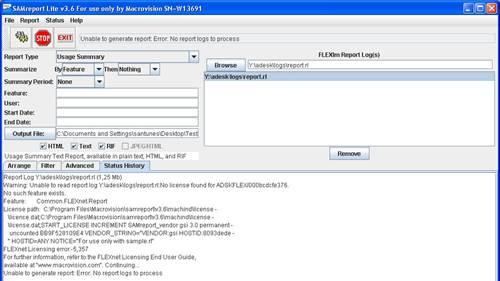
A Usage Summary report in SAMreport-Lite:
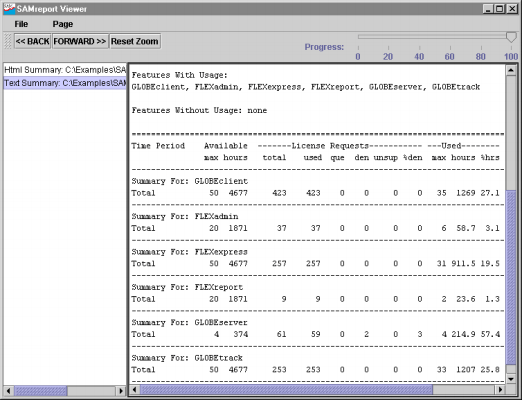
If you need more detailed reporting, you may want to consider the Flexera FlexNet Manager reporting tools (priced to suit larger enterprise customers).
JTB FlexReport LT
JTB FlexReport LT is a freeware from JTB World for HTML reports showing current FlexNet usage. It supports multiple servers, aggregation and descriptions for features.
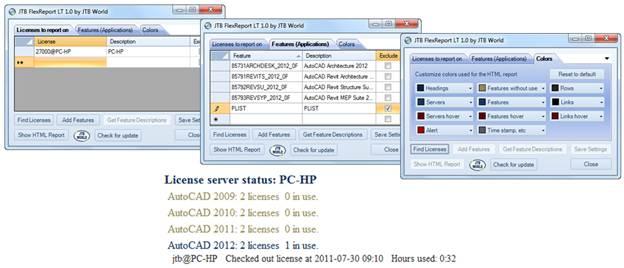
JTB FlexReport
JTB FlexReport is a report tool from JTB World that gives you graphic reports or detailed list reports on your usage of FlexNet / FLEXlm as well as other network license systems. By the license tracking JTB FlexReport does and the reports that can be produced JTB FlexReport will help you to manage and forecast future license usage and license usage trends at your company.
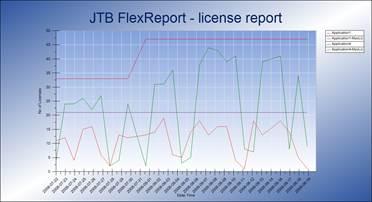
JTB FlexReport will help you to see the license usage over the time and help to justify new purchases. This will help you to decide when and how many licenses you will need to purchase next time. Instead of guessing and purchasing more licenses than you really need.
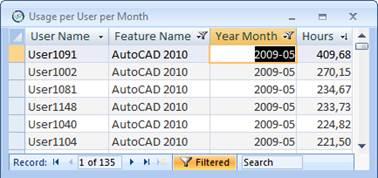
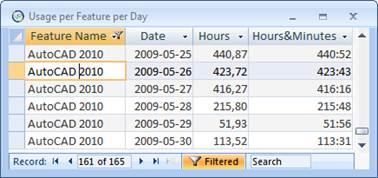
References and resources:
Autodesk Product Support: www.autodesk.com/support
Autodesk's YouTube Channel: http://www.youtube.com/user/Autodesk
Autodesk Registration web site: http://register.autodesk.com
Autodesk Network License Manager downloads: http://autodesk.com/licensetools
Installation & Licensing Discussion Group: http://forums.autodesk.com/t5/Installation-Licensing/bd-p/24
Up and Ready Blog by Autodesk: http://upandready.typepad.com
License File Parser: www.licenseparser.com
Download page for FlexNet files and documentation: http://www.globes.com/support/fnp_utilities_download.htm
AUGI networks forum: http://forums.augi.com/forumdisplay.php?f=33
Network Administrator’s Bible by David M. Stein
More learning resources available.
JTB World: www.jtbworld.com and http://blog.jtbworld.com