
About | Download | Newsletter | System requirements | Purchase | Documentation | Supported Colors | Version History | License agreement | Customers
About
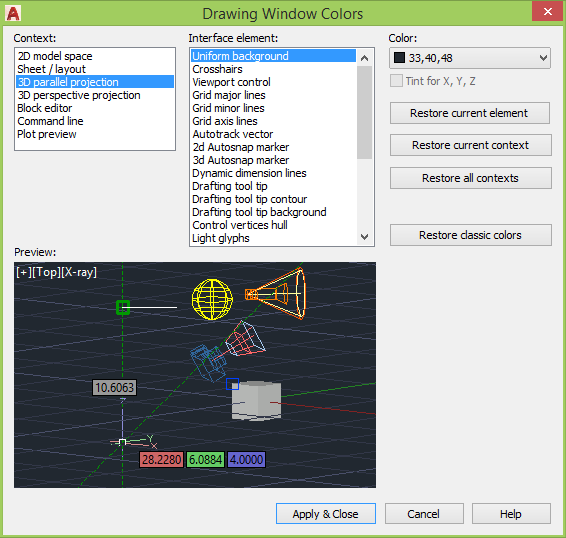
With JTB OsnapzBG Plus loaded any change of the AutoCAD variable OSNAPZ will also change the drawing window colors depending on if OSNAPZ is set to 0 or 1.
OsnapzBG Plus has the ability to set any of the drawing window colors like those in the 3D parallel projection, 3D perspective projection or the command line context and interface elements. This is not available after trial has expired.
Here is what it look like in AutoCAD Architecture. “Replace Z value with current elevation” is a button on the application status bar.
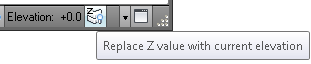
It is the system variable OSNAPZ that holds this setting. OSNAPZ was introduced in AutoCAD 2006 and with OSNAPZ set to 1 anything you snap to only uses the current elevation as z value. OSNAPZ controls whether object snaps are automatically projected onto a plane parallel to the XY plane of the current UCS at the current elevation. OSNAP command or OSMODE system variable in AutoCAD sets running object snap modes.
When installed as an AutoCAD app OsnapzBG Plus shows up on the Add-ins tab and gives quick access to also change the value of OSNAPZ.
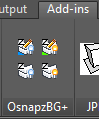
Have any Drawing Window Colors changed based on the OSNAPZ value.
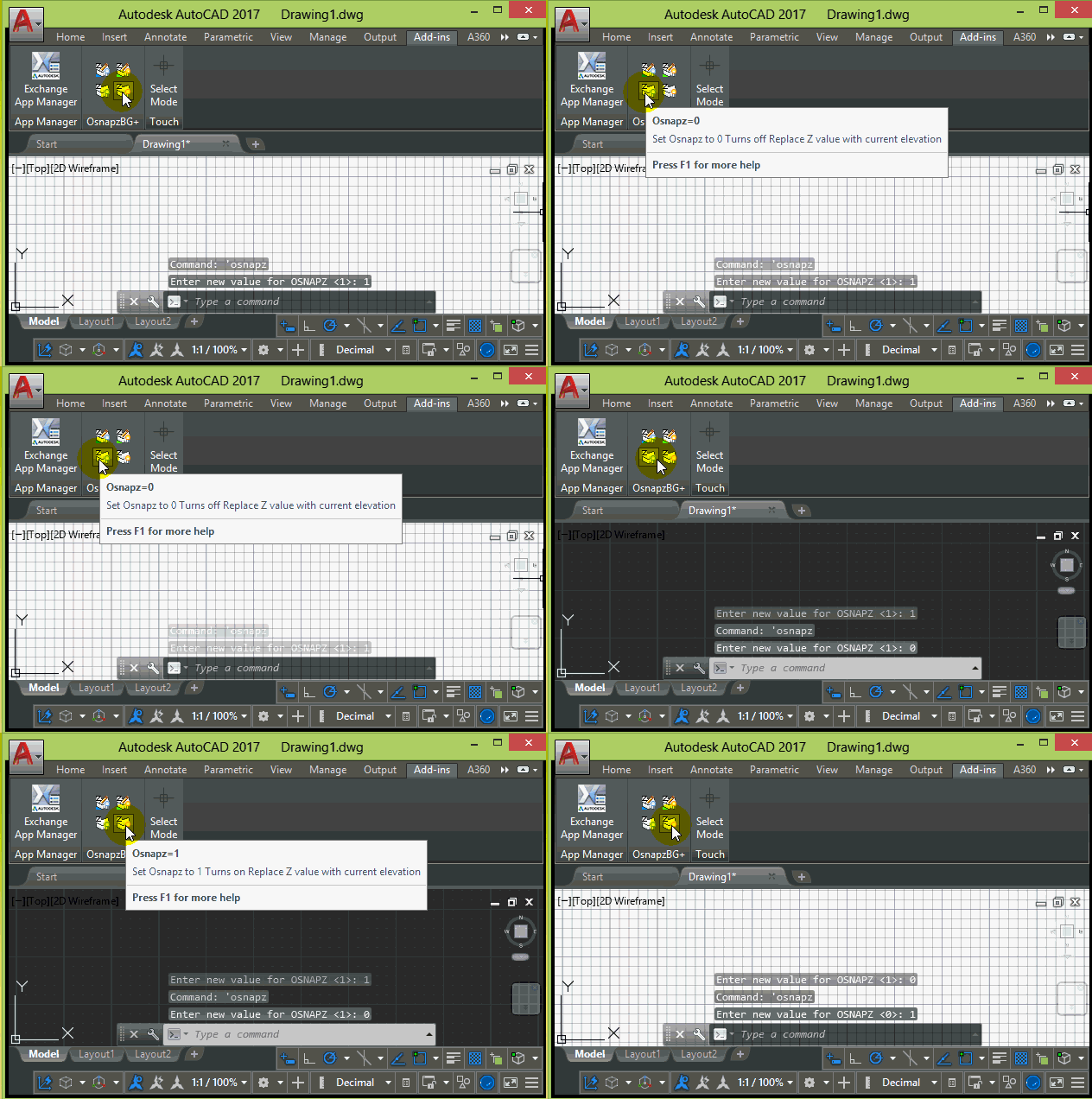
Usage of OsnapzBG Plus where drawing windows colors are changed when OSNAPZ is changed.
Download
To test how it works you can download trial. After trial period has expired you can keep using it but it is limited to what colors can be set and changed.
For AutoCAD 2013 and newer download OsnapzBG Plus as an AutoCAD app on Autodesk App Store site.

Alternative download: OsnapZBG_Plus_2.1.0.zip
System requirements
Compatible with AutoCAD 2013 up to AutoCAD 2026. All flavors based on AutoCAD should be working like AutoCAD Architecture (ACA), AutoCAD Civil 3D, AutoCAD Electrical , AutoCAD Map 3D, AutoCAD Mechanical, AutoCAD MEP (AMEP, ABS), AutoCAD P&ID, AutoCAD Plant 3D, Autodesk Advance Steel.
Compatible with those operating systems AutoCAD runs on like Windows 8, Windows 8.1, Windows 10 and Windows 11.
Older Windows versions might also work but are not directly supported.
Support of BricsCAD upon request.
JTB World is an Autodesk Authorised Developer

Purchase
New license: 10 USD for one license or less depending on the quantity of licenses. Support and upgrades is included for versions released within 1 year after purchase. If Auto-Renewal is selected it is 3 USD per year and can be cancelled at anytime.
Upgrade license: 3 USD for 1 year for one license or less depending on the quantity of licenses. If Auto-Renewal is selected it is 3 USD per two years and can be cancelled at anytime.
Upgrade license: 5 USD for 2 years for one license or less depending on the quantity of licenses. If Auto-Renewal is selected it is 5 USD per two years and can be cancelled at anytime.
Once you have purchased a license, follow the instructions and email to JTB World for the license activation key. See activation instructions here: JTB World Apps Licensing.
If you have really many users that you want to give access to this software we can discuss a discounted price based on your particular situation. Educational discounts available.
The license is perpetual. If you have more than one computer and you are the only user of the application one license is enough.
The network license manager is available at no extra cost and normally most useful for companies with quite many licenses.
If your US company is tax exempt contact us directly.
2Checkout (Verifone) supports 45+ online and offline payment methods globally, but availability depends on shopper country, currency.
Main families of payment methods
-
Credit/debit cards (global core): Visa, Visa Electron, MasterCard, Maestro, Eurocard, American Express, Discover/Novus, JCB, UnionPay, plus domestic Visa/MasterCard variants in markets like Brazil and Turkey.
-
Local/regional cards: Dankort/VISA (Denmark), Bancontact (Belgium), Postepay (Italy), CB/Carte Bancaire (France), local Turkish and Brazilian cards, and other regional card schemes.
-
Digital wallets: PayPal, PayPal Express, Google Pay, Apple Pay, Alipay, WeChat Pay, MobilePay (DK), Vipps (NO), and others like Skrill, Neteller, Qiwi, WebMoney, Trustly depending on region.
-
Bank transfer & offline: Local and international bank/wire transfer (US, DE, UK, rest of world), SEPA-type transfers in EU, purchase orders, and additional local bank transfer rails in EMEA/APAC.
Documentation
Installation
Use the installer that also puts the app on the Add-ins Ribbon tab (Plug-Ins tab in older AutoCAD versions).
Activation
See activation instructions here: JTB World Apps Licensing.
Usage
 Set the drawing windows colors you want to use for OSNAPZ=0 and run the SetOsnapzColors0 command or use the button on the Plug-ins/Add-ins Ribbon tab.
 Set the drawing windows colors you want to use for OSNAPZ=1 and run the SetOsnapzColors1 command or use the button on the Plug-ins/Add-ins Ribbon tab.
Now when OSNAPZ is changed the drawing window colors will change accordingly.
 OSNAPZ set to 0
 OSNAPZ set to 1 - This will replace Z value with current elevation.
See also this blog post: OSNAPZ changes can change your AutoCAD screen background with the OsnapzBG freeware
Supported colors
Contexts: 2D model space, Sheet / layout, 3D parallel projection, 3D perspective projection, Block editor, Command line and Plot preview
Interface elements (Including support for Tint for X, Y, Z):
Uniform background
Crosshairs
Viewport control
Grid major lines
Grid minor lines
Grid axis lines
Autotrack vertor
2D Autosnap marker
3D Autosnap marker
Dynamic dimension lines
Rubber-band line
Drafting tool tip
Drafting tool tip contour
Drafting tool tip background
Control vertices hull
Light glyphs
Light hotspot
Light falloff
Light start limit
Light end limit
Camera glyphs color
Camera frustum/frustum plane
Camera clipping planes
Light Web (missing file)
Light shape (extended source)
Lux at distance
Paper background
Top of sky background
Background sky horizon
Background ground origin
Background ground horizon
Bottom of earth background
Background earth horizon
Command history background
Command history text
Active prompt background
Active prompt text
Temporary prompt background
Temporary prompt text
Command option keyword
Command option background
Command option highlighted
Known issue is that the Light Web color is defaulted to 1,0,0. Please contact us if you want us to prioritize a fix for this.
License agreement
The license agreement is found here.
Version History
- 2025-03-25 - version 2.1.0
- Added Autodesk AutoCAD 2026 support.
- 2024-12-27 - version 2.0.0
- Added Autodesk AutoCAD 2025 support.
- 2023-05-15 - version 1.8.0
- Added Autodesk AutoCAD 2024 support.
- 2022-04-25 - version 1.7.0
- Added Autodesk AutoCAD 2023 support.
- 2021-07-09 - version 1.6.3
- Remove messages about uninstallation in very-silent installation mode.
- 2021-04-13 - version 1.6.2 update
- Added Autodesk AutoCAD 2022 support.
- 2020-07-24 - version 1.6.1
- Upgraded to License 4.3
- 2020-05-10 - version 1.6
- Added Autodesk® AutoCAD® 2021 support.
- Freeware version is now merged with this the plus app and works in freeware mode with limited functionality after trial expired.
- 2019-03-28 - version 1.2 update
- Added Autodesk® AutoCAD® 2020 support.
- 2018-03-22 - version 1.2 update
- Added Autodesk® AutoCAD® 2019 support.
- 2017-06-02 - version 1.2
- Changes of Auto Snap Marker to white incorrectly fixed as well as a few other minor issues.
- Support for more color elements.
- 2017-03-21 - version 1.1. update
- Added Autodesk® AutoCAD® 2018 support.
- 2016-11-03 - version 1.1
- Bugs fixed that could cause some colors to be forced to black and some colors not being set.
- 2015-07-20 - version 1.0
- First version. Based on the free OsnapzBG but adds ability to set any of the drawing window colors.
Customers
Contact us for any questions, wishes or comments.