
About | Download | Newsletter | System requirements | Purchase | Documentation | Version History | License agreement | Customers
About
Multiple drawings can be automatically created from a typical drawing or updated based on a control file that can be created with an Excel template. Make the changes in Excel and let the program do all the work for you. This is a real time saver if you need to make adjustments on hundreds or thousands of drawings.
Optionally an AutoLISP file (*.lsp;*.vlx;*.fas) can be loaded for each drawing. Each drawing can use a separate AutoLISP file if needed. This gives you almost unlimited flexibility when it comes to what task you want to automate.
Example of usages: Add a stamp block; insert a title block; update text or attributes in the title block; insert text, block or xref; change text or attribute values and more. Change all external references (xrefs) from absolute paths to relative paths for archive purpose. Find and replace attribute or text values.
Bulk updating AutoCAD or BricsCAD drawings in most any way that you would like.
If you have an idea of what you want to automate but don't know how to realize it, contact us for a solution.
AutoGen
AutoGen creates new drawings based on one or more template drawings based on the control file. In the process text, mtext and block attribute values can be changed individually on each new drawing.
It is possible to change only a part of the text string. If the template drawing contain the text "SHEET #sheetno#" it can be updated to for example "SHEET 1" by specifying #sheetno# as the text to change.
Depending on your computer performance and the complexity of the drawing you can generate around 100 drawings in just 60 seconds.
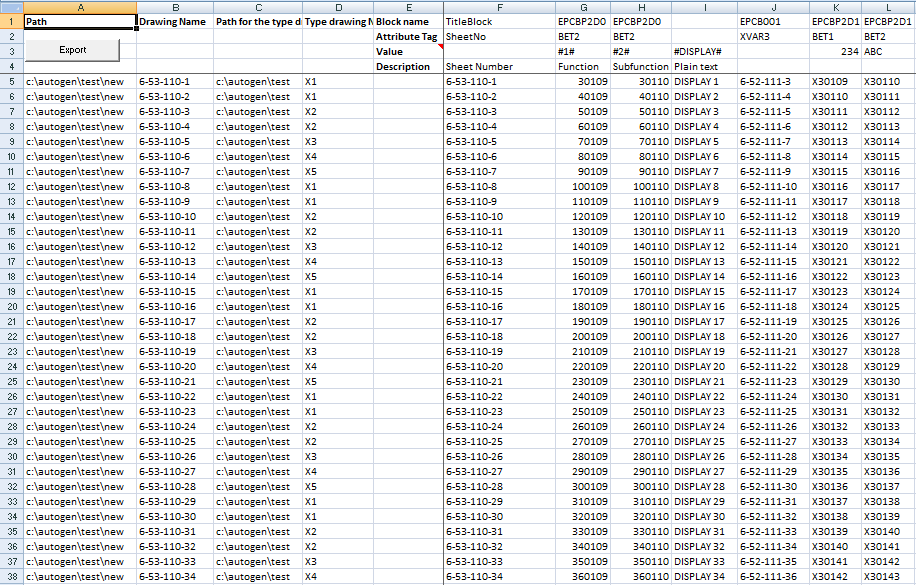
AutoGen has been used by customers creating instrumentation drawings, loop diagrams (loop drawings), schematics in an automated way based on data in a spreadsheet.
AutoIns
AutoIns inserts text, blocks or xrefs into drawings based on the control file.
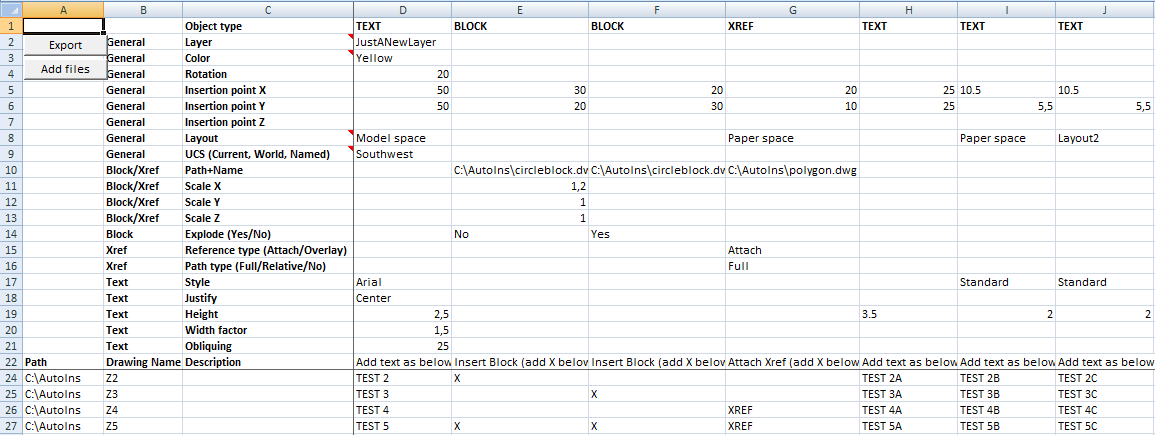
These are the properties that can be set using the control file.
| Object | Property |
| General | Layer |
| General | Color |
| General | Rotation |
| General | Insertion point X |
| General | Insertion point Y |
| General | Insertion point Z |
| General | Layout |
| General | UCS (Current, World, Named) |
| Block/Xref | Path+Name |
| Block/Xref | Scale X |
| Block/Xref | Scale Y |
| Block/Xref | Scale Z |
| Block | Explode (Yes/No) |
| Block | Custom property |
| Xref | Reference type (Attach/Overlay) |
| Xref | Path type (Full/Relative/No) |
| Text | Style |
| Text | Justify |
| Text | Height |
| Text | Width factor |
| Text | Obliquing |
In case you want to insert for example a circle or more complex geometry you can make a block of it and the insert it with the Explode property set to Yes.
AutoUpd
AutoUpd updates existing drawings based on the control file.
In the process text and attribute values can be changed individually on each new drawing.
It is possible to change both the whole text string or only a part of the text string. If the template drawing contain the text "SHEET #sheetno#" it can be updated to for example "SHEET 1" by specifying #sheetno# as the text to change.
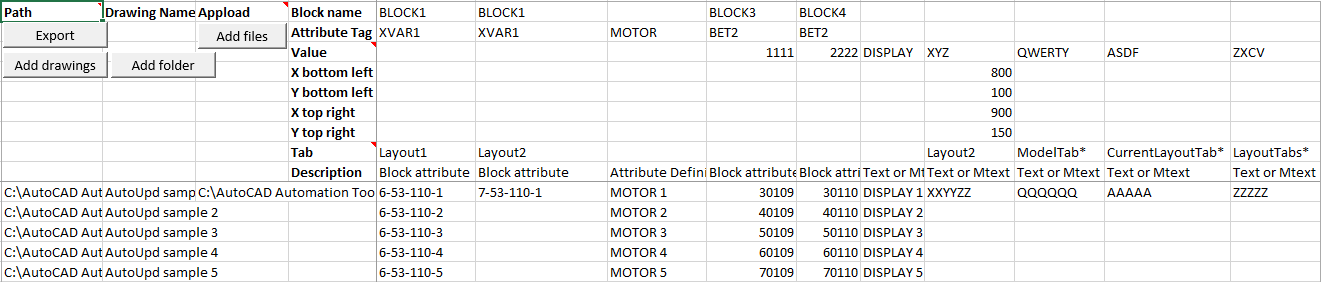
It is also possible to update text found at a location by defining a rectangle with two coordinates. This is for example useful if a title block contains mtext or text objects not being part of a block object.
With the Import from drawings functionality you can get block and attribute information from one or many drawings.

Example on how to search and replace attribute values or text.
Download video showing usage of AutoUpd or see it on YouTube.
Download
JTB_CAD_Automation_Tools_2026.3.0.zip for BricsCAD 15 or later, or AutoCAD.
Full support is provided during trial period that is up to 30 days.
A trial of JTB CAD Automation Tools can also be downloaded from the Autodesk App Store site.

If you need JTB CAD Automation Tools for AutoCAD 2012 or older please contact us.
A special version is available for BricsCAD Lite, contact us if needed.
System requirements
AutoCAD 2000 or later or verticals based on AutoCAD, BricsCAD 15 or newer.
A special version is available for BricsCAD Lite, contact us if needed.
All verticals or flavors based on AutoCAD should be working like AutoCAD Architecture (ACA), Architectural Desktop (ADT), AutoCAD Civil 3D, AutoCAD Electrical , AutoCAD Map 3D, AutoCAD Mechanical, AutoCAD MEP (AMEP, ABS), AutoCAD P&ID, AutoCAD Plant 3D, Autodesk Advance Steel.
Compatible with those operating systems AutoCAD runs on like Windows XP, Windows Vista, Windows 7, Windows 8, Windows 8.1, Windows 10. and Windows 11.
Contact us if support for other CAD software.

JTB World is an Autodesk Authorised Developer
Purchase
New license: 95 USD for one license or less depending on the quantity of licenses. Support and upgrades is included for versions released within 1 year after purchase. If Auto-Renewal is selected it is 29 USD per year and can be cancelled at anytime.
Upgrade license: 29 USD for 1 year for one license or less depending on the quantity of licenses. If Auto-Renewal is selected it is 29 USD per two years and can be cancelled at anytime.
Upgrade license: 48 USD for 2 years for one license or less depending on the quantity of licenses. If Auto-Renewal is selected it is 48 USD per two years and can be cancelled at anytime.
Once you have purchased a license, follow the instructions and email to JTB World for the license activation key. See activation instructions here: JTB World Apps Licensing.
If you have really many users that you want to give access to this software we can discuss a discounted price based on your particular situation. Educational discounts available.
The license is perpetual. If you have more than one computer and you are the only user of the application one license is enough.
The network license manager is available at no extra cost and normally most useful for companies with quite many licenses.
If your US company is tax exempt contact us directly.
2Checkout (Verifone) supports 45+ online and offline payment methods globally, but availability depends on shopper country, currency.
Main families of payment methods
-
Credit/debit cards (global core): Visa, Visa Electron, MasterCard, Maestro, Eurocard, American Express, Discover/Novus, JCB, UnionPay, plus domestic Visa/MasterCard variants in markets like Brazil and Turkey.
-
Local/regional cards: Dankort/VISA (Denmark), Bancontact (Belgium), Postepay (Italy), CB/Carte Bancaire (France), local Turkish and Brazilian cards, and other regional card schemes.
-
Digital wallets: PayPal, PayPal Express, Google Pay, Apple Pay, Alipay, WeChat Pay, MobilePay (DK), Vipps (NO), and others like Skrill, Neteller, Qiwi, WebMoney, Trustly depending on region.
-
Bank transfer & offline: Local and international bank/wire transfer (US, DE, UK, rest of world), SEPA-type transfers in EU, purchase orders, and additional local bank transfer rails in EMEA/APAC.
Documentation
Installation
Run the installer. Installation path is %ProgramFiles%\Autodesk\ApplicationPlugins\JTB-CAD Automation Tools.bundle\ for AutoCAD and %ProgramData%\JTB-CAD Automation Tools for BricsCAD.
Loading
The application will automatically load and also add the Automation Tools panel to the Ribbon tab Plug-ins/Add-ins. Sometimes 'JTB CAD Automation Tools.VLX' needs to be located, it is found in any of the folders of "%ProgramFiles%\Autodesk\ApplicationPlugins\JTB-CAD Automation Tools.bundle\Contents\Windows" depending on AutoCAD version.
License Activation
See activation instructions here: JTB World Apps Licensing.
Control file creation
The copy button can be used to copy sample files that are in (%ProgramFiles%\Autodesk\ApplicationPlugins\JTB-CAD Automation Tools.bundle\Contents\JTB CAD Automation Tools for AutoCAD or %ProgramData%\JTB-CAD Automation Tools\Contents\JTB CAD Automation Tools for BricsCAD) to the C:\JTB CAD Automation Tools folder.
This shows an example how to use AutoGen and the steps are similar for the other commands.
Open AutoGenTemplate.xls
Specify path and name for the drawing to be created as well as the path and name for the template to be used.
Use a button to select and populate the template sheet with the path and name for the drawings.
Use a button that automatically save the Excel template to the correct format.
The Control file should be in TXT tab delimited format.
Start with AutoGenTemplate.xls and when ready save as Text (Tab delimited) (*.txt).
Excel 2007 and newer versions supports more than 256 columns. Make sure to save the Excel file to the XLSM format that allows macros.
Usage
Recommendation is to close all drawings and start a new empty drawing.
Start with the commands AutoGen, AutoIns or AutoUpd.
The first time you may be asked for the location of program file.
When asked for control file browse for and select the control file to be used.
AutoGen
Creation of control file
The Control file should be in TXT tab delimited format.
Start with AutoGenTemplate.xlsm and when ready save as Text (Tab delimited) (*.txt).
For an example of the usage take a look at AutoGenSample.xlsm.
The rows 5 and higher are used to define the new drawings to be created.
Column A (row 5 and higher) holds the path to the drawing that will be created.
Column B (row 5 and higher) holds the name of the drawing.
Column C (row 5 and higher) holds the path for the type drawings.
Column D (row 5 and higher) holds the type drawing name that is an existing drawing.
Column E (row 5 and higher) holds the full path to an AutoLISP application that should be loaded. *.lsp;*.vlx;*.fas are supported. This is optional.
Column G and higher are used to define what should be changed in the template before it is saved to a new drawing. Do not leave empty columns in between. For cell G5 and higher add the value that should be updated or added alternatively “**IGNORE**” without the double quotes and it will not be considered.
When only row 1 and 2 has values it is a Block attribute and all instances of that block with that attribute should get the value.
When only row 2 has a value it is an Attribute definition. This is not a good solution but sometimes users explode blocks and edit the attribute definition thinking it is plain text. What is to be done here is that the Attribute definition should be converted into a Text object with the same properties and the new value.
When row 1,2 and 3 has values it all matches should get the value listed. The value will be searched for and replaced. For example: 1111 will search for all occurrences of the text 111 and replace it with the value listed.
When only row 3 has values it is either Text, Mtext, Multileader or Table objects that should be searched and replaced.
Sample
Here is what the template file AutoGen template 1.dwg look like.
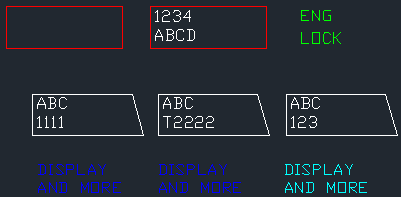
After running the command it would look like this. TEST1.dwg

Usage
Recommendation is to close all drawings and open a new empty drawing.
Start with the command AutoGen.
When asked for control file (.TXT) browse for and select the control file to be used.
Test drive
The copy button can be used to copy sample files that are in (%ProgramFiles%\Autodesk\ApplicationPlugins\JTB-CAD Automation Tools.bundle\Contents\JTB CAD Automation Tools for AutoCAD or %ProgramData%\JTB-CAD Automation Tools\Contents\JTB CAD Automation Tools for BricsCAD) to the C:\JTB CAD Automation Tools folder.
Follow the instructions described under the subheading Usage. Run the AutoGen command and browse for the file AutoGenSample.txt and the resulting new drawings will be created in the NEW folder.
AutoIns
Creation of control file
The Control file should be in TXT tab delimited format.
Start with AutoInsTemplate.xlsm and when ready save as Text (Tab delimited) (*.txt) or use the button Export.
For an example of the usage take a look at AutoInsSample.xlsm.
The rows 24 and higher are used to define the drawings to be updated. To add files the Add files button can be used.
Column A (row 24 and higher) holds the path to the drawing.
Column B (row 24 and higher) holds the name of the drawing.
Column C (row 24 and higher) holds the full path to an AutoLISP application that should be loaded. *.lsp;*.vlx;*.fas are supported. This is optional.
Column E and higher are used to define what should be inserted to the drawing. Do not leave empty columns in between. Row 1 must be any of these values: TEXT, BLOCK or XREF. For blocks and xrefs to be inserted/attached an X should be added in the column in row 24 or higher. For cell E23 and higher add the value “**IGNORE**” without the double quotes and it will not be considered.
For dynamic blocks use Custom property. Applies only to dynamic blocks in format
property=value
Example:
Visibility1=existing
See the sample files for how Text, Blocks and Xrefs can be added to existing drawing.
Usage
Recommendation is to close all drawings and start a new empty drawing.
Start with the command AutoIns.
When asked for control file (.TXT) browse for and select the control file to be used.
Test drive
The copy button can be used to copy sample files that are in (%ProgramFiles%\Autodesk\ApplicationPlugins\JTB-CAD Automation Tools.bundle\Contents\JTB CAD Automation Tools for AutoCAD or %ProgramData%\JTB-CAD Automation Tools\Contents\JTB CAD Automation Tools for BricsCAD) to the C:\JTB CAD Automation Tools folder.
Follow the instructions described under the subheading Usage. Run the AutoIns command and browse for the file AutoInsSample.txt and the resulting new drawings will be created in the NEW folder.
AutoUpd
Description
AutoUpd updates existing drawings based on using a specified control file.
In the process text and attribute values can be changed individually on each drawing.
Find and replace of text or attribute values throughout the whole drawing is supported.
Creation of control file
The Control file should be in TXT tab delimited format.
Start with AutoUpdTemplate.xlsm and when ready save as Text (Tab delimited) (*.txt) or use the button Export.
For an example of the usage take a look at AutoUpdSample.xlsm.
“Import from drawings” button will open “Import from Drawings” sheet that makes it possible to get existing block and attribute information from one or many drawings.
The rows 10 and higher are used to define the drawings to be updated. To add files the Add files button can be used.
Column A (row 10 and higher) holds the path to the drawing.
Column B (row 10 and higher) holds the name of the drawing.
Column C (row 10 and higher) holds the full path to an AutoLISP application that should be loaded. *.lsp;*.vlx;*.fas are supported. This is optional.
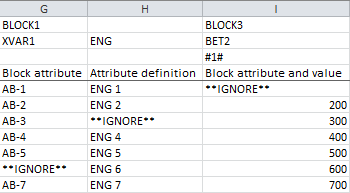
Column E and higher are used to define what should be changed in the drawing. Do not leave empty columns in between. For cell E10 and higher add the new value to be used or add the value “**IGNORE**” without the double quotes and it will not be considered.
When only row 1 and 3 has values it is a Block attribute and all instances of that block with that attribute should get the value as specified in row 10 and higher.
When row 2 (Block Handles) is used specific instances of blocks will be processed.
If that Block Handles cell is empty, then, in all drawings, at that layout tab, all blocks of specified “BLOCK ABC” name will have specified attribute “ATTXYZ” updated.
When your drawing model or layout has many “BLOCK ABC” with attributes “ATTXYZ”, and you want to change the attribute value per each block, you have to specify the block handle. Since there is a list of 10 drawings, so, it should be 10 block handles each column.
- If in a drawing, you don’t want any change in that column, you can just leave a space there, for example: Block Handles = 125, , , , 555
- A special block handle value = * can be used. So, if you want to update all blocks in just a chosen drawing, you can put Block Handles = 125, ,*, 555.
- To be compatible with old AutoUpd spreadsheet, Blocks Handles = “” (empty), all drawings and all found blocks in the layout will be updated.
When only row 3 has a value it is an Attribute definition. This is not a good solution but sometimes users explode blocks and edit the attribute definition thinking it is plain text. What is to be done here is that the Attribute definition should be converted into a Text object with the same properties and the new value.
When row 1, 3 and 4 has values it all matches should get the value listed. The value will be searched for and replaced. For example: 1111 will search for all occurrences of the text 111 and replace it with the value listed.
When row 5-8 contains values defining coordinates for a rectangle any Text, Mtext, Multileader or Table objects crossing or within will be searched and replaced. If the value in row 4 is empty existing value will be completely replaced. The rectangle defined by the coordinates needs to be visible. If needed an AutoLISP can be created that zoom extents and is loaded by AutoUpd.
When only row 4 has values it is either Text, Mtext, Multileader or Table objects that should be searched and replaced.
Row 9 is used to specify what layout will be updated.
For search and replace of attribute values in the whole drawing:
To have it working add * in Block name (row 1) and/or Attribute Tag (row 3). This way you can find and replace among all attributes for one specific block or all blocks.
You can also find and replace on a specific attribute tag or any attribute tag. Examples of combinations that work:
Block name: *
Attribute Tag: *
Block name: *
Attribute Tag: NAME
Block name: FRAME
Attribute Tag: *
Block name: FRAME
Attribute Tag: NAME
Usage
Recommendation is to close all drawings and start a new empty drawing.
Start with the command AutoUpd.
When asked for control file (.TXT) browse for and select the control file to be used.
Test drive
The copy button can be used to copy sample files that are in (%ProgramFiles%\Autodesk\ApplicationPlugins\JTB-CAD Automation Tools.bundle\Contents\JTB CAD Automation Tools for AutoCAD or %ProgramData%\JTB-CAD Automation Tools\Contents\JTB CAD Automation Tools for BricsCAD) to the C:\JTB CAD Automation Tools folder.
Follow the instructions described under the subheading Usage. Run the AutoUpd command and browse for the file AutoUpdSample.txt and the resulting new drawings will be created in the NEW folder.
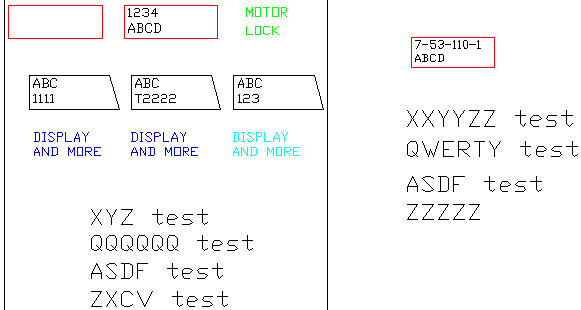
This shows AutoUpd sample 1.dwg before updated.

This shows AutoUpd sample 1.dwg after updated.
Vault tips:
Check out a folder to Work Space.
Run the tools on the files.
Check folder back into vault.
Tips and tutorial from the blog:
**IGNORE** can be used as a value if you don't want JTB CAD Automation to affect the value for a specific combination of drawing and attribute/text.
Trouble Shooting
If the program is not working as expected run "Reset JTB CAD Automation Tools.reg" found in the installation folder and merge it to the registry to reset the paths.
Check AutoCAD's or BricsCAD's command line when you start a new drawing and see if there are some errors. This can cause the program to halt. One indication on this problem is that AutoGen produces the new drawings but does not update them.
If you have old templates they might not be compatible with most recent template format. Check that they are matching.
Contact us for further support.
Known limitations
- Search and replace is case sensitive
- Wish: add support to AutoUpd for handling dynamic blocks and their special properties
- Wish: add support for handling dynamic blocks for AutoUpd Excel sheet "Import from drawings" function
License agreement
The license agreement is found here
Version History
- 2026-03-30 - version 2026.3.0 download
- Added support for AutoCAD 2027.
- Added support for BricsCAD V26.
- 2025-11-20 - version 2025.11.0 download
- Added support for Dynamic Blocks in AutoIns. New Excel file needs to be used.
- 2025-10-12 - version 2025.10.0 download
- Added support for Dynamic Blocks in AutoIns. New Excel file needs to be used.
- 2025-03-25 - version 6.1.0 download
- Added support for AutoCAD 2026.
- 2024-11-20 - version 6.0.1 download
- Fixed bug related to Express Tools that could cause the app to not load.
- 2024-11-11 - version 6.0.0 download
- Added support for AutoCAD 2025.
- Fixed bug that could change text outside of specified coordinates.
- Request for new license key is needed. See instructions here.
- 2023-12-13 - version 5.11.0 download
- AutoUpd, when using coordinates update tables only within that crossing window.
- AutoUpd, when using coordinates update tables only within that crossing window.
- 2023-04-04 - version 5.10.0 download
- Added AutoCAD 2024 support
- 2022-11-18 - version 5.9.1 download
- Fixed bug in License file version 4.7.2
- 2022-04-25 - version 5.9.0 download
- Added AutoCAD 2023 support
- 2021-09-12 - version 5.8.1 download
- Fixed error in AutoUpd Excel spreadsheet when a text is exported as "###" when the cell is not wide enough.
- 2021-08-09 - version 5.8.0 download
- Fixed AutoUpd to work with coordinate selection and if the layout specified is not current.
- Remove messages about uninstallation in very-silent installation mode.
- 2021-04-13 - version 5.7.2 download
- Added AutoCAD 2022 support
- 2020-07-25 - version 5.7.1
- Upgraded to License 4.3
- 2020-05-08 - version 5.7.0
- Added AutoCAD 2021 support
- 2019-10-15 - version 5.6.4
- Fixed bug in AutoIns when block has attributes.
- Fixed restoring of some system variables.
- 2019-06-30 - version 5.6.3
- Add notification when AutoCAD has no license to run
- One installer for AutoCAD and BricsCAD
- After purchase the download you get will give you 30 extra days before you need to request and apply the license key
- 2019-04-22 - version 5.6.2
- Fixed restoring some system variables after using the app
- AutoUpd updated with flexibility of using handles
- Installer now installs to %ProgramData%
- Uninstall previous version before updating
- 2019-03-28 - version 5.6.1
- Added support for AutoCAD 2020.
- Updated installer.
- 2018-05-21 - version 5.6
- Updates to documentation
- 2018-03-22 - version 5.5 update
- Added support for AutoCAD® 2019 (no version number change)
- 2018-03-13 - version 5.5
- Added support and installer for BricsCAD up to version 18.
- Add block handles row in AutoUpd. In case there are 2 or more blocks of same name, this handles row helps to identify and populate changes to each block accordingly.
- Add new licensing function, including Network license feature.
- 2017-08-16 - version 5.3
- Fixed bug in AUTOINS command that showed error "no function definition: XREFPATHTYPE".
- 2017-07-20 - version 5.2
- Fixed bugs in AutoUpd command
- Fix bugs when attribute text is changed by Excel because it is formatted as number or formula
- Add sorting options in AutoUpd Excel file
- Minor changes for better user experience
- 2017-05-31 - version 5.1
- Fixed bug where Add drawings button may add a drawing on row 9
- Fixed bug where processing of custom LSP files did not work as expected
- 2017-03-21 - version 5.0 update
- Added support for AutoCAD® 2018 (no version number change)
- 2016-05-25 - version 5.0
- Updated Excel files to handle export when cells contains only . or , characters.
- Fixed issues in AutoUpd Excel files that could cause issues between 32-bit and 64-bit.
- AutoUpd Excel files function to Import from Drawings updated.
- Changed from using .XLS to .XLSM files.
- Excel export supports different language settings for decimal symbol and date formats and other custom formats.
- Digitally signed .XLSM files.
- Some bugs fixed.
- 2016-03-22 - version 4.2
- Added support for AutoCAD® 2017 (no version number change)
- 2015-04-14 - version 4.2
- AutoCAD 2016 support
- AutoUpd can now import block and attribute data from drawings
- New app name: JTB CAD Automation Tools
- 2013-05-12 - version 4.1
- AutoCAD 2014 support
- AutoUpd got added support for finding text within a rectangle defined by a couple of coordinates and have it updated.
- 2012-07-09 - version 4.0
- AutoCAD 2013 support
- Support for multiline attributes
- Support for table objects
- Support for multileader text
- Support for mtext with more than 250 characters can be searched and replaced
- Search and replace, replaces not only the first found occurrence now
- -AutoGen, -AutoInst, -AutoUpd working as command line versions
- AutoGen has the option to quit AutoCAD when run as the command line version -AutoGen
- AutoUpd now supports what tabs to be affected
- More options to determine tabs/layouts to be affected. Thus old Excel or txt templates may not work as expected. AllLayouts* is renamed to LayoutTabs*. "Model space" renamed to ModelTab*. "Paper space" renamed to CurrentLayoutTab*
- Miscellaneous bug fixes
- Solved a problem to run on some older AutoCAD versions
- 2011-06-14 - version 3.5
- AutoUpd has support for layouts
- It is possible to search for a part of TEXT, MTEXT or block attribute and replace the whole with a new value.
- 30-day trial available
- Wcmatch logic used to search for values using wildcards.
- The Excel templates have been changed, make sure to use the new ones.
- 2010-08-03 - version 3.4
- Support for dynamic blocks added to AutoGen.
- Cells with “**IGNORE**” will not be considered.
- Fixed bug so that different AutoLISP files can be loaded on different drawings.
- Minor bug fix in reading the control file.
- 2010-01-03 - version 3.4 beta available upon request
- Support for dynamic blocks added.
- 2010-01-02 - version 3.3
- Minor fixes to improve export from Excel
- 2009-12-23 - version 3.2
- Minor fixes that for some users might make the commands not working at all.
- 2009-12-14 - version 3.1
- Fixes some problems found after version 3.0
- 2009-11-09 - version 3.0
- Works now with MDI (SDI=0) instead of SDI (SDI=1).
- Find and replace attribute values.
- Works with Bricscad 10.
- After upgrading you might need to recreate the control
- files with the new Excel sheet.
- 2009-06-08 - version 2.2
- Makes it possible to insert objects to all layouts with the AutoIns command.
- Remember the folder browsed for.
- Minor bug fixes.
- 2008-12-06 - version 2.1
- Minor update to allow only execution of an AutoLISP file without having to add any other action.
- Installer added to simplify the installation process.
- Add files in the Excel templates improved. Now a folder can be selected and all drawing files in the folder and subfolders are added. New files are also added at the row you have selected making it easier to select files from different folders.
- 2008-07-14 - version 2.0
- Added support to execute an optional AutoLISP file on each drawing.
- 2008-03-11 - version 1.0
- First release
Customers
Customer testimonials
"I am very happy with this product."
One user had "4700 drawings to update" with different title blocks and was able to do it quickly with JTB CAD Automation Tools.
"This is a super helpful tool for us and I cannot describe how many hours I have saved thanks to this program" - says a happy user.
"This product is very helpful and worth every penney."
"The AutoCAD Automation Tools from JTB World save me a lot of time when editing individual files, and there have been many times when I couldn’t have met deadlines without them."
Don McLeod, Electrical Engineer
PENTA Engineering, P.A.
Charlotte, NC



































Gannett Fleming, Inc.
Jedson Engineering Inc.
EDG Engineering Consultant Firm
Santos Australia
IKKAB
PENTA Engineering
The Newtron Group
Star Seismic
BIMcorp
Quantum Design
Roberts
HH Technology
Cybertech Group of Companies
HeavensHillsideFarms&More, Inc
Triad Control Systems
Emerson Process Management PWS India Pvt. Ltd.
STEPAN
Graphikee Technologies Pte Ltd
Mott MacDonald Australia
Cad3 Limited
ITAC
Alliance Automation
Qualitek
Novozymes
Cadit Solutions Pty Ltd
Infelmar Oy
Emerson Automation Solutions
Jord International
GOIZEA, S.L.
Contact us for any questions, wishes or comments.