
Jimmy Bergmark is an Autodesk Architectural Desktop 2006 Certified Expert.
See also what's new in AutoCAD 2006 since this will also more or less be included in ADT 2006 and I'll try to not duplicate the information.
No file format change between ADT 2005 and ADT 2006.
New and/or enhanced functions.
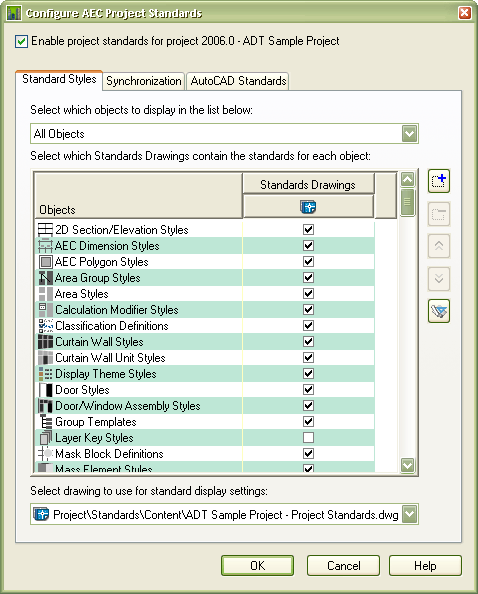
Project Workflow and Standards - This is one of the greatest news in ADT 2006.
Structural Enhancements
Ease of Use / Streamlined Workflow
Details Content and Customization
Database Connectivity / Interoperability / .NET APIs
Fit and Finish
PN performance has been improved.
Re-path performance has been improved.
Dropping views on sheets is quicker now.
Renderable Spline modifier is new in VIZ Render 2006. See a sample here.
Display themes
Export to AutoCAD has been improved and can also be scripted using -EXPORTTOAUTOCAD. AecObjExplode is not recommended to use any more since it has not been updated.
Spaces can now hold both net, gross and usable areas.
Structural objects has been enhanced so you can layout them along an edge or fill one or multiple bays.
Columns can be added to all nodes on a column grid in one step.
Beams can be added along a single segment, along a grid line or along all grid lines.
Braces are now much easier to add. They can be trimmed automatically.
Structural members can be constrained or unconstrained. So if a member is moved using the grip other members connected to its endpoints or along its length will be stretched and stay connected.
Trim planes are easy to add to structural objects.
Mitering of two structural objects is easy as well.
Custom member shapes can be created within the Style Manager using a graphical interface. The three different levels of details can also be overlayed so it's easy to compare them.
Curtain walls has been enhanced. They are much more easy to edit graphically.
Adding doors, windows and assemblies directly to a curtain wall is easier.
There is a new tool that allows you to apply a curtain wall to the faces of any object. It could be the surface of a mass object.
The ‘AEC Material Tool’ now allows you to define palettes of your favorite materials. Like all style tools, you can have the material definition imported from a library drawing. Use this new tool to apply materials directly to objects in the drawing editor, with the ability to apply the specified material definition to the selected component or additional components in one step. These assignments can be applied to the style or as an object override. To streamline the workflow of creating an AEC Material from a VIZ Render or VIZ 2006 material, you can now drag/drop a material from either of these applications into Architectural Desktop. The ‘Create AEC Material’ worksheet will appear allowing you to immediately define a new AEC Material based off a template material, and then create a new AEC Material Tool.
Object conversions added:
Door Tool to > Door/Window Assembly, Opening, or Window
Window Tool to > Door, Door/Window Assembly, or Opening
Opening Tool to > Door, Door/Window Assembly, or Window
Slab Tool to > Area or Space
Space Tool to > Area or Slab
Closed Polylines to Mask Blocks: Convert to > Mask Block
Mass Elements: Convert to > 3D Solid or Free Form Mass Element
Roofs: Convert to > Roof Slabs
AEC Polygon: Convert to > Polyline
More details content:
• Masonry anchors
• Control Joints
• Sealant, sealant + backer rod
• Fiber expansion joint
• Caulking
• Shingles
• Ridge shingles
• Ridge vents
• CMU shaped sills, ground/glazed face, solid, scored + round fluted
• Low slope roofing
• Roof copings, roof edges (fascias), preformed metal flashings, metal wall flashings and conductor heads
• Metal soffit vents: strip + preformed
• CH, J + E style wall studs
• Acoustical ceiling components
Detail Component Manager has been enhanced. The detail database can now be edited directly from within ADT 2006. New components can be created including all the needed xml files and database entries.
Component Properties: On the 'Parameters' tab you can choose from the six common jig types to create your own components. For example, use the 'Bookends' jig to array a repeating block between two fixed blocks. The values can either be explicit or they can reference a field in the database. Use the new Add Column functionality to add any necessary fields.
New to 2006 is the ability to toggle on an Edit mode where you can Add/Remove Groups and Keynotes to the active database from within the 'Select Keynote' dialog.
New to 2006 is the ability to create and edit keynote databases in the 'Keynote Editor'. The 'Keynote Editor' allows you to create a new database, create the grouping structure, and add keynotes. Use the 'Copy Series' right-click option on an existing keynote to make a series of copies.
Creating tags is now as simple as drawing basic AutoCAD objects.
Using the new 'Define Schedule Tag' wizard, select the linework and text and specify whether the text should be converted to a property or remain as a text label. The wizard then creates the necessary multi-view block for the tag.
Once you have created a multi-view block tag, you can then drop it onto a tool palette to create a Tag Tool. The Tag Tool allows you to easily create tags with various insertion parameters, such as layer key, constrain to object, rotate to object, leader type.
With the tag tool, you can also use it to apply property data only. This can be used when you need to attach data to objects but do not need an actual symbol.
New to 2006, now when you select tags, you have expected context menu options such as 'Add Selected' or the new 'Edit Attribute Orientations' option.
In Architectural Desktop 2006 the new Break Mark Tool allows you to add necessary break marks to your documents. The Break Mark Tool comes in two behaviors - 'mask' and 'trim', and comes in two types - single and dual.
New AEC Modify Tools like Array, Reposition From, Space Evenly and Center makes life easier when working in ADT.
Still missing. Wish list for the next time.
Some of the improvements in the Sheet Set Manager (SSM) in AutoCAD 2006 are not in Project Navigator (PN).
In Project Navigator the icons for Constructs and Elements should show if they where collapsed or expanded.
In Project Navigator it should be possible to select multiple construct, elements or views and open them, copy, delete or move them.
In Project Navigator it should be possible to open construct, elements or views as read only.
In many cases I have found that to have a good result when running Export to AutoCAD "Use Insert Method when binding Xref" has to be cleared. The problem is that it might only be for a layer or two that this is needed. Most layers are the same so there is no need to have them prefixed with the layer name. I suggest that there would be a third alternative to optimize this by only adding the prefix when layers are different.
Display themes should support gradient fills.
If a display theme is active and you then changes display configuration the display theme is not refreshed or updated.
Multiple display themes should be possible to have active at the same time. E.g. one for walls, one for doors/windows and one for spaces/areas.
Folders in PN should have a description property that shows up in the detail sub window. That way it's easier to describe and document what should go in each folder. When a new user starts working on a project it's easier for them as well.
Please add Drawing Recover Manager to the File>Drawing Utilities menu just as in AutoCAD.
If you have a category in the Content Browser with several palettes and drag and drop the category to the Tool Palettes it creates a group with several palettes. That is all great but when later adding more palettes to the category I would like them to also be added to the palette group.
An Auto-refresh option specific for CAD Managers to control. Instead of having ADT refresh when opening it would be possible for the CAD Manager or catalog responsible to set a version on the catalog/category/palette so that the refresh just checked against this version number. This would increase the performance. It should also be possible to enforce the sorting of the tools to the users.
It should be possible to better control what object is found by the Property Data Locator. If there are multiple spaces on top of each other only the one on top is found. One idea is to restrict what should be found by using classifications.
Spaces should support sloping floor and roof.
A room or space object that was linked to the walls surrounding the room so that when the walls changed the room also changed.
Walls that had a property that could be linked to the height of the level defined in PN.
Intelligent and automated placing of tags. E.g. if a new door is added and the tags are in a specific view the new door should automatically be tagged.
When exporting to AutoCAD it would be good to have an option to convert fields into plain text. Otherwise some text might not be correct when not in a project environment.
I wish WallEditJustification accepted multiple walls.
Add a command line switch to be able to start ADT with a specific project (apj file). It should also work to double click on an apj file in Windows Explorer.
AutoCAD help has the ability to send comments on the help documentation but I cannot see that ADT help has the same. I think it would be valuable if it was there as well. "Using this form sends your comments to the Autodesk Technical Publications group responsible for this documentation."
ADT should have a functionality like Revit that controls of a tag comes outside the room.
AecExportPropertyData should support selection option "All".
During a repath .bak files should be created.
It should be easier to create new sheets by copying existing ones.
Have a revision history on object level so it's possible to see who and when an object was added or changed.
When opening a construct or the like in PN that someone else has open it just asks to open it as read only. It should say who has it open without having to look in PN for the details on that.
It should be possible to add hyperlinks to styles.
A Property Data Format that handles hyperlinks so they are clickable.
It should be possible to copy text from a Property Set Property in Properties even if it is read only.
Support for different elevation heights for different divisions. I want to have support for multiple buildings or parts of the same building with different level heights within the same project.
In Project Navigator if a folder/category is empty it should now show a + sign. In sheets this is not an issue.
Style Manager performance is really bad navigating from one style to another. Like 2-4 seconds.
When double clicking on the icon of a style in the right window of the Style Manager the style is not opened, only if you double click on the text. It should work double clicking on the icon as well.
Better support for working with different design options.
It should be easy for users to validate when working with walls so that it doesn't matter if the line they are tracing above is at an angle of 0.0001 or the like. Some kind of fuzz logic should be added.
Placement of doors within wall. Have the frame location within the wall configurable per door style as well as per object. As now having it centered is not the most used case for us.
In PN when right clicking on a sheet you can get the message "Sheet set is being edited by another user." It would be a big help to also get the name in that message.
Existing bugs, feature limitation or other issues.
The command line cannot be auto-hidden.
There is a problem if VBA (acvba.arx) is loaded so the location subheader is missing in Properties on some objects. Some properties on some tools are also missing like Property def location, Layer Key, Layer Key location and Tag location on tag tools. (Solved with SP1)
If I drag a group/category from Content Browser to the tool palette that the icons are white/blank. Try for example to go into the "Sample Palette Catalog - Metric" and drag "UK Palettes" into ADT. If the category is set to "Link items when added to workspace" it's possible to refresh the palette as a workaround but otherwise it's not.
Export to AutoCAD can result in unexpected behavior if any of the xrefs need to be audited. Some things might be missing and frozen layers might show up.
The Project Navigator has some problems with performance, especially if the speed on the network is low (10 Mbps or lower). There is a lot of network traffic created and it is multiplied with the number of files in the project. Hotfix - Project Navigator Performance on a Remote Server
If you try to access project properties from the Project Browser without having read and write access to a project ADT might crash with this error: AutoCAD Error Aborting - FATAL ERROR: Unhandled Access Violation Reading 0x000c Exception at 7542ad5ch
If you make certain changes to a property set that has automatic numbering the numbering changes. If you have a lot of existing objects numbered it's better to create another property set.
Automatic rotation of tags based on the objects rotation when added using a tool doesn't work as expected. (Fixed in SP1)
On the Sheet tab in PN the Detail part of the window doesn't have any scroll bar and makes it hard to scroll in the text. In AutoCAD it has the scroll bar.
If the Sheet Set storage is saved in a non default location it can result in problems if the project is moved or archived.
Tool Palette File Location doesn't change when starting a project based on another project used as a template. The Sheet Storage Location for Sheet Creation is not updated or repathed.
Readme info.
Known Issues in ADT 2006
Working with Previous Versions
- Using the new Display Themes object will create proxy objects when opened in previous versions of Architectural Desktop.
- The new Gross and Usable profiles for spaces are not supported in previous releases. Enabling and using this feature in Architectural Desktop 2006 will result in spaces only displaying the Net boundary in previous versions, as this was all that was available in previous versions.
- The new mask option for Break Mark Tool is not supported in previous releases. Using this feature in Architectural Desktop 2006 will result in Break marks only displaying the cut line and not the masked area in previous versions of Architectural Desktop.
- An additional display representation was added in ADT 2006: "Anchor Extended Tag to Entity" for schedule tags using the constrain option. Since this display representation is not present in prior versions of ADT, the representation will show up as proxy in these versions.
- Uninstall of ADT 2004 after ADT 2006 has been installed will break Tool Palettes in this version. Running a Repair Registry will restore proper operation.
- Database Field Codes values are cached but will not update in previous versions of ADT or AutoCAD.
AEC Details
-
Users should be careful when deleting records from size tables. This operation is harmless if there are no drawings that reference the deleted rows. Otherwise users may have some problems since the IDs can be reused. For example, a "size" record with record ID = 100005 and some drawing object "A" references this "size". There are two (2) potential problems after the user deletes this "size" record: If the "Size" record is deleted, we cannot get the properties of object "A", thus no data will be displayed on the Extended data tab of the property palette for that detail component; If the user creates a new "size" record it may get the same ID = 100005. Drawing object "A" will reference a newly created record after that. The actual geometry of object "A" is based on parameters of the deleted record. But if we check its properties we will get the data from the new "size" record.
-
When initially specifying a drawing in the Component Properties dialog; the “Block Drawing” field may be completely blank or may contain “Browse…”. However, the drawing has been correctly selected. Exiting and re-entering the Component Properties dialog or changing a selection in another field's drop list will refresh the field and display the drawing path correctly. This affects the Stamp, Bookends and Linear Array jigs.
Drawing Management
- New Project features in ADT 2006, for new projects and updated projects, will be lost if the Project Properties or Project Sheet Set are modified in previous versions of ADT. For example, this includes but is not limited to, the use of Relative Paths in ADT 2006.
- You may encounter missing buttons on the Configure Project Standards dialog. The only line of NVIDIA cards that successfully handle cad graphics are the Quadro line. Problems such as missing buttons in dialogs are known to occur with the NVIDIA GeForce4 4200 Go, for example.
- If you add a callout or other annotation to a manually created Named View in a view drawing & drop into a sheet file, those objects will be frozen in the current viewport. Thawing the layers in the sheet’s viewport will display your missing layers. You will not see this issue if you create the model space view from Project Navigator.
Layer Manager
- After a layer is deleted, you must OK from the Layer Manager before you can create a new layer of the same name.
- Creating New Layer From Standard in Layer Manager switches to "All Used" layer filter.
- Restoring a Layer Snapshot will not change the Lineweight, Plot Style or Plot (Yes/No) settings.
3D DWF
- Some double-byte characters will not display correctly in 3D DWF files.
VIZ Render
-
Link to VIZ Render. It is possible for Architectural Desktop to Link to VIZ Render while VIZ Render is otherwise occupied, such as rendering. This can result in an Application Error and loss of data from Architectural Desktop and/or VIZ Render. It is recommended that data not be pushed from Architectural Desktop to VIZ Render while VIZ Render is otherwise occupied.
-
If a VIZ Render file and its source drawing file are relocated, Relinking or Reload of data may overwrite changes made with in the VIZ Render scene.
-
User content paths are dependant on first user run. If the Administrator is the first user to run Architectural Desktop, then some VIZ Render data paths will be set to look to different directories than if a user has first run. Path locations can be verified in the Configure paths dialog.
-
In the Tool Palettes page of the Customize User Interface dialog, deleting a palette in the same dialog instance of the Customize User Interface dialog will delete any new Groups created.
-
When using Adaptive Sub-Division radiosity on older files, the default settings may be incorrect.
-
The default Mesh Settings are: Metric (Imperial)
Maximum Mesh Size: 1.0 (3' 3 11/32")
Minimum Mesh Size: 0.1 (0' 3 29/32")
Contrast Threshold: 75.0 (75.0)
Initial Mesh Size: 0.3 (0' 11 25/32") -
Substitution Manager. Substituting an item from an external reference of a drawing linked into VIZ Render will replace the whole external reference.
-
3rd Party Plugins. Plugins created for previous versions of VIZ Render may not function properly in VIZ Render 2006.
-
The Properties of the last material i-dropped from the Render Material Catalog of the Content Browser are unavailable. The workaround is to drop one additional material and delete it. This refreshes the Scene - Unused palette to recognize the one you want. This does not affect materials directly i-dropped from the Render Material Catalog onto an object in the scene.
Project Standards
-
If you have Windows XP SP2 installed, Audit reports may appear not to function properly. In order to view the Audit reports associated with Project Standards as they are intended to be used, you must change the settings via the Information Bar at the top of the Internet Explorer page. Right click on the Information Bar and choose Allow Blocked Content. By doing this, you will have access to the additional functionality via the radio buttons. For additional information about this setting for Internet Explorer, please consult Microsoft's Help system.
-
When Project Standards is enabled for a project, some actions in Style Manager and Display Manager may not update the tree icons properly. Closing and reopening Style Manager or Display Manager will display the proper icons.
Additional Issues
-
Windows Explorer:The new 'Find within Explorer' feature of AutoCAD 2006 does not support Architectural Desktop objects.
- Layer Keys: The DISPTHEME layer key has been added to support the new Display Themes feature.
- Schedule External Drawing: Please notice that if you take advantage of the new relative path option in ADT 2006, prior releases will fail to recognize this. It is recommended not to use relative paths if drawings are to be used in prior versions of ADT.
- Drape Command: Regular extrapolations may produce unexpected results, such as 'wavy' topo lines where they should be level. If this condition is encountered, try creating a non-regular topo.
- Section/Elevation Object Hatching: Solid hatch patterns used for Surface and Section hatching will not be displayed in 2d Section and Elevation objects. Instead, you may use another hatch pattern, such as Line, set at a dense hatch scale to simulate the solid hatch. This could cause slow performance depending on the amount of hatching required.
- Merge Common Materials: Merge Common Materials may fail to work in Sections and Elevations where a Slab Material is merged with other Object Materials. To workaround this issue, disable Merge Common Materials for the Slabs and use Edit Linework to remove lines between Slabs and other Objects.
- Smart Blocks: It is not recommended to use ADT objects in Smart Blocks, nor to edit blocks containing ADT objects with the Smart Block Editor (BEDIT). Doing so can cause unexpected results.
-
Database field codes and Relative path option in a project standards environment: If you are using Database field codes in a Property Set Definition in a project standards drawing, it is not recommended to use Relative path option when creating the database link. You will observe problems resolving the correct path to the database.
-
Spaces: If you use Add Selected from Spaces that were created using the Rectangle or Polygon option you will see unpredictable results.
-
Editing Details Databases in MS Access: Due to limitations in Microsoft® Access 2000, we recommend that you edit Details Databases in Microsoft Access 2002 or newer. Opening the database in MS Access 2000 may cause the default value for "Allow Zero Length" attribute for the description field in the Components table to be errantly set to “false”. This can be reset to “true” using Access 2002 or newer.
-
Style Manager: Note that if new Structural Member styles or Opening Endcap styles are created in a drawing that is only opened in Style Manager, you will not be notified to save the drawing if the styles have not been edited.
-
External Reference Files: Avoid tagging objects in a drawing that is attached as an Xref Overlay. While there will be no problem in the original drawing, if that drawing is subsequently Xref attached to a new host drawing, you will encounter "Enhanced reference audit problem" error messages. This is due to the fact that Overlay attached Xrefs are dropped when their host is subsequently attached to another drawing. Since the lowest level drawing is no longer present, any tag or AEC dimension that is based on an object in that drawing will have a broken reference.
-
Grips: Setting UCSFOLLOW to 1 will interfere with the automatic UCS changes that occur when some grips are selected. A detailed explanation follows.
-
A drawing with UCSFOLLOW = 1 for one or more viewports will NOT allow dragging any Z-direction oriented grip (example -wall height grip ). The dynamic dimensions will still work, and osnaping along Z direction will work. In other words, temporary change in UCS is not allowed by any grip if there exists one or more viewports with UCSFOLLOW = 1.
-
A SAVE is recommended immediately after any change in UCSFOLLOW system variable.
-
Export to AutoCAD: From Top View all objects drawn at an elevation other than 0 will be flattened to 0. Hatches on these objects are an exception to this.
-
Stairs. Styles that contain a center stringer may show a change in appearance from previous versions. This is due to the Cleanup setting on the Stringer tab of the Stair Style. In previous releases, centered stringers under flights and landings would cleanup with each other even if this setting was "Truncate." If you see that the stringer has changed, it is probably due to this setting. Change it to "Cleanup" and the previous appearance will be restored. However, in the case of U-shaped, 1/2 Landing stairs, the stringer will always have the Truncated appearance. Use a Multi-landing stair with 1/2 landing to correct this problem.
-
Dynamic Input Settings. Due to instability in certain situations, the initial Dynamic Input behavior is limited to "Enable Dimension Input where possible." In order to investigate other new features, right-click on the DYN button, pick "Settings..." and check "Enable Pointer Input" and "Show command prompting and command input near the crosshairs." Note that if Pointer Input is enabled, the Visibility setting "As soon as I type coordinate data" may cause Architectural Desktop to hang when using the Tab key to switch fields
Tips & Trix
AutoCAD 2006 and the included ADT OE
Property Data Location on Spaces in ADT
Autodesk adds RSS feeds for product knowledge base
Updates & Service Packs
|
Links.
Architectural Desktop 2006 New Features Workshop: http://www.autodesk.com/us/interactiveoverviews/adt2006/
Detailed feature summary: Architectural_Desktop_2006_Feature_Summary_v1.pdf