
About | Download | Newsletter | System requirements | Purchase | Documentation | Version History | License agreement | Customers
About
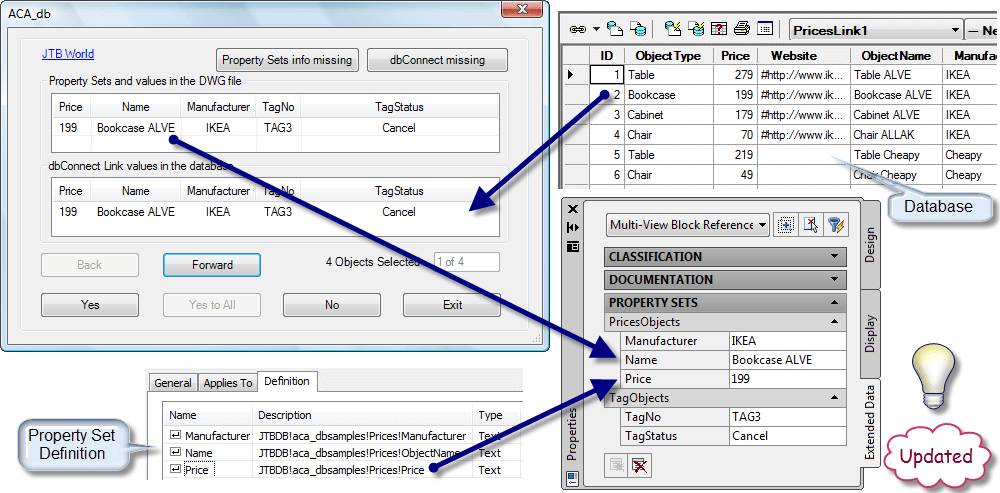
Make use of AutoCAD Architecture, AutoCAD MEP, AutoCAD Map 3D or AutoCAD Civil 3D more fully in your BIM process. Property Set values can automatically be updated back and forth to one or many external databases. If you make changes to the Extended Data values within a Property Set they can be synchronized back to the external database. Any Property in a Property Set Definition can be exported and all editable Properties can be imported.

ACA_db will improve the BIM process and experience and will improve quality of your data and remove redundancy and conflicts of data.
Download
Try it for free for 30 days.
JTB_ACA_db_7.1.0.zip ACA 2017, ACA 2018, ACA 2019, ACA 2020, ACA 2021, ACA 2022, ACA 2023, ACA 2024, ACA 2025 and ACA 2026.
ACA_db_samples.zip Access and SQL Server sample databases.
Script to create MySQL database.
Alternatively download from Autodesk App Store.

Older versions:
aca_db 2017-2020.zip (228KB) ACA 2017, ACA 2018, ACA 2019 and ACA 2020. Version 4.2
ACA_db_2016_4_1.zip (157KB) only for 2016. Version 4.1 supporting 32-bit and 64-bit.
ACA_db_2013_4_1.zip (156KB) only for 2013, 2014 and 2015. Version 4.1 supporting 32-bit and 64-bit.
ACA_db_2010_4_1.zip (159KB) only for 2010, 2011 and 2012. Version 4.1 supporting 32-bit and 64-bit.
ACA_db_2010.zip (236KB) only for 2010, 2011 and 2012. Version 3.0. 32-bit only.
ACA_db_2009.zip (236KB) only for 2009-versions. Version 3.0. 32-bit only.
ACA_db_2008.zip (236KB) only for 2008-versions. Version 3.0. 32-bit only.
System requirements
AutoCAD Architecture 2026 (ACA 2026) or AutoCAD MEP 2026 (AMEP 2026) or AutoCAD Map 3D 2026 or AutoCAD Civil 3D 2026 (and older).
AutoCAD Architecture 2025 (ACA 2025) or AutoCAD MEP 2025 (AMEP 2025) or AutoCAD Map 3D 2025 or AutoCAD Civil 3D 2025 (and older).
AutoCAD Architecture 2024 (ACA 2024) or AutoCAD MEP 2024 (AMEP 2024) or AutoCAD Map 3D or AutoCAD Civil 3D 2024 (and older).
AutoCAD Architecture 2023 (ACA 2023) or AutoCAD MEP 2023 (AMEP 2023) or AutoCAD Map 3D or AutoCAD Civil 3D 2023 (and older).
AutoCAD Architecture 2022 (ACA 2022) or AutoCAD MEP 2022 (AMEP 2022) or AutoCAD Map 3D or AutoCAD Civil 3D 2022 (and older).
AutoCAD Architecture 2021 (ACA 2021) or AutoCAD MEP 2021 (AMEP 2021) or AutoCAD Map 3D or AutoCAD Civil 3D 2021 (and older).
AutoCAD Architecture 2020 (ACA 2020) or AutoCAD MEP 2020 (AMEP 2020) or AutoCAD Map 3D or AutoCAD Civil 3D 2020 (and older).
AutoCAD Architecture 2019 (ACA 2019) or AutoCAD MEP 2019 (AMEP 2019).
AutoCAD Architecture 2018 (ACA 2018) or AutoCAD MEP 2018 (AMEP 2018).
AutoCAD Architecture 2017 (ACA 2017) or AutoCAD MEP 2017 (AMEP 2017).
AutoCAD Architecture 2016 (ACA 2016) or AutoCAD MEP 2016 (AMEP 2016).
AutoCAD Architecture 2015 (ACA 2015) or AutoCAD MEP 2015 (AMEP 2015).
AutoCAD Architecture 2014 (ACA 2014) or AutoCAD MEP 2014 (AMEP 2014).
AutoCAD Architecture 2013 (ACA 2013) or AutoCAD MEP 2013 (AMEP 2013).
AutoCAD Architecture 2012 (ACA 2012) or AutoCAD MEP 2012 (AMEP 2012).
AutoCAD Architecture 2011 (ACA 2011) or AutoCAD MEP 2011 (AMEP 2011).
AutoCAD Architecture 2010 (ACA 2010) or AutoCAD MEP 2010 (AMEP 2010).
AutoCAD Architecture 2009 (ACA 2009) or AutoCAD MEP 2009 (AMEP 2009).
AutoCAD Architecture 2008 (ACA 2008) or AutoCAD MEP 2008 (AMEP 2008).
AutoCAD Civil 3D
AutoCAD Map 3D
Both 32-bit and 64-bit is supported.
Any database like Access (MDB or .accdb) or SQL Server that can be connected with dbConnect within AutoCAD is supported. Other examples are SQL Server Express, MYSQL, MariaDB, Oracle, ODBC, etc. AutoCAD 64-bit does only support Access 2010/2013/2016 64-bit or the free Microsoft Office 12.0 Access Database Engine OLE DB Provider/Microsoft Access Database Engine 2010 Redistributable or Microsoft Access Database Engine 2016 Redistributable.
Excel is not supported as it is not a real database.
If you run 64bit AutoCAD you cannot have 32bit Office installed and also connect to MS Access database.
Any operating system that can run the above is supported from Windows XP, Windows Vista, Windows 7, Window 8, Windows 8.1, Windows 10 and Windows 11.
JTB World is an Autodesk Authorised Developer

Purchase
New license: 150 USD for one license or less depending on the quantity of licenses. Support and upgrades is included for versions released within 1 year after purchase. If Auto-Renewal is selected it is 45 USD per year and can be cancelled at anytime.
Upgrade license: 45 USD for 1 year for one license or less depending on the quantity of licenses. If Auto-Renewal is selected it is 45 USD per two years and can be cancelled at anytime.
Upgrade license: 75 USD for 2 years for one license or less depending on the quantity of licenses. If Auto-Renewal is selected it is 75 USD per two years and can be cancelled at anytime.
Once you have purchased a license, follow the instructions and email to JTB World for the license activation key. See activation instructions here: JTB World Apps Licensing.
If you have really many users that you want to give access to this software we can discuss a discounted price based on your particular situation. Educational discounts available.
The license is perpetual. If you have more than one computer and you are the only user of the application one license is enough.
The network license manager is available at no extra cost and normally most useful for companies with quite many licenses.
If your US company is tax exempt contact us directly.
2Checkout (Verifone) supports 45+ online and offline payment methods globally, but availability depends on shopper country, currency.
Main families of payment methods
-
Credit/debit cards (global core): Visa, Visa Electron, MasterCard, Maestro, Eurocard, American Express, Discover/Novus, JCB, UnionPay, plus domestic Visa/MasterCard variants in markets like Brazil and Turkey.
-
Local/regional cards: Dankort/VISA (Denmark), Bancontact (Belgium), Postepay (Italy), CB/Carte Bancaire (France), local Turkish and Brazilian cards, and other regional card schemes.
-
Digital wallets: PayPal, PayPal Express, Google Pay, Apple Pay, Alipay, WeChat Pay, MobilePay (DK), Vipps (NO), and others like Skrill, Neteller, Qiwi, WebMoney, Trustly depending on region.
-
Bank transfer & offline: Local and international bank/wire transfer (US, DE, UK, rest of world), SEPA-type transfers in EU, purchase orders, and additional local bank transfer rails in EMEA/APAC.
Documentation
Installing
For the version 5.0 or later run the installer.
Activation
See activation instructions here: JTB World Apps Licensing.
Usage
Commands:
 |
AcDbSettings | Choose an ACA_Db master database to sync. This needs to be done once per drawing. Your drawing should be saved after setting. |
 |
AcDbMake | Register current drawing to Database to enable sync attributes data. This needs only to be done once per drawing. |
 |
AcDbIn |
Sync values from database based (on sync dir) to Property Set values in the current drawing. |
 |
AcDbOut | Sync Property Set values in the current drawing to the connected database. |
| JTBW_ACTIVATE_APPS | Open Activation Form to activate the app. This command is available in command line only. See activation instructions here: JTB World Apps Licensing. |
This app updates Property Set values back and forth to one or many external databases. If you make changes to the values within a Property Set they can be synchronized back to the external database. Any Property in a Property Set Definition can be exported and all editable Properties can be imported.
Open sample drawing in the app folder "C:\ProgramData\Autodesk\ApplicationPlugins\JTB-ACA_db.bundle\Contents\ACA_db_samples_2013.dwg"
The app needs a data link UDL file. Run AcaDbSettings command then click "Browse" button to choose one. There are 2 sample UDL files that included in the app, one for AutoCAD 32-bit and one for AutoCAD 64-bit. Both link to the sample "ACA_db_samples.mdb" file
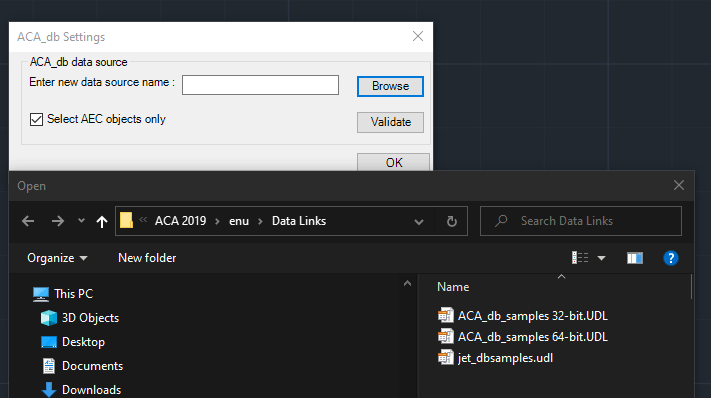
Select the proper UDL, then click OK.
Run AcaDbMake command to register the drawing to the selected database.
Once success, you can use AcaDbIn and AcaDbOut commands to sync Propert Values.
Setup your own database
Run AutoCAD native command "DBCONNECT" to create a data link UDL file. Alternatively copy and modify an existing UDL file or create one from scratch. (see screenshots below)
Right click on Data Sources and select Configure Data Source…
Give it a name.
Specify the database provider:
+ For 32-bit AutoCAD use Microsoft Jet 4.0 OLE DB Provider.
+ For 64-bit AutoCAD use Microsoft Office 12.0 Access Database Engine OLE DB Provider.
Make the Connection by selecting the database to use.
Then run AcaDBSettings command again to choose it.
You can also double click on the UDL file directly in Windows Explorer to edit the properties.
Database structure
The main database must contain the tables JTBW_Files, JTBW_PropertySets and JTBW_Properties.
Put the database in another folder than where this app is installed and make sure it is backed up.
The other tables that contain the actual data can be located in the same or in one or more other databases.
Program requires following mandatory tables in the database.
1. JTBW_Files (Column DWGNAME is mandatory)
This table can be manually populated otherwise the program will populate it automatically.
2. JTBW_PropertySets (Columns Property Set Name and Description are mandatory)
Manually enter the name of the Property Set Definitions in AutoCAD Architecture to be used. This value is case sensitive.
A description is optional.
3. JTBW_Properties (Columns ID, Property Name, Property Set Name, Description, DBConnection and IsDimensionInNumericFormat are mandatory)
Property Name must match an existing name in the specified Property Set Definition in AutoCAD Architecture. This value is case sensitive.
Property Set Name must match the name of the Property Set Definition in AutoCAD Architecture and also exists in the JTBW_PropertySets table. This value is case sensitive.
Description is optional.
DBConnection specify the name of the data source, table and column (field) separated with “!”. For example ACA_db_samples!WallObj!Length
IsDimensionInNumericFormat If yes, then dimensions are in numeric format. If no, then dimensions are in text format (feet & inches).
4. Any other tables stores property values (Columns DBID {AutoNumber data type and Long Integer size} , DWGNAME {Memo data type and long text string size} and HANDLE {Text data type with 255 field size} are mandatory).
These tables can also be in a separate database if there is a data source that identifies it.
Property Set Definitions and other notes
Use the command _AecStyleManager or Format menu to start the Style Manager.
Expand Documentation Objects on the left side and then expand Property Set Definitions.
Either an existing PSD can be used or a new can be created.
What makes a Definition to have the ability to be retrieving information from a database is that it is added to the database tables JTBW_PropertySets and JTBW_Properties.
Property set data type and database data type must be compatible.
A PSD must be linked to a single table.
An object must not have 2 or more records linked from same db link.
An object must not have 2 or more records linked from different db links referencing same table.
All automatic properties are considered as read-only. Such properties can sync to database but cannot sync from database.
Some further details.
- Property set data type and database data type must be compatible.
- A PSD must be linked to a single table.
- An object must not have 2 or more records linked from same db link.
- An object must not have 2 or more records linked from different db links referencing same table.
- All automatic properties are considered as read-only. Such properties can sync to database but cannot sync from database.
- All automatic properties are considered as read-only. Such properties can sync to database but cannot sync from database.
Older documentation: ACA_DB-UserManual.pdf
Setup files (older versions than 5.0)
- JTB.AcaDbXMgd_17.dll (for 2009) or JTB.AcaDbXMgd_18.dll (for 2010-2012) or JTB.AcaDbXMgd_19.dll (for 2013-2015) or JTB.AcaDbXMgd_20.1.dll (for 2016) or JTB.AcaDbXMgd 2017.dll (for 2017) or JTB.AcaDbXMgd 2018.dll (for 2018) or JTB.AcaDbXMgd 2019.dll (for 2019) or JTB.AcaDbXMgd 2020.dll (for 2020)
- ACA_db_samples.mdb
- ACA_db_samples_2007.dwg or ACA_db_samples_2010.dwg or or ACA_db_samples_2013.dwg
- ACA_db_samples.UDL
- ACA_db_license.txt (sent by email from JTB World upon request)
Setup procedure (older versions than 5.0)
- Place the DLL file in a single local folder.
For example C:\Program Files\JTB World\ACA_db . - Place also the license file ACA_db_license.txt in the same folder.
- ACA_db_samples.UDL should be placed in the Data Links folder. The location is found easiest by using the command OPTIONS and Files>Data Sources Location within AutoCAD.
- Place the MDB in a folder with read/write access.
The DLL needs to be loaded by your AutoCAD application and that can be done in different ways. Use one of the following options.
- Use the command NETLOAD and select the DLL. This loads the command in the current session only.
- Create a menu command, toolbar button, ribbon button or palette tool using CUI and force load it before running the command.
Macro or Command string:
^c^c(command "netload" "C:/Program Files/JTB World/ACA_db/JTB.AcaDbXMgd_18.dll") ACADBOUT; - Use one of the AutoLoad...reg files that can be provided. Double click on the file and accept to merge to the registry. This will make sure that the commands are available whenever you run AutoCAD.
- Add the row below to your acad.lsp file so it loads automatically when AutoCAD starts.
(command "netload" "C:/Program Files/JTB World/ACA_db/JTB.AcaDbXMgd_18.dll")
Solution to the following error is to right click on the DLL file and click on Unblock.
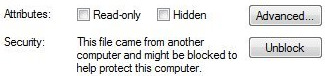
Cannot load assembly. Error details: System.IO.FileLoadException: Could not
load file or assembly 'file:///C:\Users\JTB\AppData\Roaming\JTB
World\.....dll' or one of its dependencies. Operation is not
supported. (Exception from HRESULT: 0x80131515)
File name: 'file:///C:\Users\JTB\AppData\Roaming\JTB
World\....dll' ---> System.NotSupportedException: An attempt
was made to load an assembly from a network location which would have caused
the assembly to be sandboxed in previous versions of the .NET Framework. This
release of the .NET Framework does not enable CAS policy by default, so this
load may be dangerous. If this load is not intended to sandbox the assembly,
please enable the loadFromRemoteSources switch. See
http://go.microsoft.com/fwlink/?LinkId=155569 for more information.
at System.Reflection.RuntimeAssembly._nLoad(AssemblyName fileName, String
codeBase, Evidence assemblySecurity, RuntimeAssembly locationHint,
StackCrawlMark& stackMark, Boolean throwOnFileNotFound, Boolean
forIntrospection, Boolean suppressSecurityChecks)
at System.Reflection.RuntimeAssembly.InternalLoadAssemblyName(AssemblyName
assemblyRef, Evidence assemblySecurity, StackCrawlMark& stackMark, Boolean
forIntrospection, Boolean suppressSecurityChecks)
at System.Reflection.RuntimeAssembly.InternalLoadFrom(String assemblyFile,
Evidence securityEvidence, Byte[] hashValue, AssemblyHashAlgorithm
hashAlgorithm, Boolean forIntrospection, Boolean suppressSecurityChecks,
StackCrawlMark& stackMark)
at System.Reflection.Assembly.LoadFrom(String assemblyFile)
at Autodesk.AutoCAD.Runtime.ExtensionLoader.Load(String fileName)
at loadmgd()
See also more details here: Solution to System.IO.FileLoadException Could not load file or assembly error
Version History
- 2025-04-09 - version 7.1.0
- Update to support AutoCAD Architecture 2026 and verticals
- 2024-12-27 - version 7.0.0
- Update to support AutoCAD Architecture 2025 and verticals
- 2023-04-02 - version 6.2.0
- Update to support AutoCAD Architecture 2024 and verticals
- 2022-04-25 - version 6.1.0
- Update to support AutoCAD Architecture 2023 and verticals
- 2021-08-02 - version 6.0.3
- Remove messages about uninstallation in very-silent installation mode.
- 2021-04-13 - version 6.0.2
- Support for ACA 2022
- 2020-10-23 - version 6.0.1
- Fixed missing file in the installer.
- 2020-09-12 - version 6.0
- Support for MySQL/MariaDB
- Minor fixes
- 2020-07-24 - version 5.0
- Support for ACA 2021
- New licensing functions
- 2019-03-28 - version 4.2
- Support for ACA 2020
- 2018-04-11 - version 4.2
- Support for ACA 2019
- 2017-04-01 - version 4.1 update
- Support for ACA 2018 added
- 2016-11-10 - version 4.1
- Support for ACA 2016
- Bug fixes
- 2012-09-16 - version 4.0
- Support for ACA 2013.
- Support for 64-bit.
- IsDimensionInNumericFormat added to table JTBW_Properties. If yes, then dimensions are in numeric format. If no, then dimensions are in text format (feet & inches).
- 2009-10-15 - version 3.0
- Now with support for full 2-way synchronization of data both from and to ACA respectively database.
- No need to use dbConnect to link object by object.
- More features suppored for ACA 2010 like manual property set variants (Integer, List, Real, Text and True/False) and list data types.
- 2009-03-23 - version 2.1
- Full support for AutoCAD Architecture 2010
- Support for table names with spaces or other non standard characters
- 2008-05-05 - version 2
- Several improvements under the hood
- Support for multiple database sources
- UI improvements
- Licensing
- Full support for AutoCAD Architecture 2009
- 2008-02-22 - version 1.1
- Support for AutoCAD Architecture 2009 beta
- The bug in ACA 2008 is fixed in ACA 2009 that cause the following "harmless" crash message when closing AutoCAD. "AutoCAD Error Aborting - INTERNAL ERROR: Attempt to access AecScheduleDataServices after shutdown!"
- 2007-12-28 - version 1
- First release for AutoCAD Architecture 2008
Screenshot from version 2.1
License agreement
The license agreement is found here.
Customers
















Contact us for any questions, wishes or comments.

ACA_db will help you expand and improve your BIM process.
Tags: AutoCAD Architecture add-on, AutoCAD MEP add-on, AutoCAD Architecture app, AutoCAD MEP app, Building Information Modeling